Adding Typeform to your site
Typeform lets you connect with site visitors and collect valuable information without coding a form.
How to add Typeform to your website
Get your Typeform ID
Log in to your Typeform account and create a new form or open an existing one.
Go to the Share panel and copy the unique ID at the end of the share link (e.g.,
ncUOgRbJinhttps://iy13kdlphpm.typeform.com/to/ncUOgRbJ).
Add Typeform to your Framer project
Open your Framer project.
In the Insert panel on the left, find Typeform under the Integrations section. Drag the Typeform component onto your canvas.
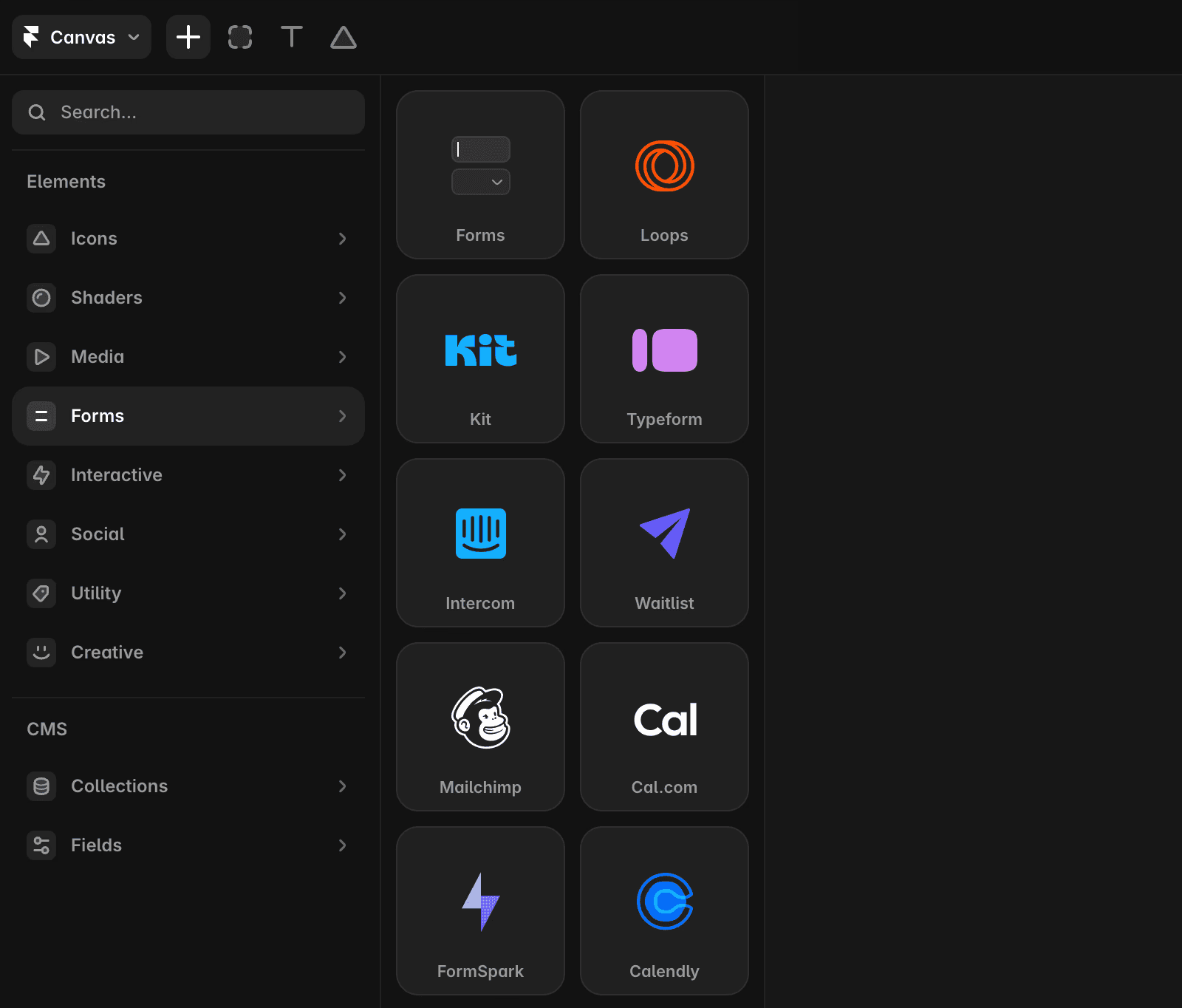
Set up the Typeform component
Paste your unique Typeform ID into the ID field in the properties panel on the right.
Customize the appearance by toggling the footer and header visibility.
Adjust size and pinning to control how the Typeform appears on your website.

Our native form solution
Framer also offers native forms with the following features:
Customizable forms with over 10 input types.
Designable form states for various interactions.
Data submission options via email, Google Sheets, or custom Webhooks.
Built-in spam protection and rate limiting for improved security.
For adding a native form, refer to this article.
Top use cases for Typeform in Framer
Embedding Typeforms allows you to quickly capture user data and enhance engagement. Here are popular use cases:
Support requests: Enable visitors to submit support tickets directly from your website. Use Zapier to connect Typeform submissions with help desk tools like Zendesk to automate support workflows.
User surveys: Collect insights from your audience to guide feature development or measure satisfaction. Offer giveaways to boost participation.
Job applications: Accept applications for open positions. Integrate submissions with your applicant tracking system or send them directly to your inbox.
At Framer, we use Typeform with Zapier to seamlessly link responses to internal systems for efficient tracking of surveys, questionnaires, giveaways, and more.
If you're still experiencing issues, please reach out to us through our contact page for further help.
FAQ
How do I embed a Typeform into my Framer website?
To embed a Typeform in your Framer website, first log in to your Typeform account and create or open a form. Go to the Share panel and copy the unique ID at the end of the share link (e.g., 'ncUOgRbJ' in 'https://iy13kdlphpm.typeform.com/to/ncUOgRbJ'). In your Framer project, open the Insert panel on the left, find Typeform under the Integrations section, and drag the Typeform component onto your canvas. Then, paste your unique Typeform ID into the ID field in the properties panel on the right.
Can I customize how the Typeform appears on my Framer site?
Yes, you can customize the appearance of the Typeform component in Framer. In the properties panel, you can toggle the footer and header visibility, and adjust the size and pinning to control how the Typeform appears on your website.
What are some common use cases for adding Typeform to a Framer site?
Popular use cases for embedding Typeform in Framer include enabling visitors to submit support requests, collecting user surveys to guide feature development or measure satisfaction, and accepting job applications. You can also integrate Typeform submissions with tools like Zapier to automate workflows, such as connecting support tickets to help desk tools or sending job applications to your inbox.
Updated
