Adding Meta Pixel to your site
This guide explains how to set up Meta Pixel for tracking and analytics on your Framer website.
How to add the Meta Pixel to your site
Create a Meta Business account
Visit Meta Business Suite and create your account if you don’t already have one.
Access Events Manager
In the left-hand menu, click “All Tools” and select “Events Manager.”
In the Events Manager, click “Connect Data Sources” on the left. A popup will appear.
Set up Meta Pixel
Choose “Web” as your data source and follow the steps to enter your website URL.
After entering the URL, select “Do it yourself” and choose the “Meta Pixel” option.
Install the base code
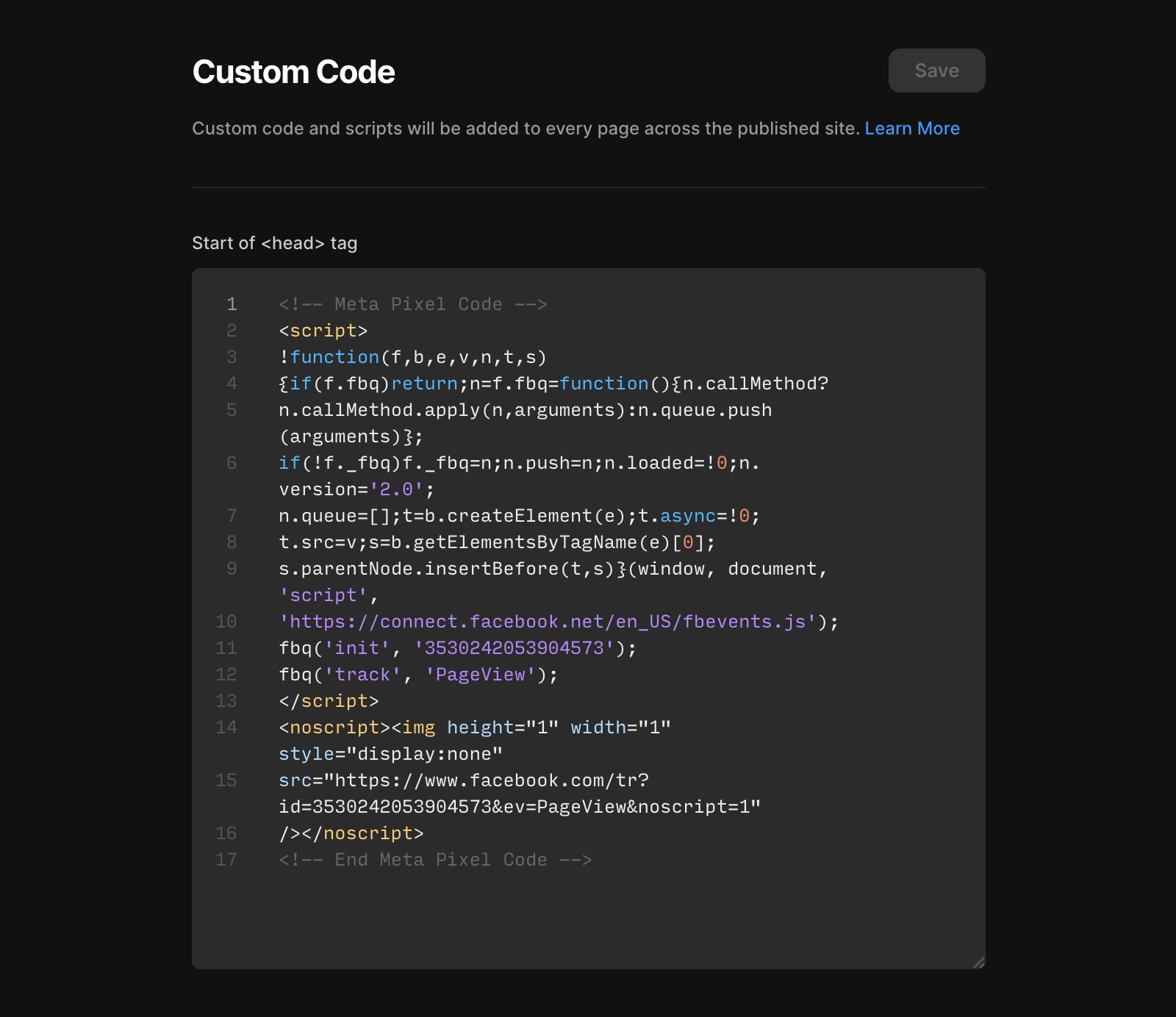
Copy the base code provided by Meta.
In your Framer project, navigate to Site Settings and paste the code at the start of the
<head>tag.Save the changes and republish your website.
Set up events
Use Meta's Event Setup Tool to define specific events (e.g., Add to Cart, Find Location, View Content).
Enter your published URL in the tool and select the buttons or links to track.
Test events
Go to the “Test Events” tab in Events Manager and enter your published URL.
Ensure Ad Blockers are disabled in your browser for accurate testing.
Events will appear in real time, but analytics data may take up to 30 minutes to display.
If everything is connected successfully, event activity will appear in the “Activity” section of your Meta analytics dashboard.
If you're still experiencing issues, please reach out to us through our contact page for further help.
FAQ
How do I add the Meta Pixel to my Framer site?
First, create a Meta Business account at Meta Business Suite if you don’t already have one. In the left-hand menu, click 'All Tools' and select 'Events Manager.' In Events Manager, click 'Connect Data Sources' and choose 'Web' as your data source. Enter your website URL, select 'Do it yourself,' and choose the 'Meta Pixel' option. Copy the base code provided by Meta. In your Framer project, navigate to Site Settings and paste the code at the start of the <head> tag. Save the changes and republish your website.
How can I set up and track specific events with Meta Pixel on my Framer site?
Use Meta's Event Setup Tool to define specific events such as Add to Cart, Find Location, or View Content. Enter your published URL in the tool and select the buttons or links you want to track.
How do I test if Meta Pixel events are working correctly on my Framer site?
Go to the 'Test Events' tab in Events Manager and enter your published URL. Make sure Ad Blockers are disabled in your browser for accurate testing. Events will appear in real time, but analytics data may take up to 30 minutes to display. If everything is connected successfully, event activity will appear in the 'Activity' section of your Meta analytics dashboard.
Updated