Hosting with Amazon CloudFront
CloudFront is Amazon’s content delivery network (CDN). Framer utilizes CloudFront as its default CDN for assets. You only require to set up your own CloudFront when you need greater control over your hosting.
Setup
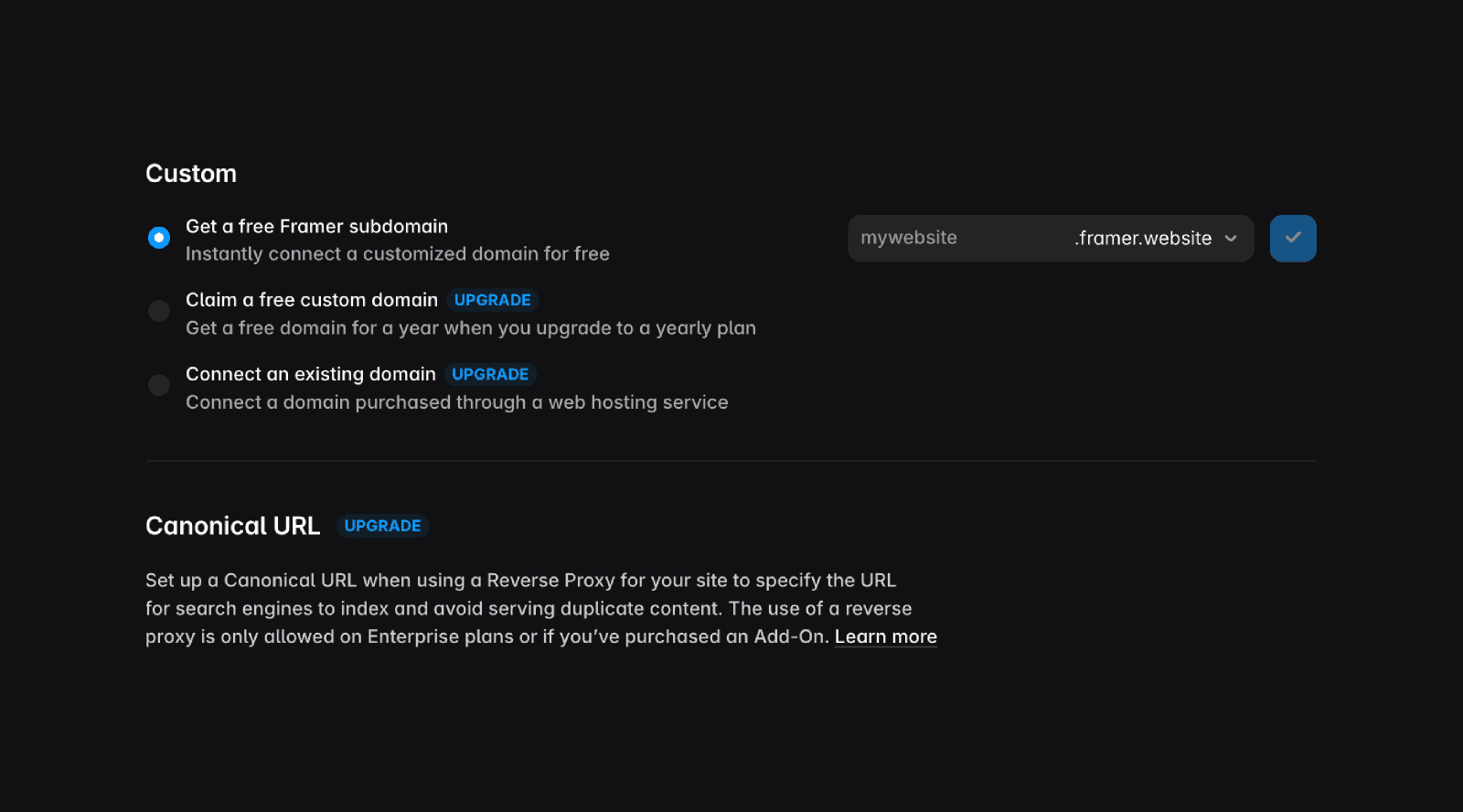
On your Framer project, go to Site Settings → Hosting → Domains. Add a free framer subdomain to your site (e.g. my-company.framer.website).
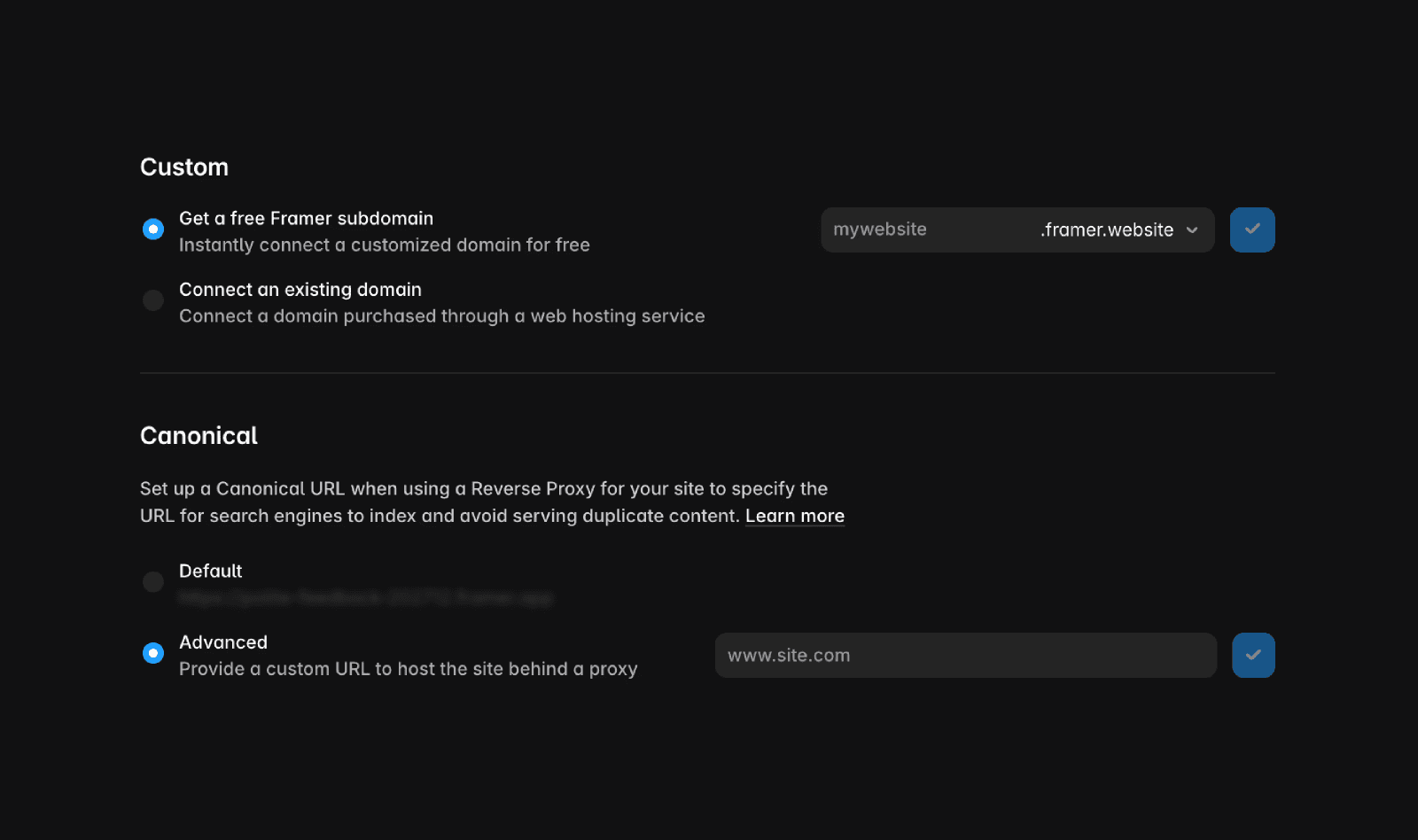
Next, make sure to set up your canonical URL. Still in Site Settings → Hosting → Domains, set the canonical URL option to “Advanced”, insert your custom domain (e.g. my-site.com) and publish your website.
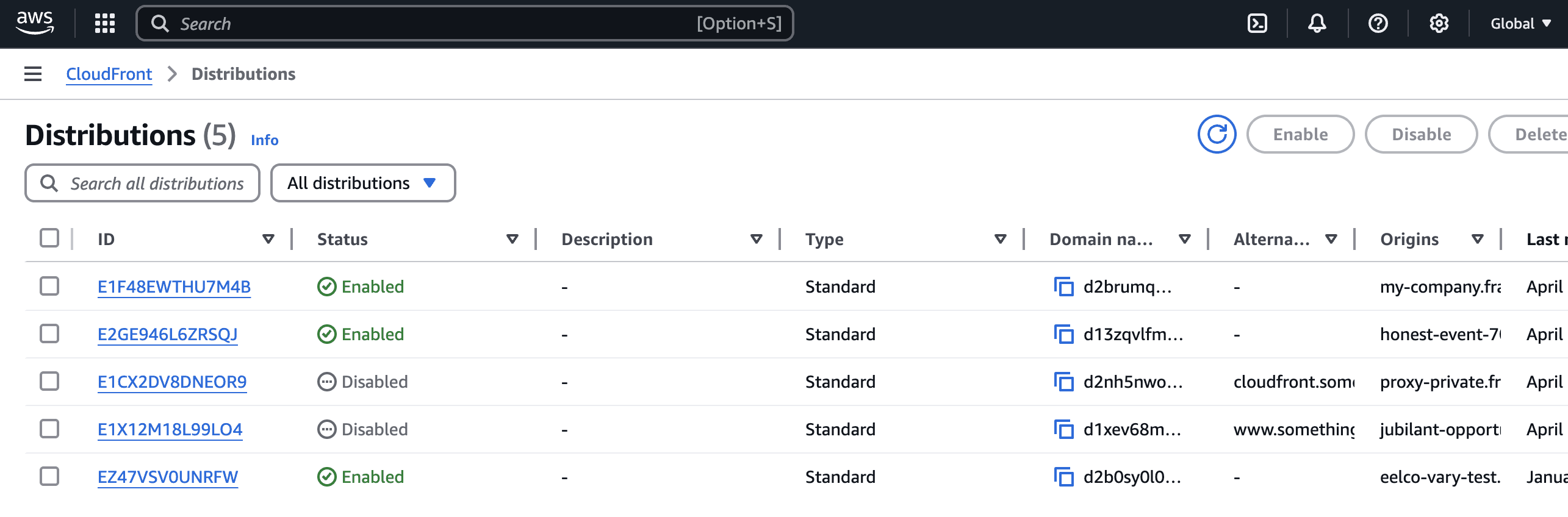
Log in to the AWS Management Console and go to CloudFront. Click “Create Distribution”.
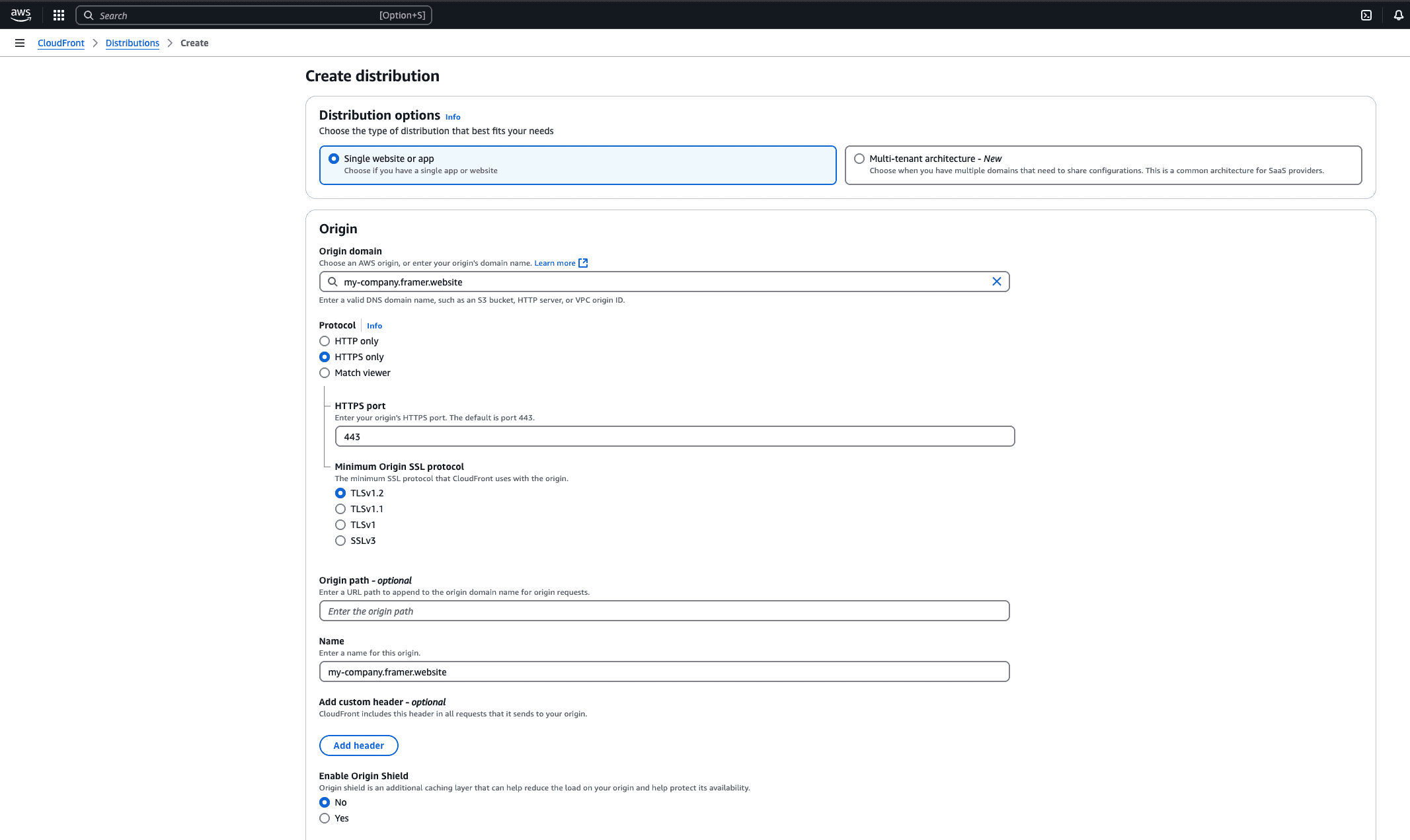
Add your Framer domain in the “Origin Domain” field, optionally tweak your settings.
Make sure to use your custom Framer subdomain and not the “Base domain” (<something>.framer.app).
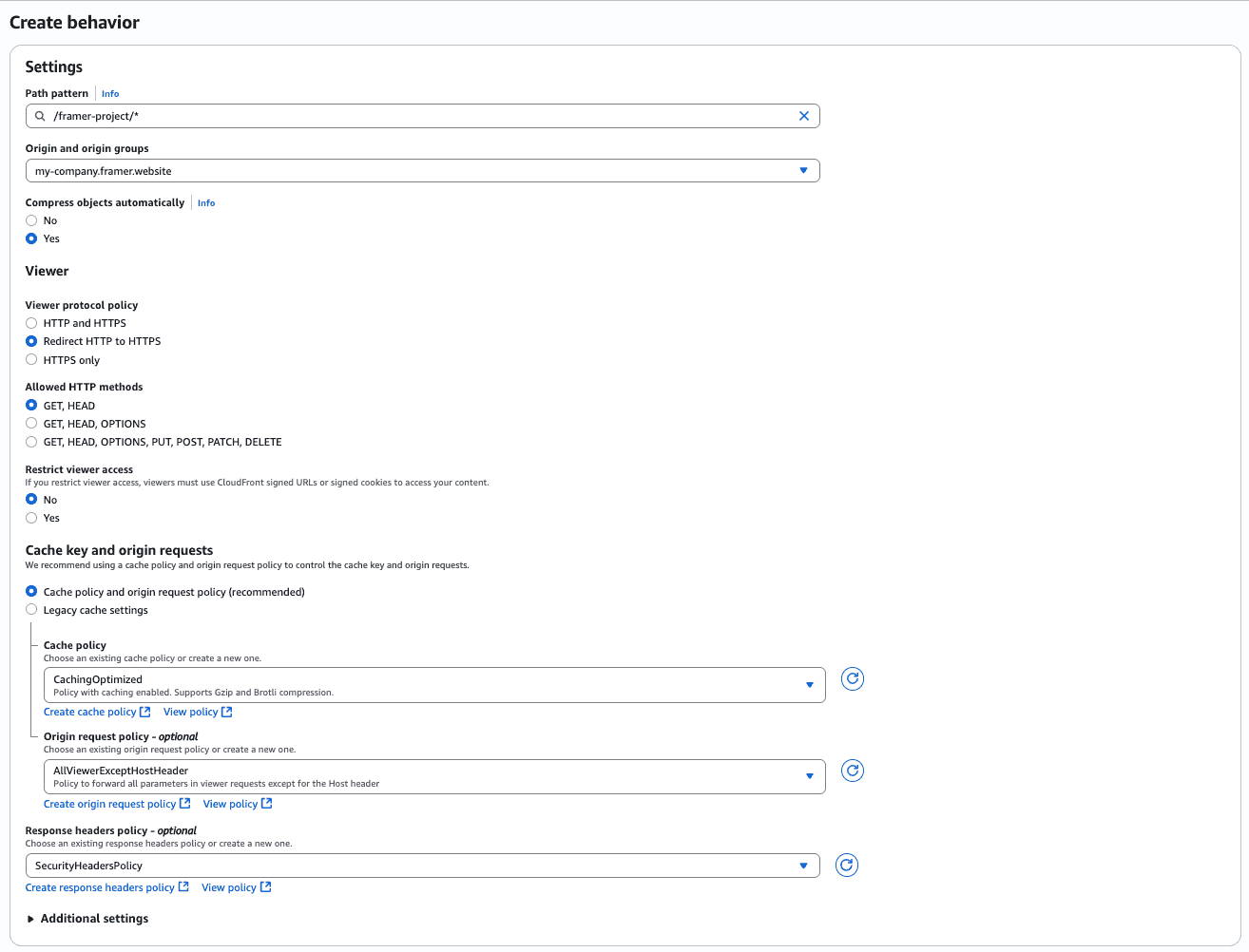
For the default cache behaviour, make sure to set
Viewer protocol policy:
Redirect HTTP to HTTPSAllowed HTTP methods:
GET, HEADNote: If you are password-protecting your Framer site, select “
GET, HEAD, OPTIONS, PUT, POST, PATCH, DELETE“ instead
Cache policy:
CachingOptimizedOrigin request policy:
AllViewerExceptHostHeaderResponse headers policy:
SecurityHeadersPolicy
Optionally tweak the settings. When you’re done, press “Create distribution”.
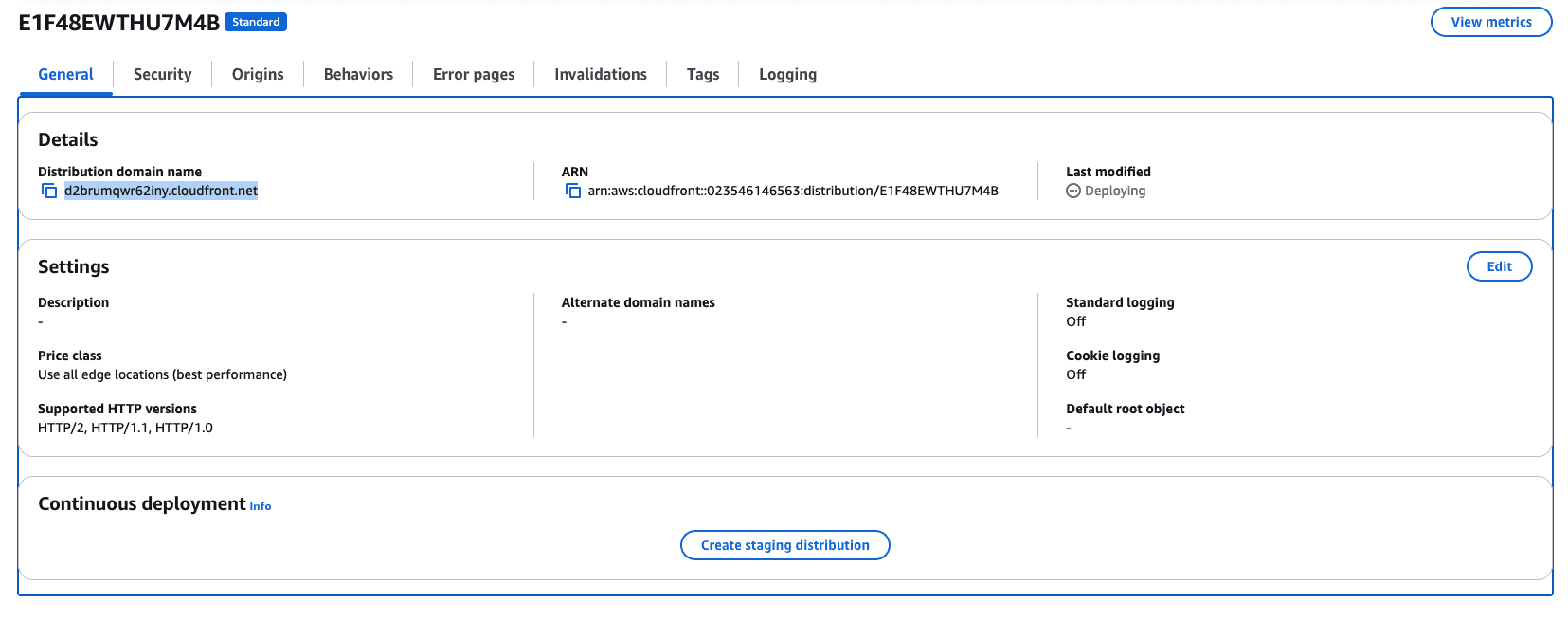
Once the distribution is deployed, click the link to access it. By visiting the distribution link, you can now view your Framer site hosted by CloudFront.
Setting up multiple origins
If you want to set up a CloudFront distribution like this:
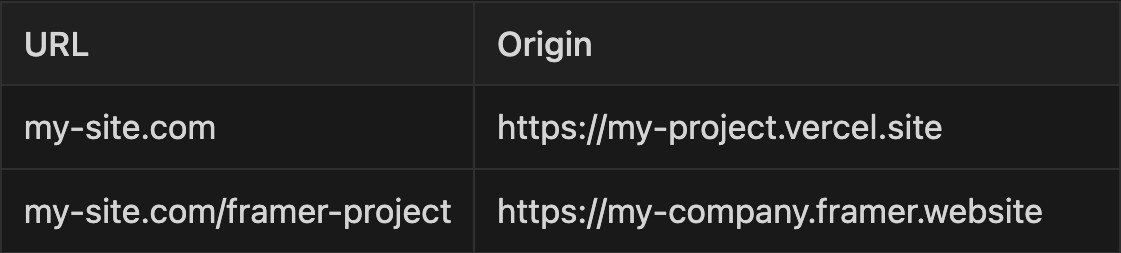
Start by creating a distribution following the steps mentioned earlier.
Then, for the main distribution (my-site.com), go to the “Behaviors” tab and click on “Create Behavior”.
Next, add a path pattern “/framer-project/*“ and choose the Framer project origin. There are several matching options available, but essentially, this configuration will forward everything under “/framer-project/“ to the Framer site.
Make sure you select the same settings as described in the previous section (Viewer protocol policy, Cache policy, Response headers policy, etc).
Save your changes and wait for them to be deployed. Now you’ll have two origins under a single CloudFront distribution. As a next step you will likely want to add your main domain to your CloudFront distribution:
Tip: if you want CloudFront to work with your naked / apex domain (mysite.com instead of www.mysite.com) it’s easier to use Route53.
Please see also our Advanced Hosting features Multi Site rewrites, Custom Headers.
If you encounter any issues or need further assistance, feel free to contact Framer’s support team through our contact page.
FAQ
How do I set up my Framer site to work with Amazon CloudFront?
On your Framer project, go to 'Settings' -> 'Domains'. Add a free Framer subdomain to your site (e.g. my-company.framer.website). Next, set up your canonical URL by selecting 'Advanced' in the canonical URL option, inserting your custom domain (e.g. my-site.com), and publishing your website. Then, log in to the AWS Management Console, go to CloudFront, and click 'Create Distribution'. Add your Framer domain in the 'Origin Domain' field (make sure to use your custom Framer subdomain and not the base domain). Adjust the settings as needed and create the distribution. Once deployed, you can access your Framer site via the CloudFront distribution link.
What are the recommended CloudFront settings for hosting a Framer site?
For the default cache behaviour in CloudFront, set the Viewer protocol policy to 'Redirect HTTP to HTTPS', Allowed HTTP methods to 'GET, HEAD' (or 'GET, HEAD, OPTIONS, PUT, POST, PATCH, DELETE' if your site is password-protected), Cache policy to 'CachingOptimized', Origin request policy to 'AllViewerExceptHostHeader', and Response headers policy to 'SecurityHeadersPolicy'.
How can I set up multiple origins for my Framer site using CloudFront?
Start by creating a distribution as described in the setup steps. For the main distribution (e.g. my-site.com), go to the 'Behaviors' tab and click 'Create Behavior'. Add a path pattern like '/framer-project/*' and choose the Framer project origin. Use the same settings as previously described (Viewer protocol policy, Cache policy, Response headers policy, etc). Save your changes and wait for deployment. This will allow you to have two origins under a single CloudFront distribution.
Updated
