Adding Hotjar to your site
Hotjar provides tools like Heatmaps, Recordings, Feedback, Surveys, and Interviews to help you understand user behavior. Follow these steps to add the Hotjar tracking script to your Framer website.
How to add Hotjar to your site
Set up your Hotjar account
Log in to your Hotjar account.
Go to the Sites page and add your website’s main URL (include
https://).
Get the tracking code
Copy the tracking code provided by Hotjar after adding your site.
Add the tracking code to Framer
Open your Framer project and navigate to General Site Settings.
Paste the tracking code at the start of the
<head>tag.
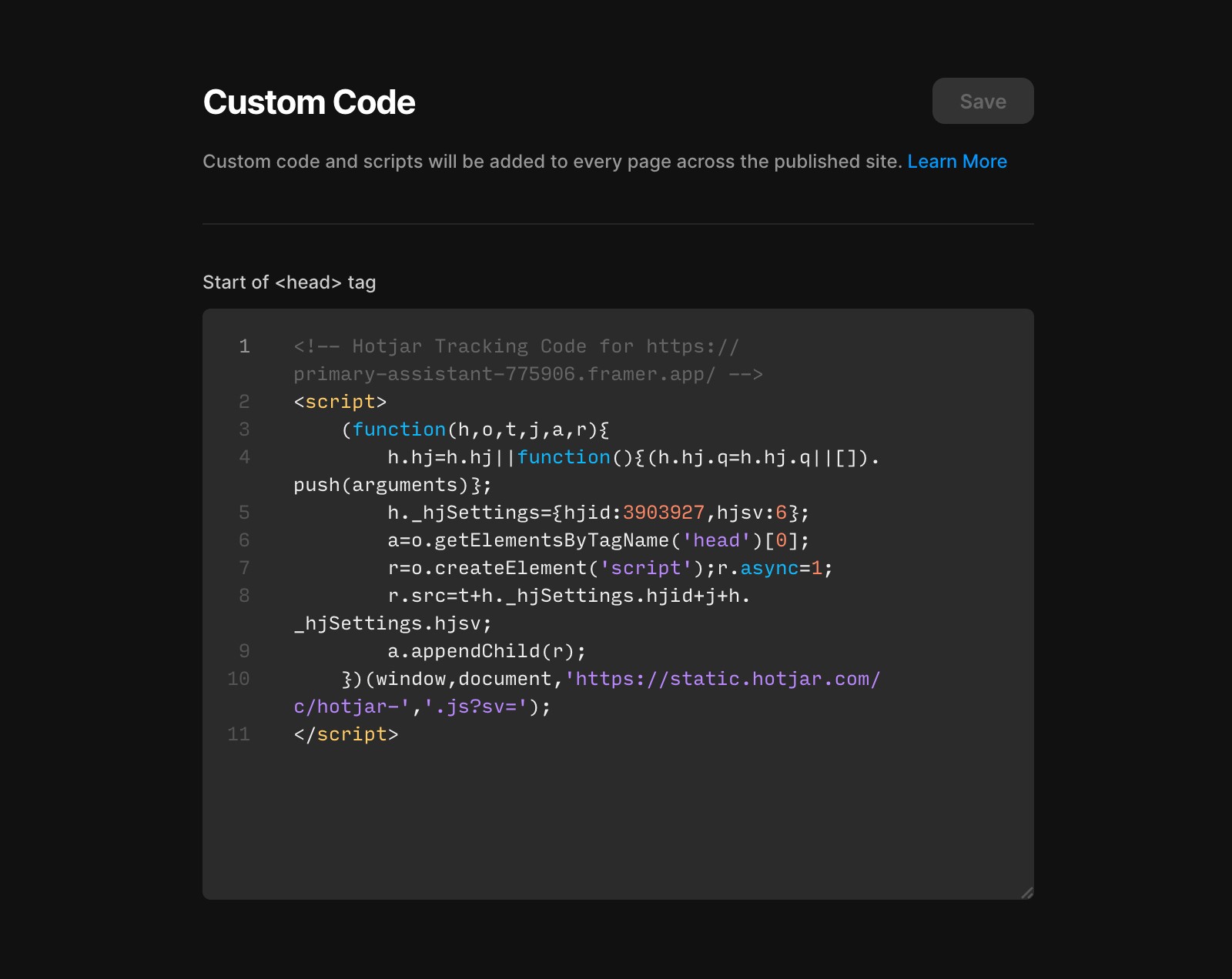
Save and publish your site
Click Save in your Framer project and republish your website.
Verify the installation
In your Hotjar account, click Verify Installation.
A browser window will open to check if Hotjar is installed correctly. Ensure that your browser allows pop-ups.
Once installed, Hotjar will begin collecting data when visitors come to your site. Results should start appearing in your account within 60 minutes.
If you're still experiencing issues, please reach out to us through our contact page for further help.
FAQ
How do I add Hotjar to my Framer site?
First, log in to your Hotjar account and add your website’s main URL on the Sites page. Copy the tracking code provided by Hotjar. Then, open your Framer project, navigate to General Site Settings, and paste the tracking code at the start of the <head> tag. Click Save and republish your website.
How can I verify that Hotjar is installed correctly on my Framer site?
In your Hotjar account, click Verify Installation. A browser window will open to check if Hotjar is installed correctly—make sure your browser allows pop-ups. Once installed, Hotjar will begin collecting data when visitors come to your site, and results should start appearing in your account within 60 minutes.
What should I do if Hotjar is not working after installation on my Framer site?
If you're still experiencing issues after following the installation steps, please reach out to us through our contact page for further help.
Updated