Using text styles
Learn how to create, apply, and manage reusable text styles in Framer.
Text styles define reusable typography settings such as font, size, weight, line height, and color. They help you keep your site consistent and make global updates faster and easier.
Creating a text style
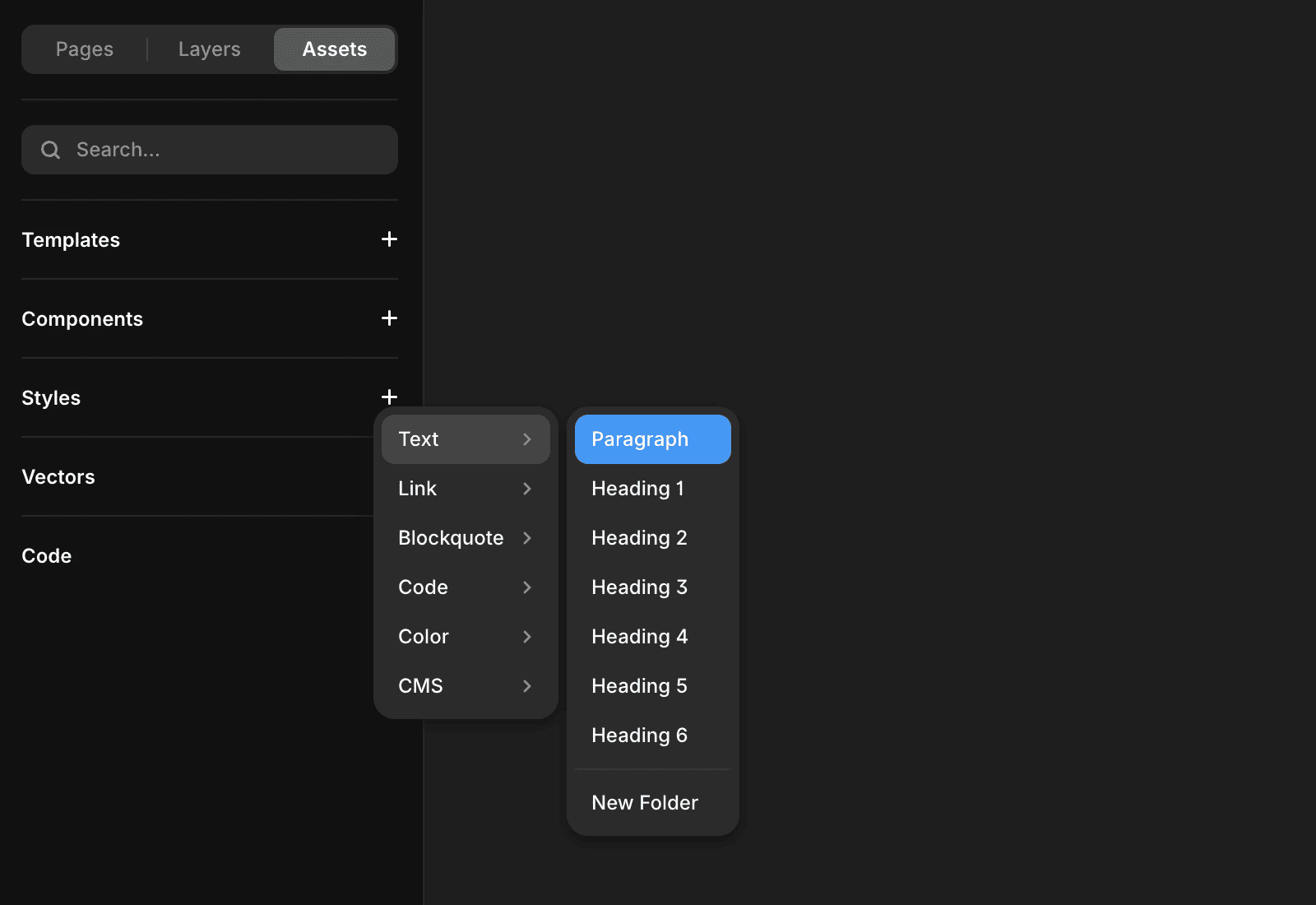
You can create text styles directly from the Assets panel. To create a new text style:
In the left sidebar, go to Assets.
In the Styles section, click the + icon.
Select Text.
Choose the appropriate heading level or paragraph type.
Once created, the style becomes available across your entire project.
Applying and creating styles
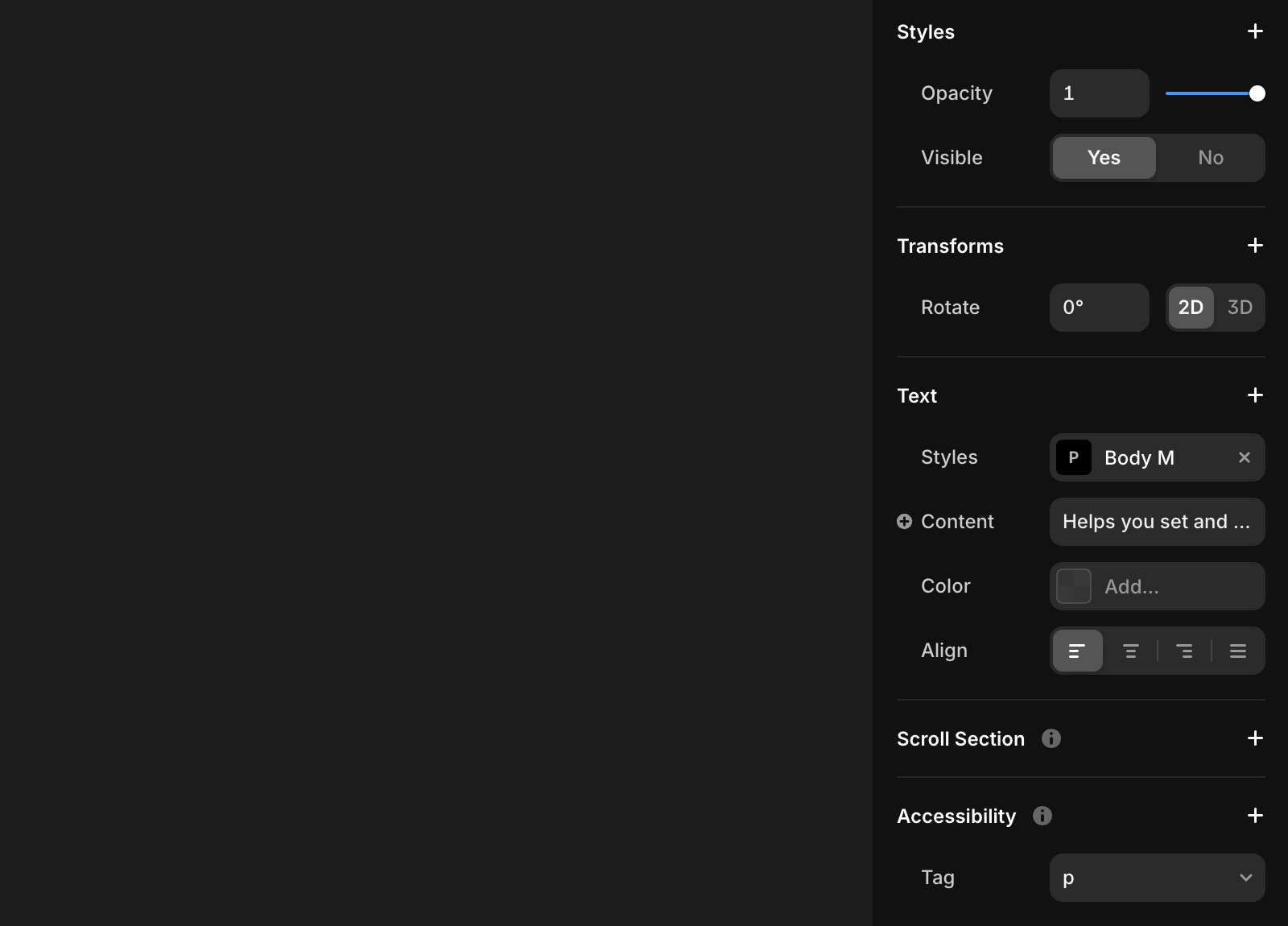
By default, all text is unstyled. To apply a style:
Select a text element or specific text.
Click Text → Styles in the properties panel.
To remove a style, click the × in the properties panel.
Adding breakpoints
Text styles can adapt to different device sizes using breakpoints.
Click on a text style to open the “Edit Style” modal.
In the Breakpoints section, click Add Breakpoint to add defaults for Desktop (L), Tablet (M), and Mobile (S).
Customize font size, line height, letter spacing, and paragraph spacing for each breakpoint.
Managing styles
To manage styles:
Go to the Assets → Styles section in the left panel.
Create, edit, or delete styles as needed to fit your project requirements.

Rich styled text
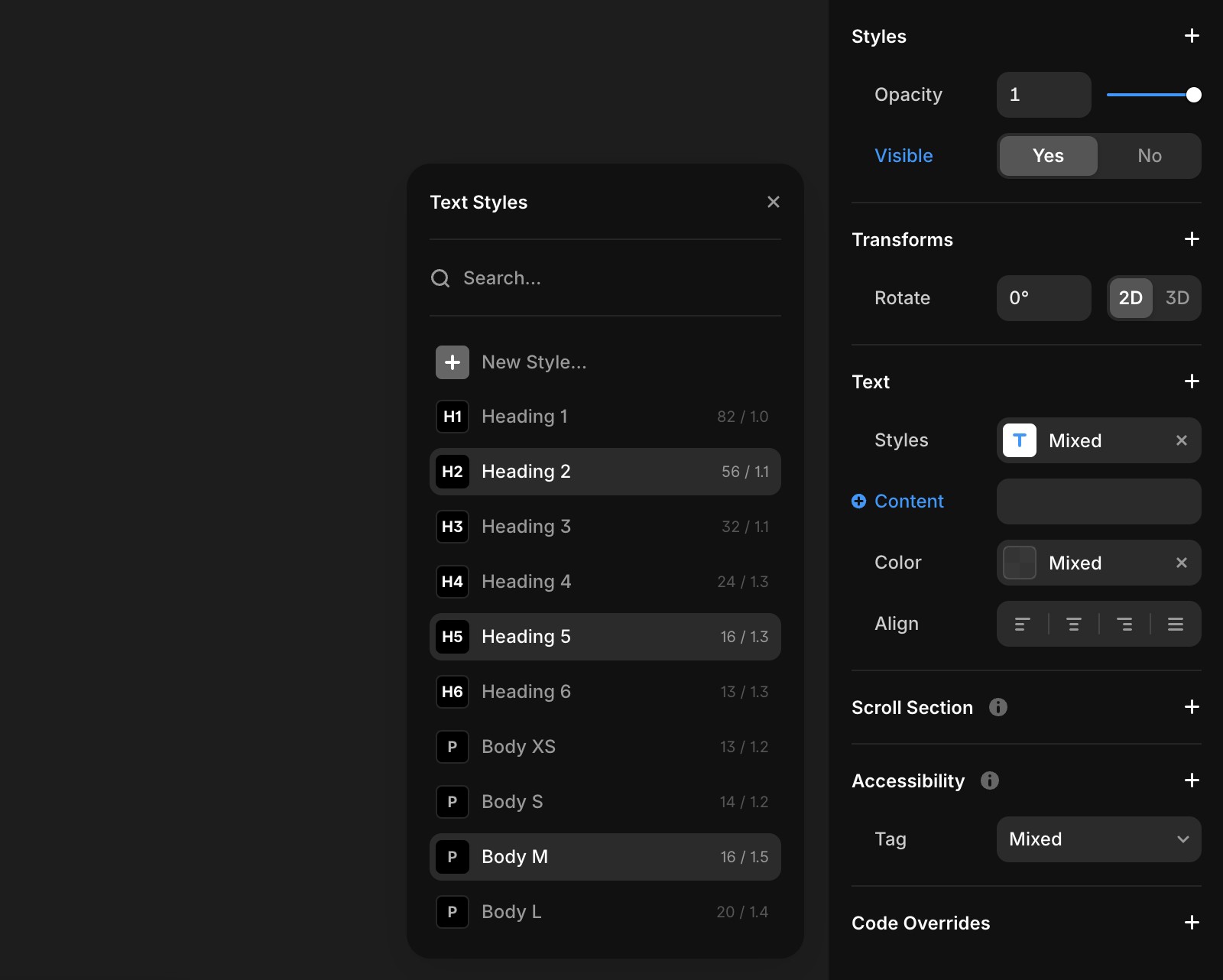
Apply multiple styles to a single text element using Markdown. To customize specific text within an element:
Select the text you want to modify.
Apply the desired style in the properties panel.
CMS text styles
Text styles for CMS elements work the same way. In the properties panel, select any available style for your CMS text elements.
Link styles
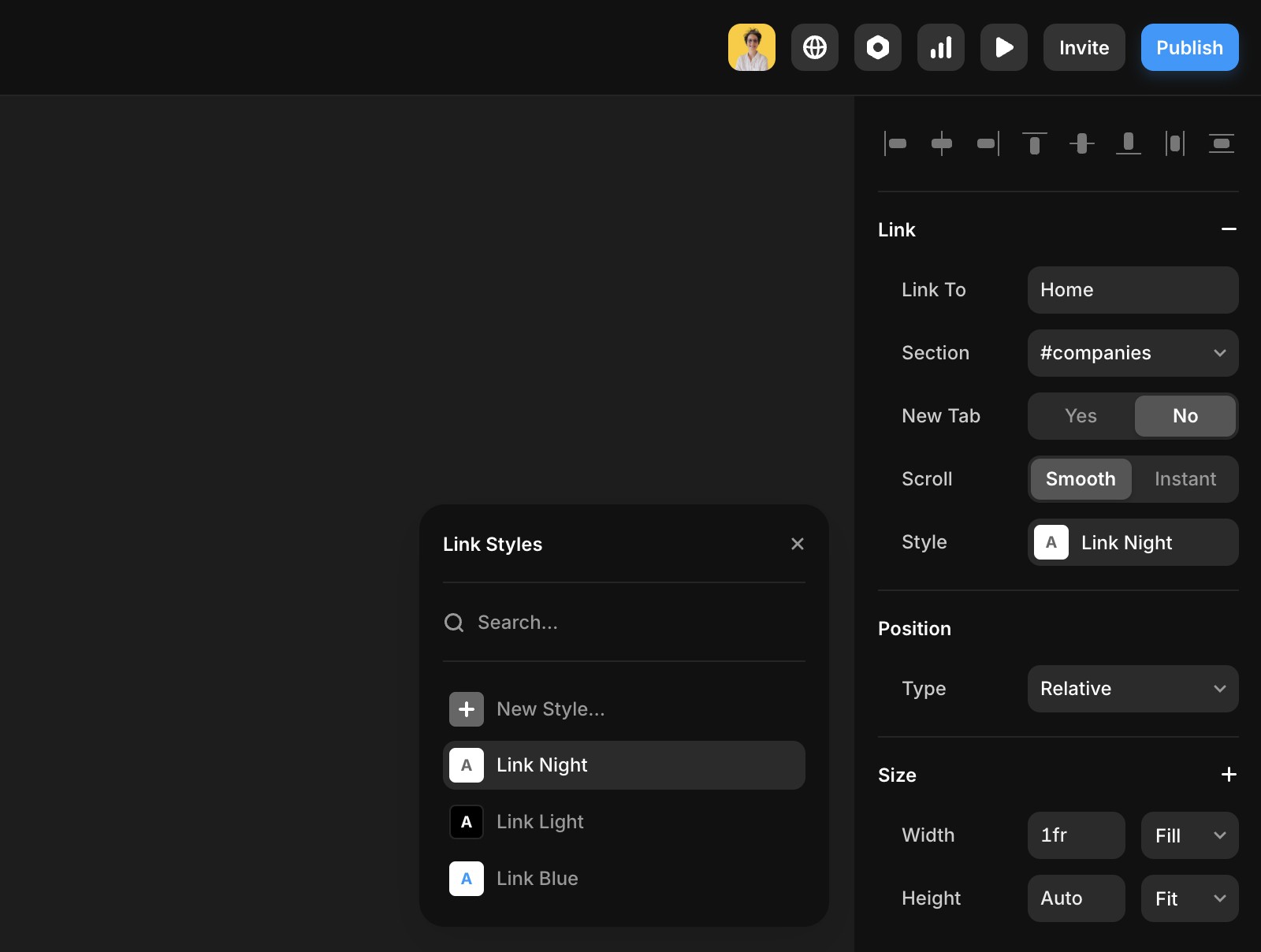
To style links:
Select a text layer and navigate to the Link row.
Adjust the Style property to apply link-specific styles.
Customize states such as hover, active, and current.
Override colors
To emphasize specific text within a style:
Apply the desired text style.
Select the specific text you want to modify.
Use the properties panel to override the color without creating a new style.
Still experiencing the issue after following the steps above? Feel free to reach out to us through our contact page for further help.
FAQ
How do I apply and remove text styles in Framer?
To apply a style, select a text element or specific text, then click Text → Styles in the properties panel. To remove a style, click the × in the properties panel.
Can I customize text styles for different device sizes?
Yes, text styles can adapt to different device sizes using breakpoints. Click on a text style to open the 'Edit Style' modal, then in the Breakpoints section, click Add Breakpoint to add defaults for Desktop (L), Tablet (M), and Mobile (S). You can customize font size, line height, letter spacing, and paragraph spacing for each breakpoint.
How can I override the color of specific text without creating a new style?
First, apply the desired text style. Then, select the specific text you want to modify and use the properties panel to override the color without creating a new style.
Updated