Exporting assets
Easily export your assets and pages as JPGs or PNGs using the Framer desktop app.
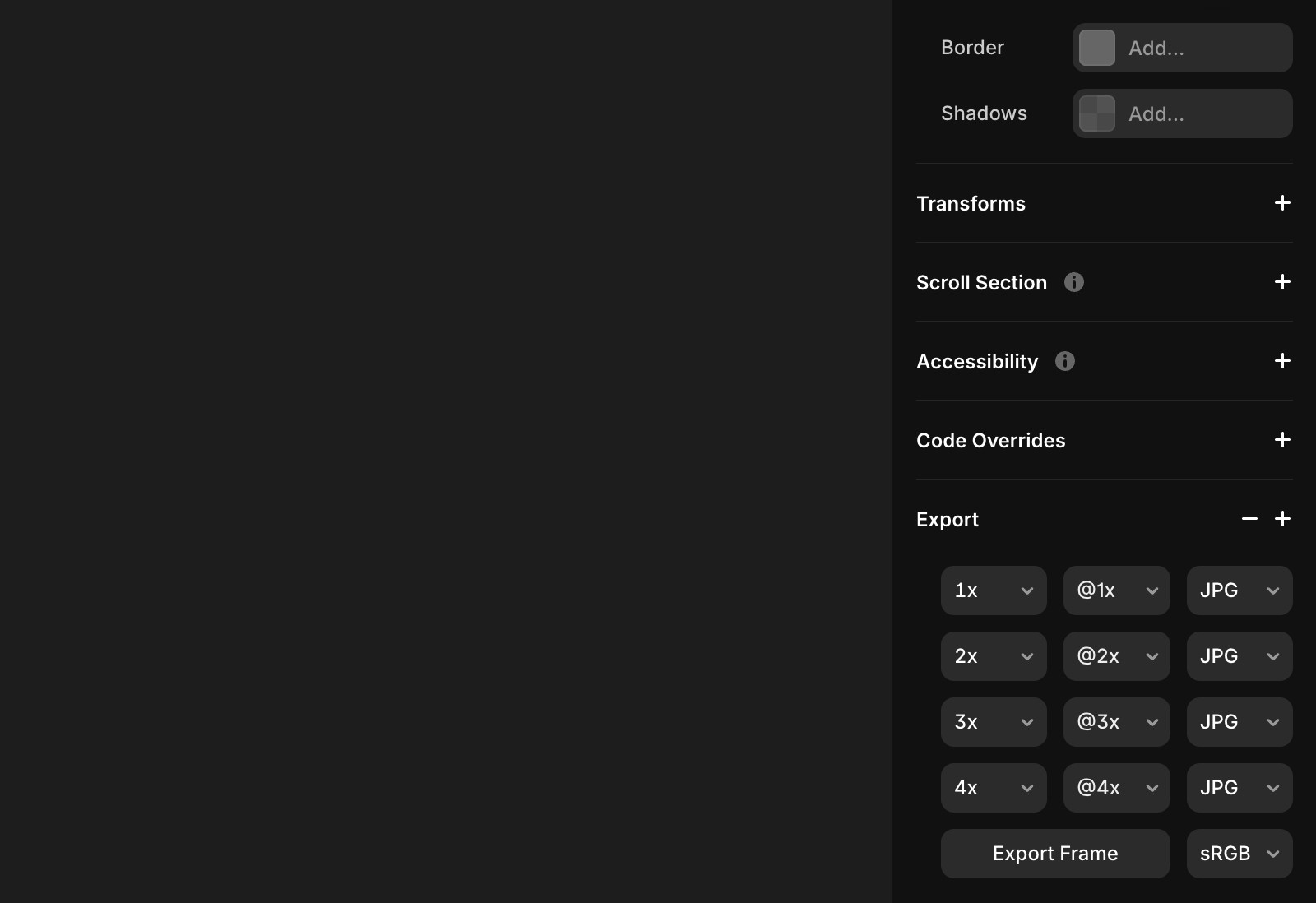
To export an asset, select the item or page you want to export. In the bottom-right panel, click Export and follow these steps:
Click the + icon.
Choose a size: 1x, 2x, 3x, or 4x.
Optionally, add a suffix.
Select PNG or JPG and click Export.
FAQ
How do I export an asset in Framer?
To export an asset, select the item or page you want to export. In the bottom-right panel, click Export and follow these steps: Click the + icon, choose a size (1x, 2x, 3x, or 4x), optionally add a suffix, select PNG or JPG, and then click Export.
What file formats can I export assets as in Framer?
You can export assets as either PNG or JPG files in Framer.
Can I export assets at multiple sizes in Framer?
Yes, when exporting an asset, you can choose from multiple sizes: 1x, 2x, 3x, or 4x.
Updated