Capture campaign attribution data with every form submission. Framer can automatically collect UTM parameters and Google Ads Click IDs (GCLIDs), making it easier to measure the performance of your marketing campaigns and identify which channels drive conversions.
How campaign tracking works
When campaign tracking is enabled, Framer automatically includes supported attribution parameters in form submission data. This allows you to see how visitors discovered your site when they complete a form.
This feature is available on the Enterprise plan.
Framer captures:
Parameter | Description |
|---|---|
| The traffic source, such as Google, Facebook, or a newsletter |
| The marketing channel, such as email, social, or paid search |
| The specific campaign name |
| Paid search keywords |
| Ad or link variation details |
| Google Ads Click ID for Google Ads attribution |
Enable campaign tracking
To automatically capture UTM parameters and Google Ads Click IDs:
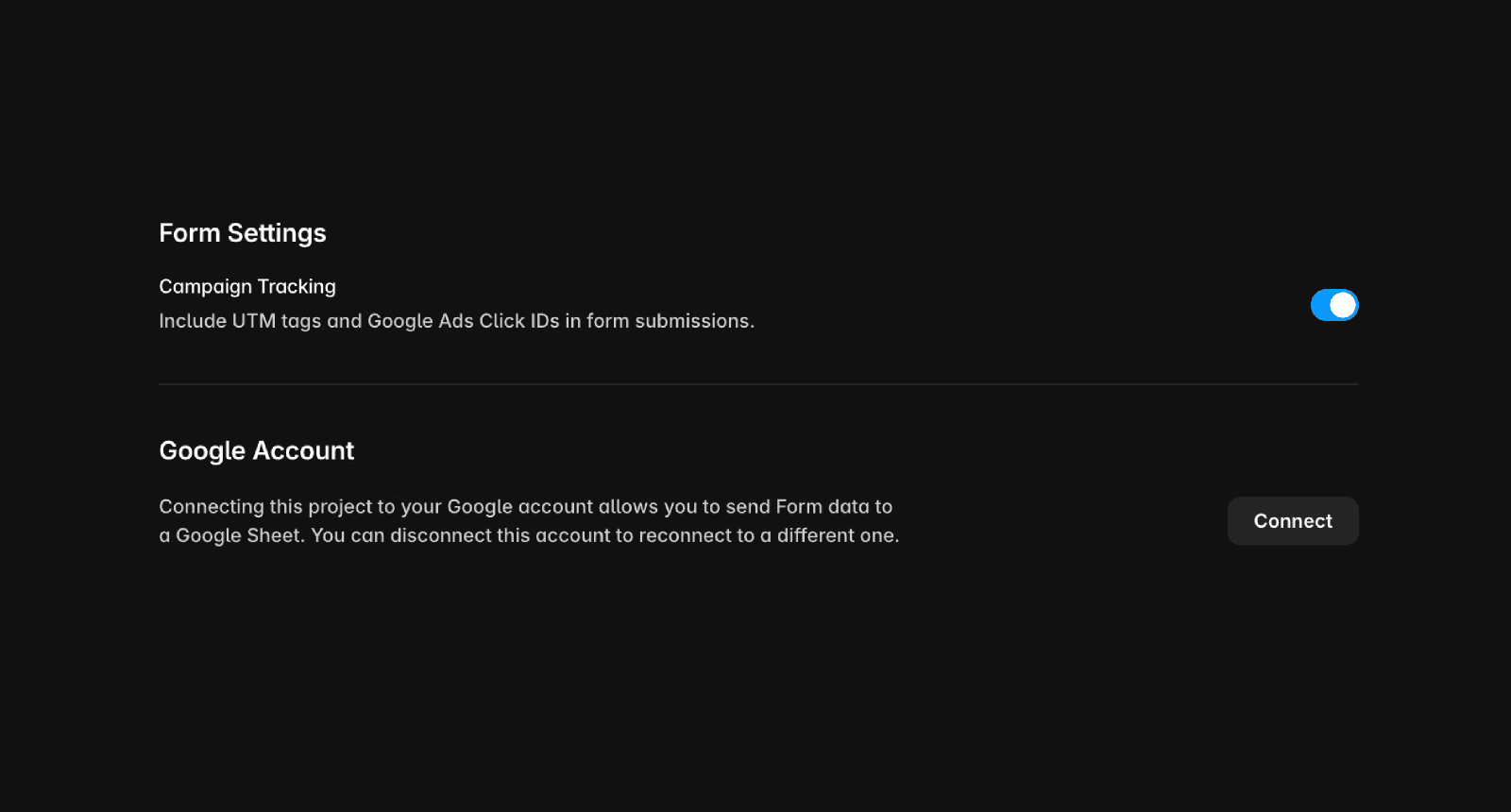
Open Site Settings in Framer.
Select Forms from the left sidebar.
Enable Campaign tracking.
Publish your site.
Once enabled, supported campaign parameters are automatically included with every native Framer form submission.
Track additional parameters with hidden fields
Campaign tracking automatically captures standard UTM parameters and GCLIDs. If you need to collect additional custom query parameters, such as affiliate IDs, referral codes, or other campaign values, you can add hidden fields to your form and populate them using your own implementation.
FAQ
Which plans support campaign tracking?
Campaign tracking is available on Enterprise plans.
Do I need to add hidden fields for UTM parameters or GCLIDs?
No. When Campaign tracking is enabled, Framer automatically captures supported UTM parameters and Google Ads Click IDs in native form submissions. Hidden fields are only needed for additional custom parameters.
Can I capture custom tracking parameters?
Yes. If you need to collect values beyond the standard UTM parameters and GCLID, you can use hidden fields in your forms to capture additional data.
