What does “Unlink Instance” do?
If you see the “editing component” modal when trying to edit a component, it means the component was originally created in a different project. To edit it, you need to unlink it first.
Unlinking the component creates a local copy in your current project, making it fully editable.
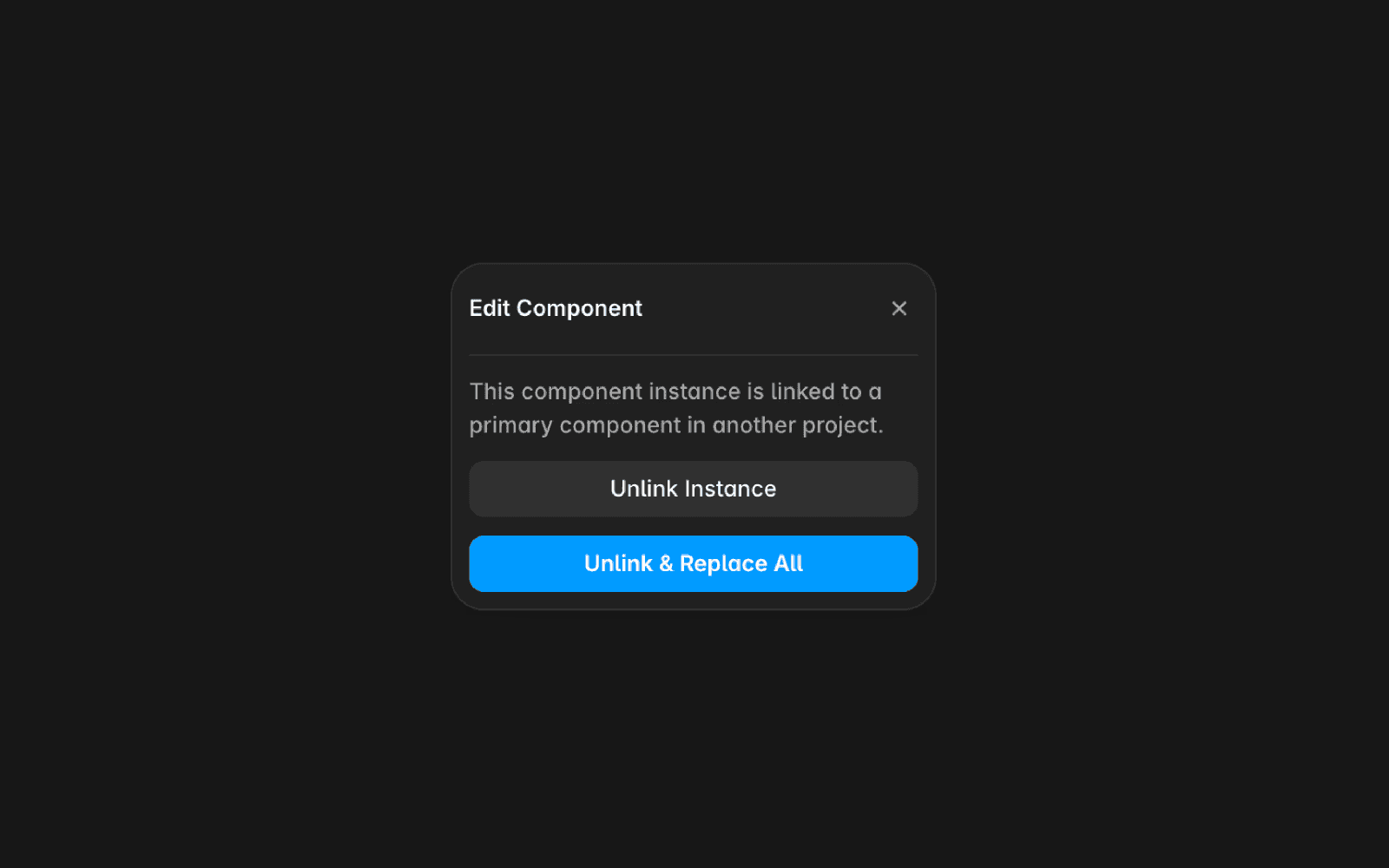
How to unlink a component
From the canvas:
Right-click the component on the canvas.
Select Unlink from the dropdown menu.
An unlinked version is created in the Assets panel under the components folder.
You can double-click it on the canvas to start editing.
From the assets panel:
Find the component in the Assets panel.
Right-click it and select Unlink from the dropdown menu.
An unlinked version will appear in your components folder.
Drag it onto the canvas to use and edit it.
What does “Unlink & Replace All” do?
When you attempt to edit a linked component on the canvas, you may see the option to Unlink & Replace All. This action unlinks all instances of that component in your project and replaces them with an editable local version automatically.
If you encounter any issues or need further assistance, feel free to contact Framer’s support team through our contact page.
FAQ
What does the 'Unlink Instance' option do in Framer?
If you see the 'editing component' modal when trying to edit a component, it means the component was originally created in a different project. To edit it, you need to unlink it first. Unlinking the component creates a local copy in your current project, making it fully editable.
How can I unlink a component in Framer?
To unlink a component from the canvas, right-click the component on the canvas and select 'Unlink' from the dropdown menu. An unlinked version is created in the Assets panel under the components folder, and you can double-click it on the canvas to start editing. Alternatively, from the Assets panel, find the component, right-click it, and select 'Unlink.' An unlinked version will appear in your components folder, which you can drag onto the canvas to use and edit.
What is the difference between 'Unlink Instance' and 'Unlink & Replace All'?
The 'Unlink Instance' option creates a local, editable copy of a single component instance in your project. The 'Unlink & Replace All' option unlinks all instances of that component in your project and replaces them with an editable local version automatically.
