Adding a new locale

Learn how to add a new language and region to your Framer site.

Localization in Framer makes it easy to adapt your website for different languages and regions. This guide explains how to add a new locale and start translating your content.

Adding a new locale

Locales in Framer are the languages your website can be translated into. Each locale corresponds to a single language, with an optional region assigned to it.

To add a new locale, open the Localization view from the menu in the top-left corner.
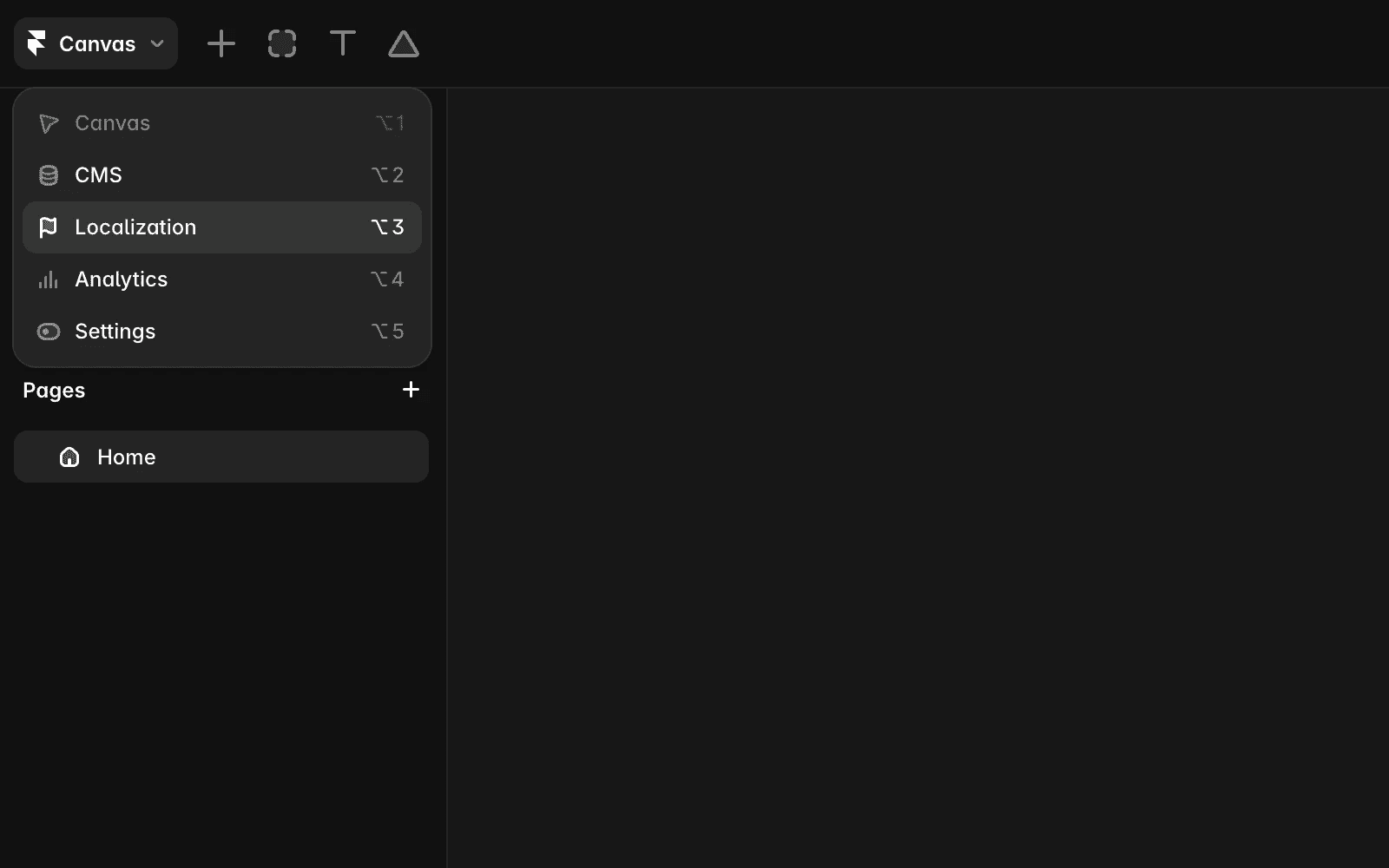
Framer editor menu opened from the top-left corner, showing the Localization option used to open localization settings.

Then, click Add Locale and select a language. You can choose a specific region or set a fallback language, which will display when translations are missing.
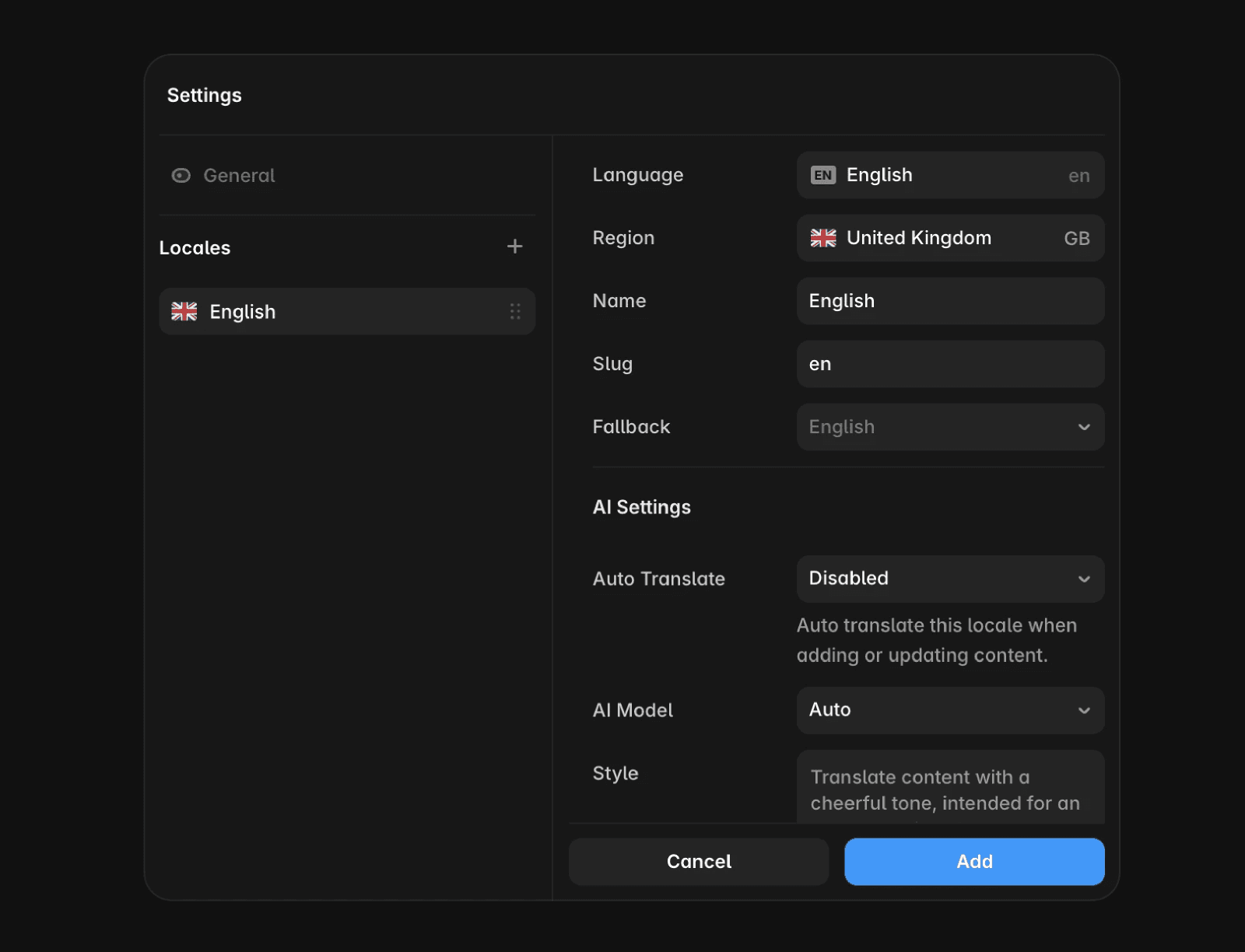
Framer Localization settings showing the Add Locale flow where a language and optional region can be selected.

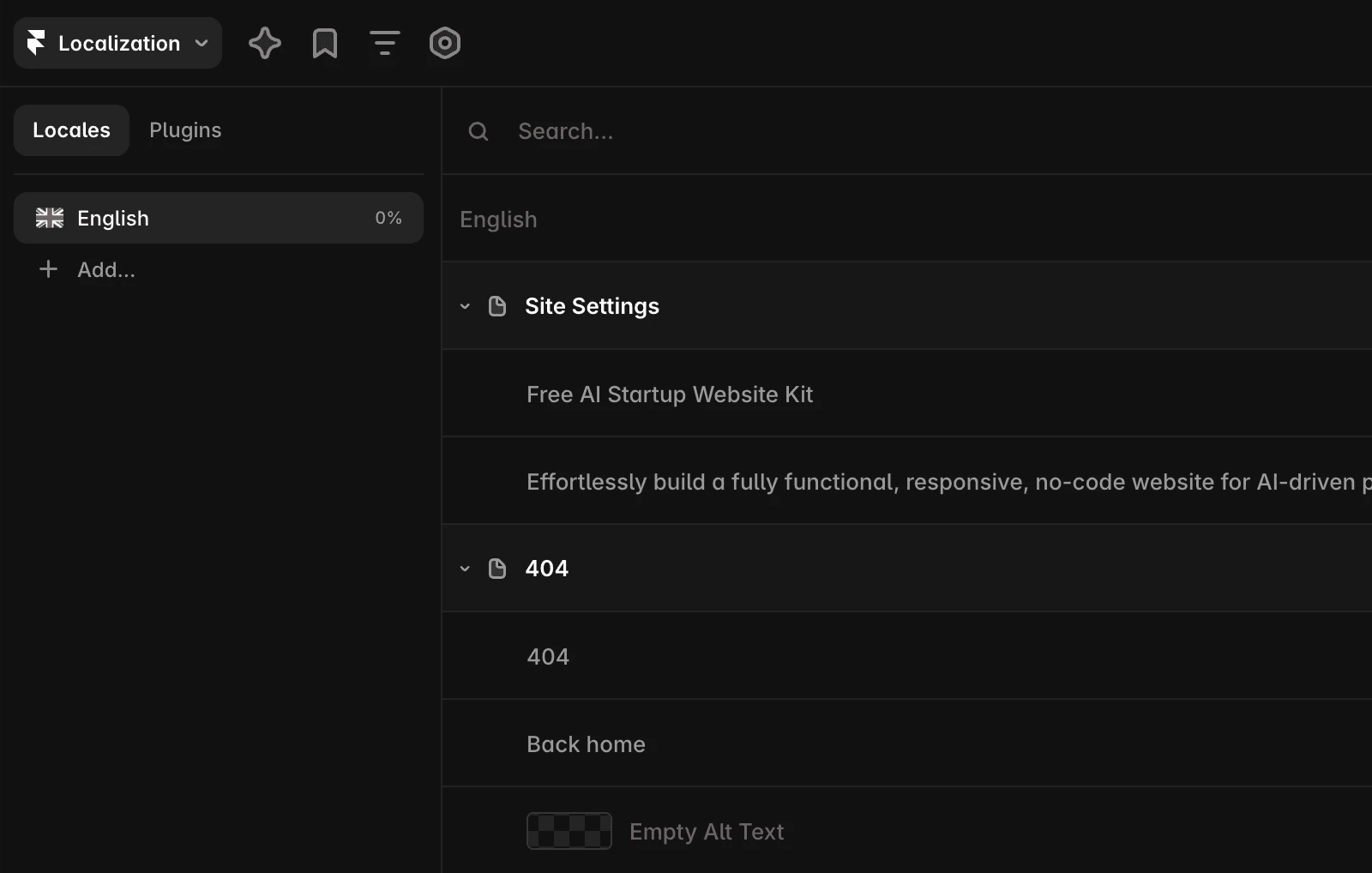
Once the locale is created, all text strings in your project, such as page titles, descriptions, and image alt text, will appear in the Localization table, organized by page.

You can translate content in two ways:

Framer's Localization interface showing the localization panel with English (0% complete) as the current locale and an 'Add...' button below it. The right side displays a translation table with English source text in the left column and target language columns. Site Settings and 404 page sections are visible in the content area, along with navigation options for Translate, Filter, Settings, and Plugins in the top toolbar.

Previewing locales

After creating a locale and translating your content, you can preview how your site looks in each language.

In the canvas, click the locale icon in the bottom navigation bar to switch between locales. You can also edit translations directly in the canvas.
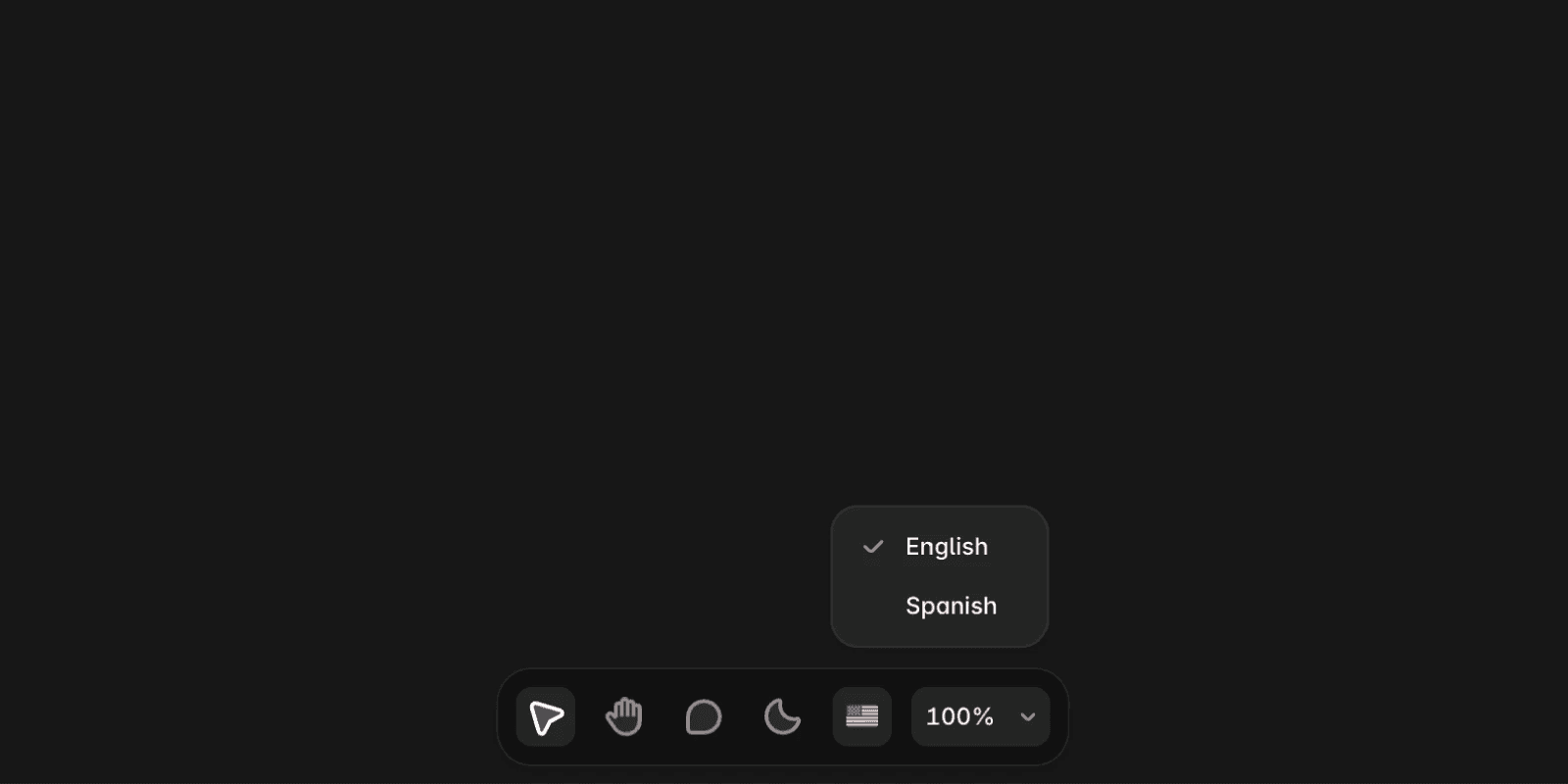
Framer's locale selector interface showing a dropdown menu with two language options: Español (currently selected with a checkmark) and English. Below the dropdown is the editor toolbar with various icons including a Spanish flag representing the current locale selection, and a zoom level indicator showing 100%.

Localization in Framer makes it easy to adapt your website for different languages and regions. This guide explains how to add a new locale and start translating your content.

Adding a new locale

Locales in Framer are the languages your website can be translated into. Each locale corresponds to a single language, with an optional region assigned to it.

To add a new locale, open the Localization view from the menu in the top-left corner.

Framer editor menu opened from the top-left corner, showing the Localization option used to open localization settings.

Then, click Add Locale and select a language. You can choose a specific region or set a fallback language, which will display when translations are missing.

Framer Localization settings showing the Add Locale flow where a language and optional region can be selected.

Once the locale is created, all text strings in your project, such as page titles, descriptions, and image alt text, will appear in the Localization table, organized by page.

You can translate content in two ways:

Framer's Localization interface showing the localization panel with English (0% complete) as the current locale and an 'Add...' button below it. The right side displays a translation table with English source text in the left column and target language columns. Site Settings and 404 page sections are visible in the content area, along with navigation options for Translate, Filter, Settings, and Plugins in the top toolbar.

Previewing locales

After creating a locale and translating your content, you can preview how your site looks in each language.

In the canvas, click the locale icon in the bottom navigation bar to switch between locales. You can also edit translations directly in the canvas.

Framer's locale selector interface showing a dropdown menu with two language options: Español (currently selected with a checkmark) and English. Below the dropdown is the editor toolbar with various icons including a Spanish flag representing the current locale selection, and a zoom level indicator showing 100%.

FAQ

  • How do I add a new locale to my Framer website?

    To add a new locale, click the globe icon in the top-right corner to open the Localization view. Then, click Add Locale and select a language. You can choose a specific region or set a fallback language, which will display when translations are missing.

  • What are the ways to translate content in Framer after adding a new locale?

    You can translate content manually by entering your own translations, or use AI Translation to partially or fully translate all content automatically.

  • How can I preview my Framer site in different languages after adding locales?

    In the canvas, click the locale icon in the bottom navigation bar to switch between locales. You can also edit translations directly in the canvas.

Updated