How to add an iframe or embed script
In this guide, we explain how to use the embed component in Framer to integrate sites, Iframes, widgets, and scripts.
Embedding a URL
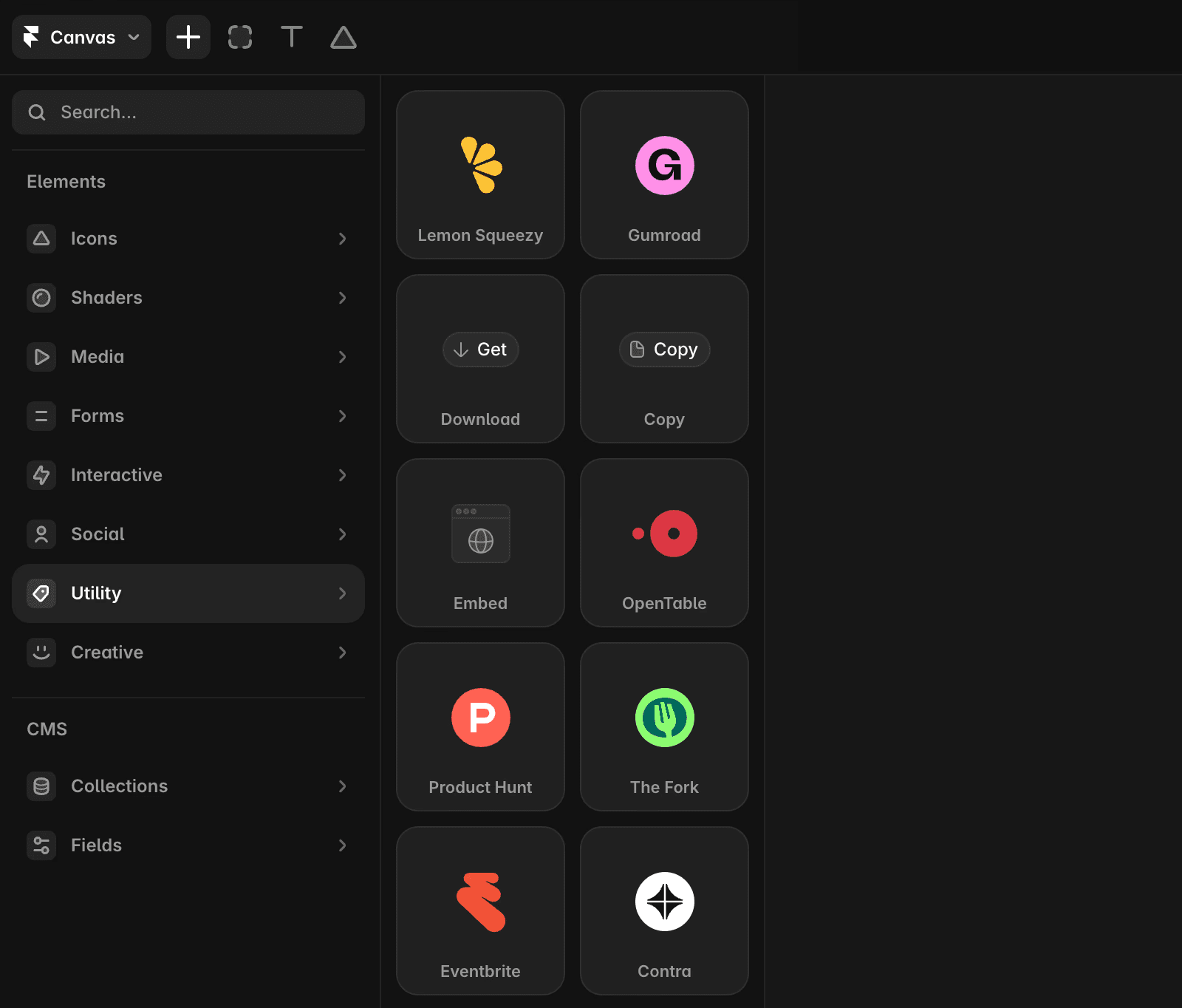
Navigate to the Insert menu and search for Embed.
Drag the Embed component to the canvas.
Input the desired URL into the component.
Note: Some websites may block embedding through HTTP headers, which are required for enabled integrations.
Embedding a script
For services requiring a script to include an iframe:
Add the
<script>…</script>tag in the HTML section of the Embed component.Depending on the integration, you may need to manually wrap the script in additional code to ensure proper functionality.
If you're still experiencing issues, please reach out to us through our contact page for further help.
FAQ
How do I embed a URL in Framer?
Navigate to the Insert menu and search for Embed. Drag the Embed component to the canvas, then input the desired URL into the component.
How can I embed a script, such as an iframe, in Framer?
Add the <script>…</script> tag in the HTML section of the Embed component. Depending on the integration, you may need to manually wrap the script in additional code to ensure proper functionality.
Why might some websites not display when I try to embed them in Framer?
Some websites may block embedding through HTTP headers, which are required for enabled integrations.
Updated
