Effects
Add smooth motion across a page or to selected elements using native Framer effects.
Search
0:30
Remix the Framer demo, then ask the agent to create a new page with /design-system. It will reuse the project’s typography, colors, spacing, layouts, and components so the page fits right in.
Remix the Framer demo, then ask the agent to create a new page with /design-system. It will reuse the project’s typography, colors, spacing, layouts, and components so the page fits right in.
Canvas
Sift®
·
blog
12



Invite
Publish
Pages
Layers
Assets
Search…
Pages
Home
/teams
/pricing
/design-system
/blog/
1
100%
Desktop
1200






Agent
Style
Create a blog page
Use
/design-system
to build a
blog index page. Write six blog posts and add them to the CMS.
GPT 6.1 Sol

design-system
Use components, styles, spacing, and layouts to create new pages.
cms-content
When writing content, consider the following…
remove-ai-writing
Deletes commonly used AI filler writing, vague claims, repetition,
seo-check
Review and improve page SEO, such as metadata, social previews, image alt text, and other essential SEO settings.

Pick a repetitive task
Start with something you do often, like building a page or writing content.
Title
design-system
Description
Use components, styles, spacing, and layouts to create new
Content
Design system
Use dark color scheme. Reuse existing styles and components; never invent new colors or text styles.
Pages
Apply the Base layout template to every new page.
Set a meta title and meta description on every new page.
Sections fill the screen width (1fr) and contain an inner wrapper with maxWidth="1200px" that holds the content.
Colors
Container backgrounds: Color/Black.
Text:
Primary headings: Color/White
Secondary/body text: Color/White 60
Accent: Color/Red is the only accent. Use it very sparingly (one highlight per section at most).
Borders and dividers: Color/Border Solid or Color/Border Transparent.
Typography
Always use these text styles, never inline type styles:
Set Text Balance to Yes for text layers.
Use sentence case; do not use all caps.
Do not use eyebrow text (small text above a heading).
In heroes, use Text/Body L for supporting text.
For every paragraph, adjust its text-box width to produce 50–75 characters per line, targeting 65. Round the width up to the nearest 5 or 10 pixels. If that width is wider than the parent container, set the text box to Fill. Verify at every breakpoint before finishing.
Text/H0: jumbo headings and hero treatments
Text/H1: blog post titles and secondary page titles
Text/H2, Text/H3, Text/H4, Text/H5, Text/H6: all other headings, in hierarchy order
Text/Body L: sub heads
Text/Body: main body text
Text/Body M: small supporting text
Text/Button: button labels only

Write a skill
Define when to use the skill, what it should produce, and the rules to follow.
Use
/design-system
to build a new
Careers page. Include a couple job openings and a form.
GPT 6.1 Sol

Test and refine
Use the skill in your prompt, review the result, and refine it further if needed.
1. Copy a skill
Choose a skill below and copy its instructions.
2. Add it in agent chat
Type /skills in your agent chat, then paste the skill you copied.
3. Use it in chat
Type your skill’s command, such as /brand-voice, in your agent chat to use it.
4. Edit your skill
Open Settings / Skills whenever you want to make changes.


Enter Effect
Opacity
0
Scale
1
Rotate
0
2D
3D
Skew
0°
X
0°
Y
Offset
0
X
12
Y
Transition
Ease
Enter & Exit

Add smooth motion across a page or to selected elements using native Framer effects.
Rewrite this using our
/brand-voice
Make it feel less corporate.
GPT 6.1 Sol

Keep new copy consistent with your brand’s voice and terminology.
Page Settings
Save
Title
My Framer Site
URL
/home
Description
Made with Framer
Preview

sift-ds.framer.ai
My Framer Site
Made with Framer

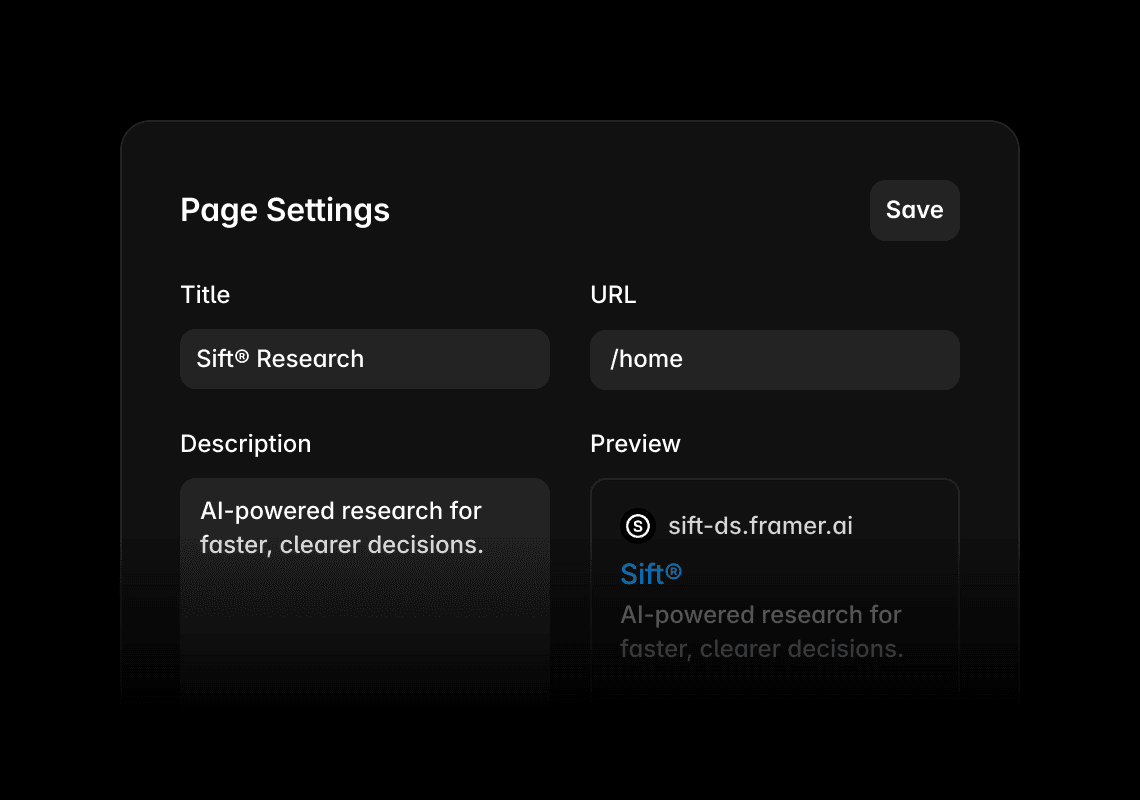
Review and improve page metadata, social previews, image alt text, and other essential SEO settings.


Before
Agents aren’t just tools, they’re game-changers in today’s ever-evolving digital landscape. Seamlessly streamlining complex workflows, they empower teams to unlock their full potential focusing on what matters.
After
Agents triage support tickets, update customer records, and draft follow-ups. Your team reviews each action, handles exceptions, approves replies, and decides what reaches the customer before anything gets sent.
Remove filler, vague claims, repetition, and common AI writing patterns.
Publish
Preview
Navigation
Forms
Links
Responsiveness
Indexing
Accessibility
Metadata


Check accessibility, SEO, links, content, and responsive layouts.
Accessibility


Check pages for accessibility issues and clear fixes.
A Framer skill is a reusable set of instructions that tells the AI agent how to handle a specific task in your project. It can capture your design system, brand voice, SEO checklist, launch process, or another workflow you repeat.
A Framer skill is a reusable set of instructions that tells the AI agent how to handle a specific task in your project. It can capture your design system, brand voice, SEO checklist, launch process, or another workflow you repeat.
Use a prompt to ask the agent for a specific change. Save a skill when you want to reuse a set of instructions across tasks, such as your brand voice or a review checklist. You can use the skill alongside a prompt that describes what you want to change.
A prompt asks the agent to complete one task. A skill saves the instructions you want it to follow every time, so you can reuse the same workflow from chat without writing it again.
Yes. A skill can tell the agent which components, text styles, colors, spacing rules, layouts, and breakpoints to use when it creates or updates pages.
Yes. A skill can tell the agent which components, text styles, colors, spacing rules, layouts, and breakpoints to use when it creates or updates pages.
Use skills to guide repeatable work in Framer, such as creating pages with your design system, editing copy in your brand voice, or reviewing SEO settings and accessibility. Define the steps and checks you want the agent to follow, then review the results before publishing.
Use skills to create pages with your design system, keep copy on brand, review SEO settings, check accessibility, add effects, and run launch checks, or define any other repeatable workflow your project needs.
Open Settings / Skills in your project and create a new skill. Give it a name and short description, then add your instructions in the Content field. Describe the task, the rules to follow, and how to check the result. Use its command in the agent chat when you need that workflow.
Open Skills in your project Settings and create a new skill. Add a memorable name, a short description, and your skill’s instructions in the Content field. Then invoke it from the agent chat whenever you need that workflow.
Create personal portfolio
Build startup site
Launch landing page
Start company blog
