

Justin
9:17
Create CMS collection lists in Framer
Learn how to create CMS collection lists in Framer. Learn how to take full control of your dynamic content using Collection Lists in Framer CMS. You will work with CMS fields, collection items, or collection lists while keeping the content editable in Framer.
Lesson details
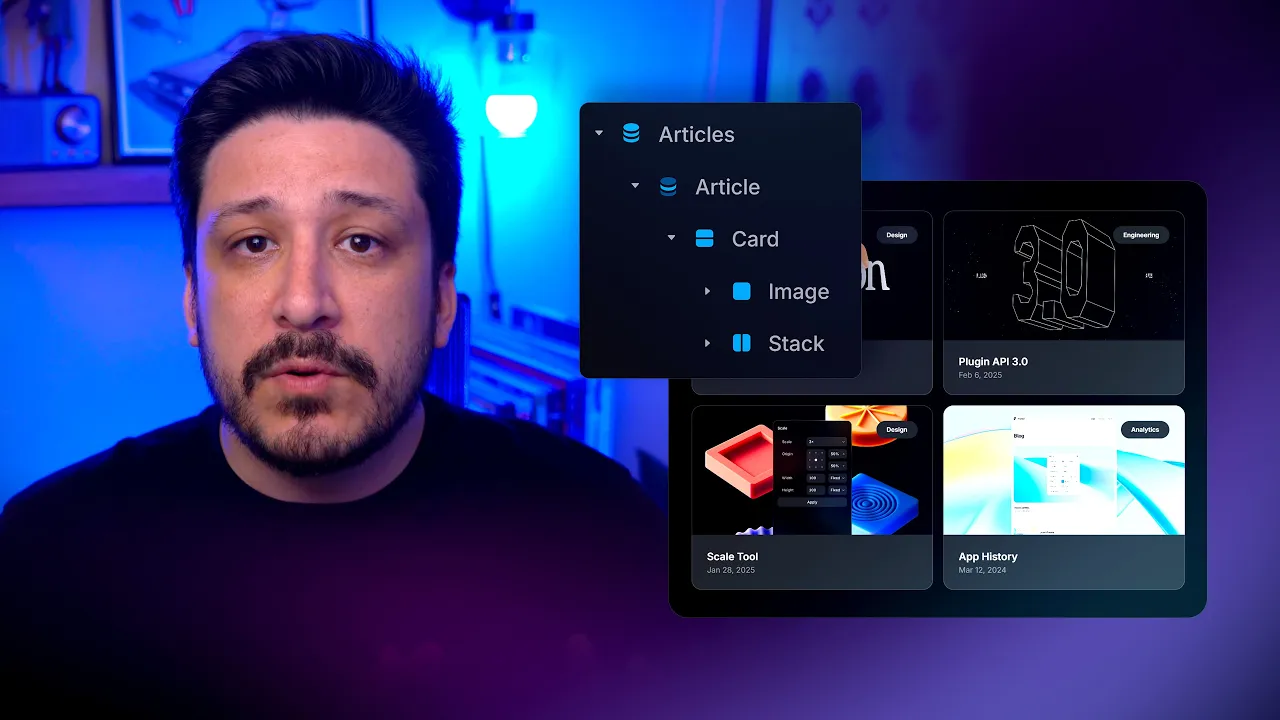
Add a collection list to the page, connect it to the correct CMS collection, and design the repeated item with bound title, image, link, and supporting fields. Set the list layout, gap, columns, and item limit for the page’s content hierarchy.
Test the list with short, long, and missing values. Then configure sorting, filtering, pagination, and empty states so the page remains useful as the collection grows.
Keep the collection schema understandable to the people who will maintain it. Clear field names and predictable bindings reduce one-off canvas fixes when new records are added.
Frequently asked questions
How do I create CMS collection lists in Framer?
Learn how to create CMS collection lists in Framer. Learn how to take full control of your dynamic content using Collection Lists in Framer CMS. You will work with CMS fields, collection items, or collection lists while keeping the content editable in Framer.
What does this lesson cover?
The lesson covers the settings and steps used to create CMS collection lists in Framer. See CMS. Follow the demonstrated order in your project and review each change on the canvas before moving to the next step.
Does this workflow keep CMS content editable?
Yes. The workflow uses Framer CMS fields, items, references, or collection lists rather than flattening the content into a static page. Review the field mapping and each affected item after the change so editors can keep managing the content from the CMS.
Will CMS changes update collection pages?
CMS-backed collection lists and detail pages use the values stored in their connected fields. A field or item change can therefore appear wherever that content is bound. Review the list page, detail page, references, filters, and empty states after completing the workflow.
What should I review after I create CMS collection lists in Framer?
Review the exact pages and elements changed by the workflow. Confirm that copy, links, accessibility, responsive behavior, and interaction states still work as intended. Use preview for the final check and keep publishing separate from editing so you can fix problems before visitors see the update.