Downgrade or remove members

Learn how to downgrade member permissions or remove members from projects and workspaces.

You can update a member’s access level or remove them from a project or workspace at any time. The available options depend on your plan and the member’s current role.

Member roles

Framer supports three standard roles:

Role

Access level

Editor

Full editing access to projects and site content.

Content Editor

Can manage CMS content, localization, and on-page editing, but cannot access design and development features.

Viewer

Read-only access.

Pro and Enterprise plans also support advanced roles, including Design, Content, and Deploy permissions.

Permission

Description

Design

Access to design and site-building capabilities.

Content

Access to content management, localization, and on-page editing.

Deploy

Ability to publish and manage deployments.

Change a project member’s role

To update a member’s role in a project:

  1. Open the project.

  2. Click Invite.

  3. Select the member you want to update.

  4. Choose the new role or adjust their permissions.
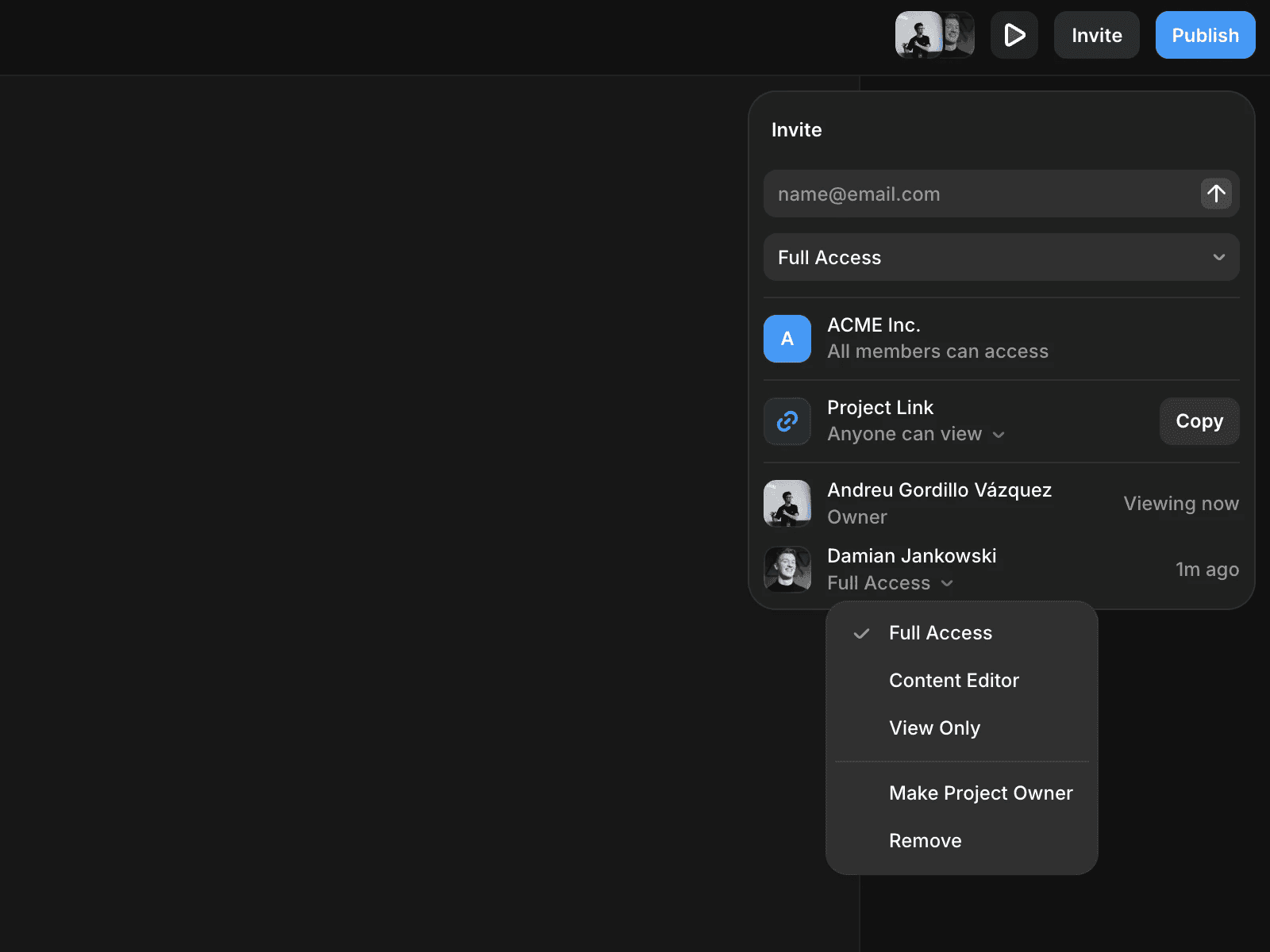
Project member role settings with options to update a member’s access level.

On Pro and Enterprise plans, you can customize access by assigning or removing Design, Content, and Deploy permissions.
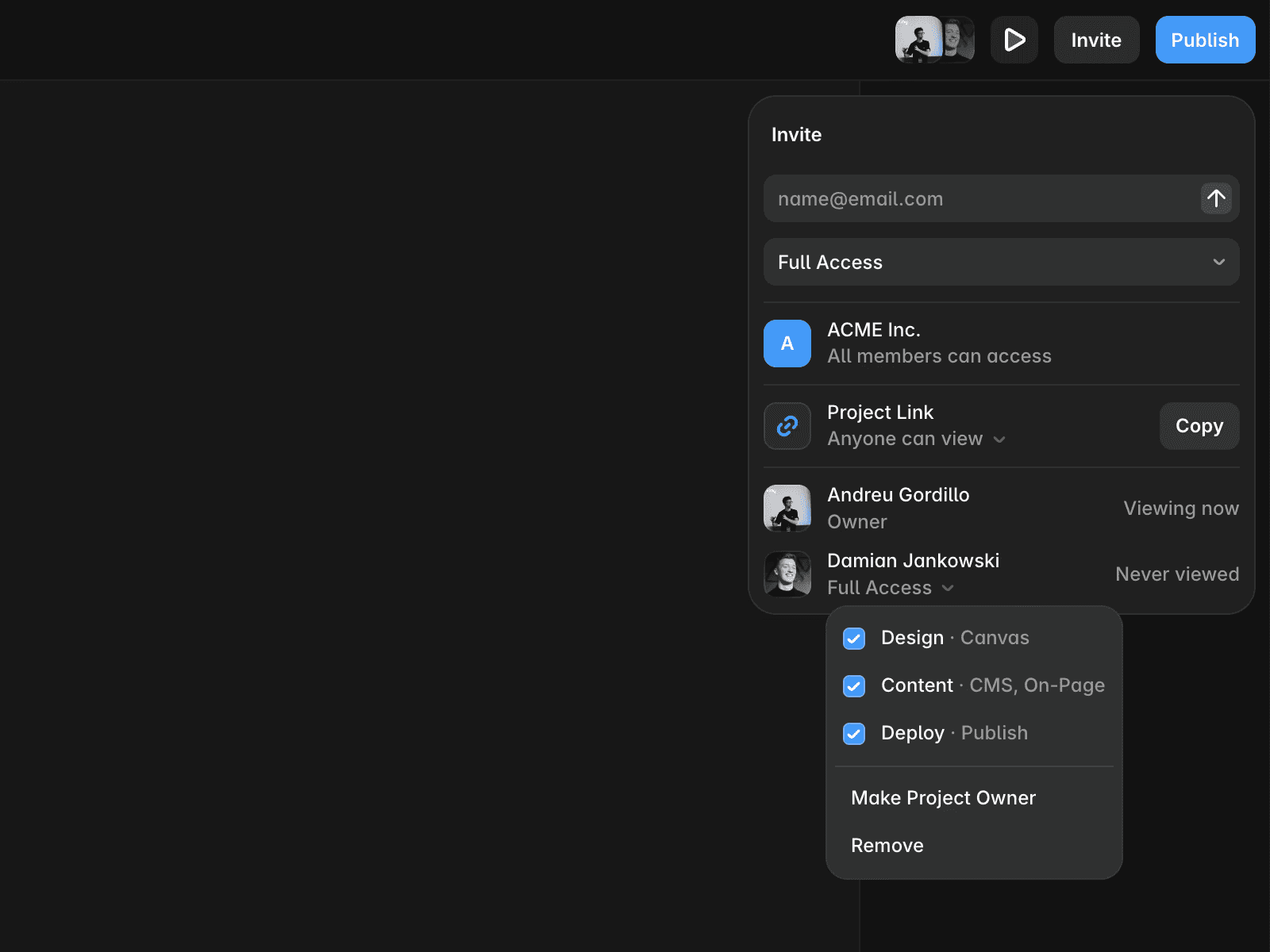
Advanced member permissions showing Design, Content, and Deploy access options.

Remove a project member

To remove a member from a project:

  1. Open the project.

  2. Click Invite.

  3. Select the member you want to remove.

  4. Click Remove.

Removing a member from a project does not necessarily remove them from the workspace. They may still have access through other projects or workspace membership.

Change a workspace member’s role

To update a workspace member’s role:

  1. Open Workspace Settings.

  2. Go to the Members tab.

  3. Select the member you want to update.

  4. Choose a different role.

For example, you can change an Editor to a Content Editor or Viewer to reduce their level of access.

Remove a workspace member

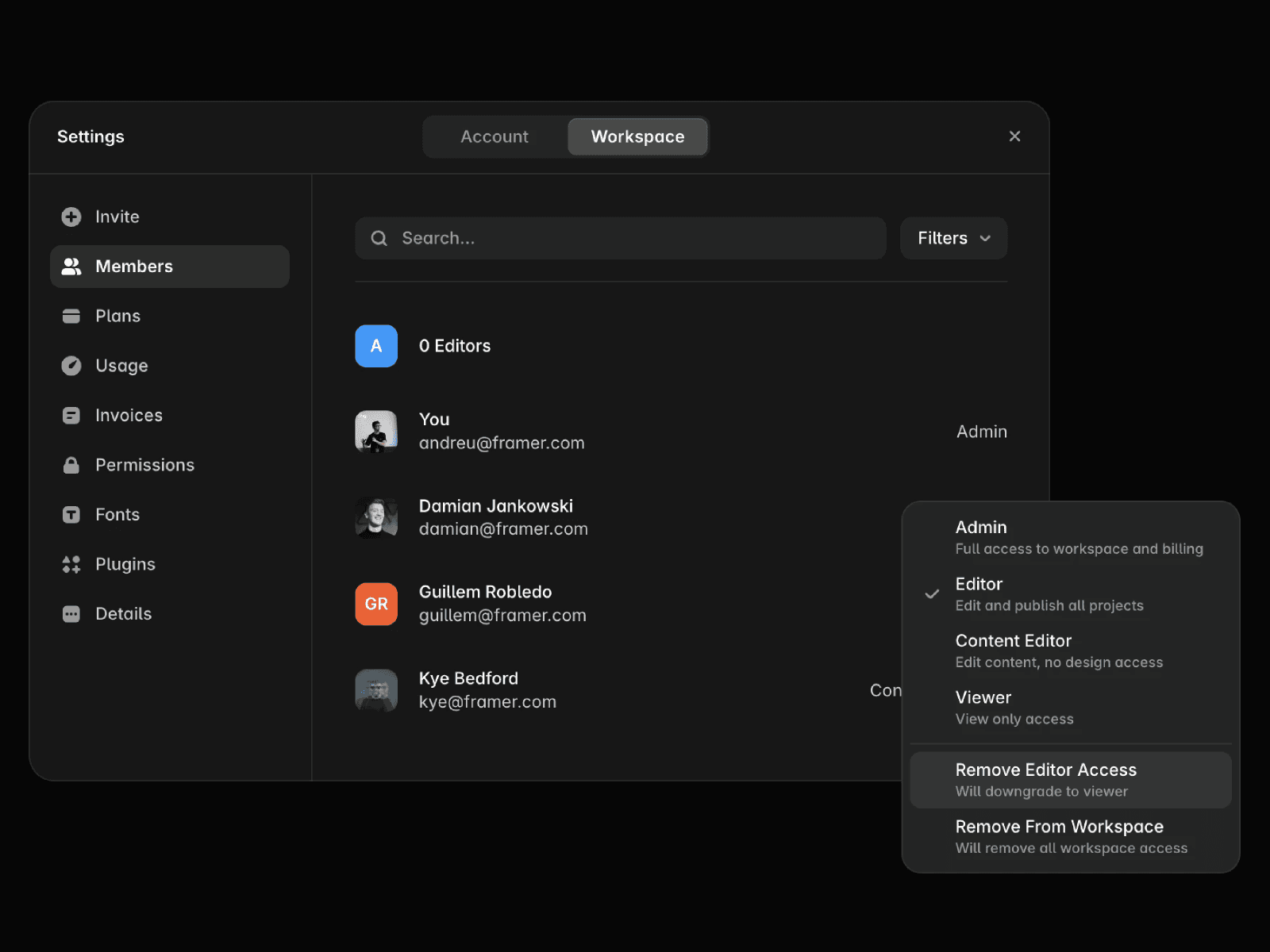
To remove a member from a workspace:

  1. Open Workspace Settings.

  2. Go to the Members tab.

  3. Select the member you want to remove.

  4. Click Remove from team.

Workspace members settings showing the option to remove a member from the team.

Once removed, the member loses access to the workspace and any projects they can only access through that workspace membership.

You can update a member’s access level or remove them from a project or workspace at any time. The available options depend on your plan and the member’s current role.

Member roles

Framer supports three standard roles:

Role

Access level

Editor

Full editing access to projects and site content.

Content Editor

Can manage CMS content, localization, and on-page editing, but cannot access design and development features.

Viewer

Read-only access.

Pro and Enterprise plans also support advanced roles, including Design, Content, and Deploy permissions.

Permission

Description

Design

Access to design and site-building capabilities.

Content

Access to content management, localization, and on-page editing.

Deploy

Ability to publish and manage deployments.

Change a project member’s role

To update a member’s role in a project:

  1. Open the project.

  2. Click Invite.

  3. Select the member you want to update.

  4. Choose the new role or adjust their permissions.

Project member role settings with options to update a member’s access level.

On Pro and Enterprise plans, you can customize access by assigning or removing Design, Content, and Deploy permissions.

Advanced member permissions showing Design, Content, and Deploy access options.

Remove a project member

To remove a member from a project:

  1. Open the project.

  2. Click Invite.

  3. Select the member you want to remove.

  4. Click Remove.

Removing a member from a project does not necessarily remove them from the workspace. They may still have access through other projects or workspace membership.

Change a workspace member’s role

To update a workspace member’s role:

  1. Open Workspace Settings.

  2. Go to the Members tab.

  3. Select the member you want to update.

  4. Choose a different role.

For example, you can change an Editor to a Content Editor or Viewer to reduce their level of access.

Remove a workspace member

To remove a member from a workspace:

  1. Open Workspace Settings.

  2. Go to the Members tab.

  3. Select the member you want to remove.

  4. Click Remove from team.

Workspace members settings showing the option to remove a member from the team.

Once removed, the member loses access to the workspace and any projects they can only access through that workspace membership.

FAQ

  • What is the difference between an Editor and a Content Editor?

    Editors have full editing access, while Content Editors can manage CMS content, localization, and on-page editing without access to design features.

  • Can I change a member from Editor to Viewer?

    Yes. You can update a member's role at any time from the project or workspace member settings.

  • Does removing someone from a project remove them from the workspace?

    No. A member may still have access to the workspace or other projects unless they are also removed from those locations.

Updated