Icons help communicate actions, highlight content, and improve the visual clarity of your designs. Framer supports built-in icon libraries, marketplace plugins, and custom SVG imports.
Add icons from built-in icon libraries
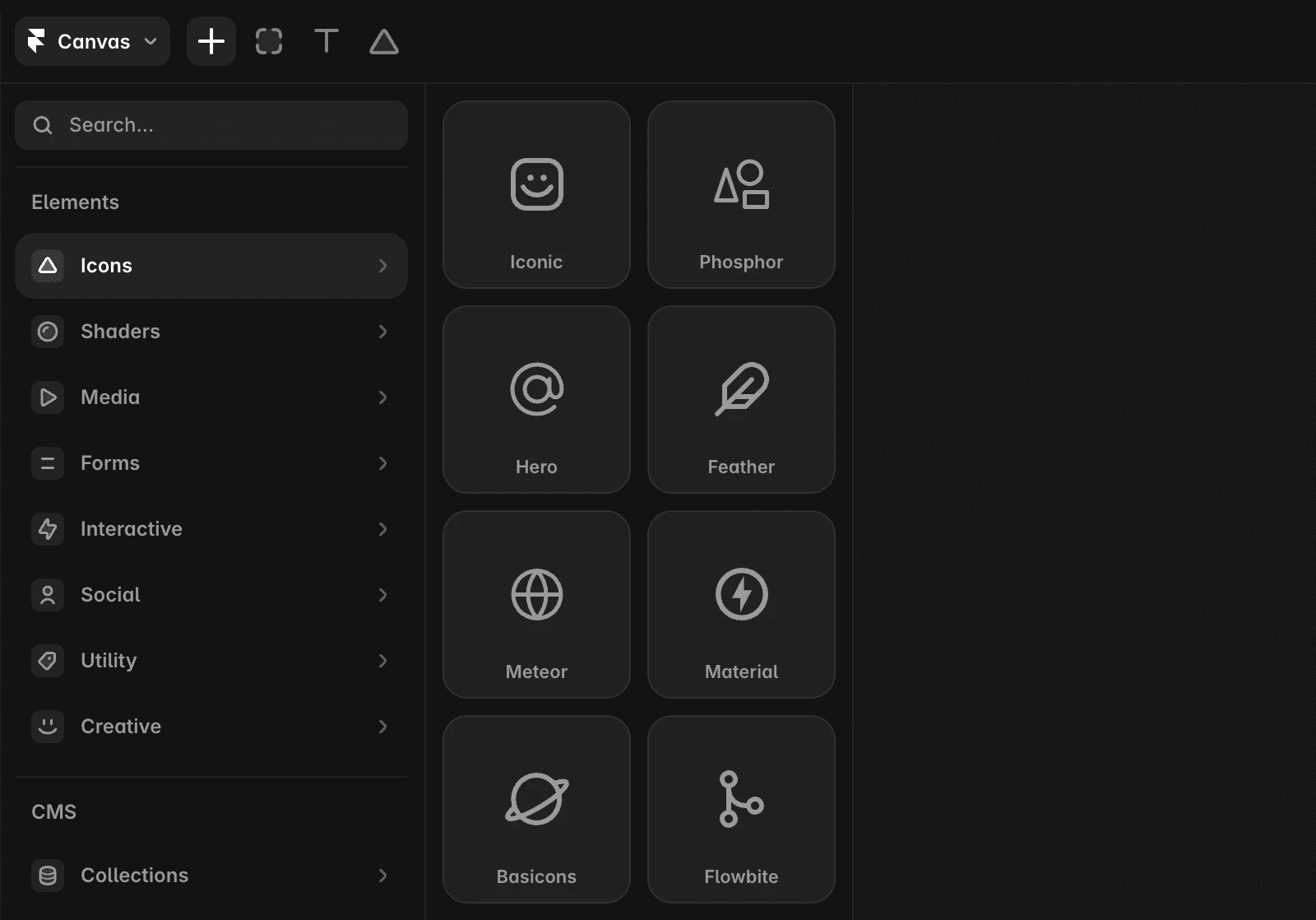
Framer includes several built-in icon libraries, including:
Phosphor
Feather
Meteor
Basicons
Lucide
To add an icon:
Open the Insert menu.
Select Icons.
Choose an icon library.
Drag an icon onto the Canvas.
Import SVG icons
You can add custom SVG icons directly to your project.
To import an SVG file:
Drag the SVG file onto the Canvas, or
Copy the SVG and paste it using
⌘ + Von macOS orCtrl + Von Windows
Once imported, the SVG becomes part of your design and can be positioned and styled like other elements.
FAQ
Which icon libraries are included in Framer?
Framer includes several built-in libraries, including Phosphor, Feather, Meteor, Basicons, and Lucide.
Can I use custom SVG icons?
Yes. You can drag SVG files onto the Canvas or paste SVG content directly into your project.
How do I access additional icon libraries?
Use plugins from the Framer Community to access additional icon collections and specialized icon sets.
