Duplicating a CMS detail page lets you reuse an existing layout without rebuilding it from scratch. After duplicating the page, you can connect it to a different CMS collection and update any content that doesn’t match the new collection.
Duplicate and connect a CMS page
In the Pages panel, right-click the CMS detail page you want to reuse and select Duplicate.
Rename the duplicated page.
Move the duplicated page outside the original CMS collection.
Update the page path to match the new collection. For example, change
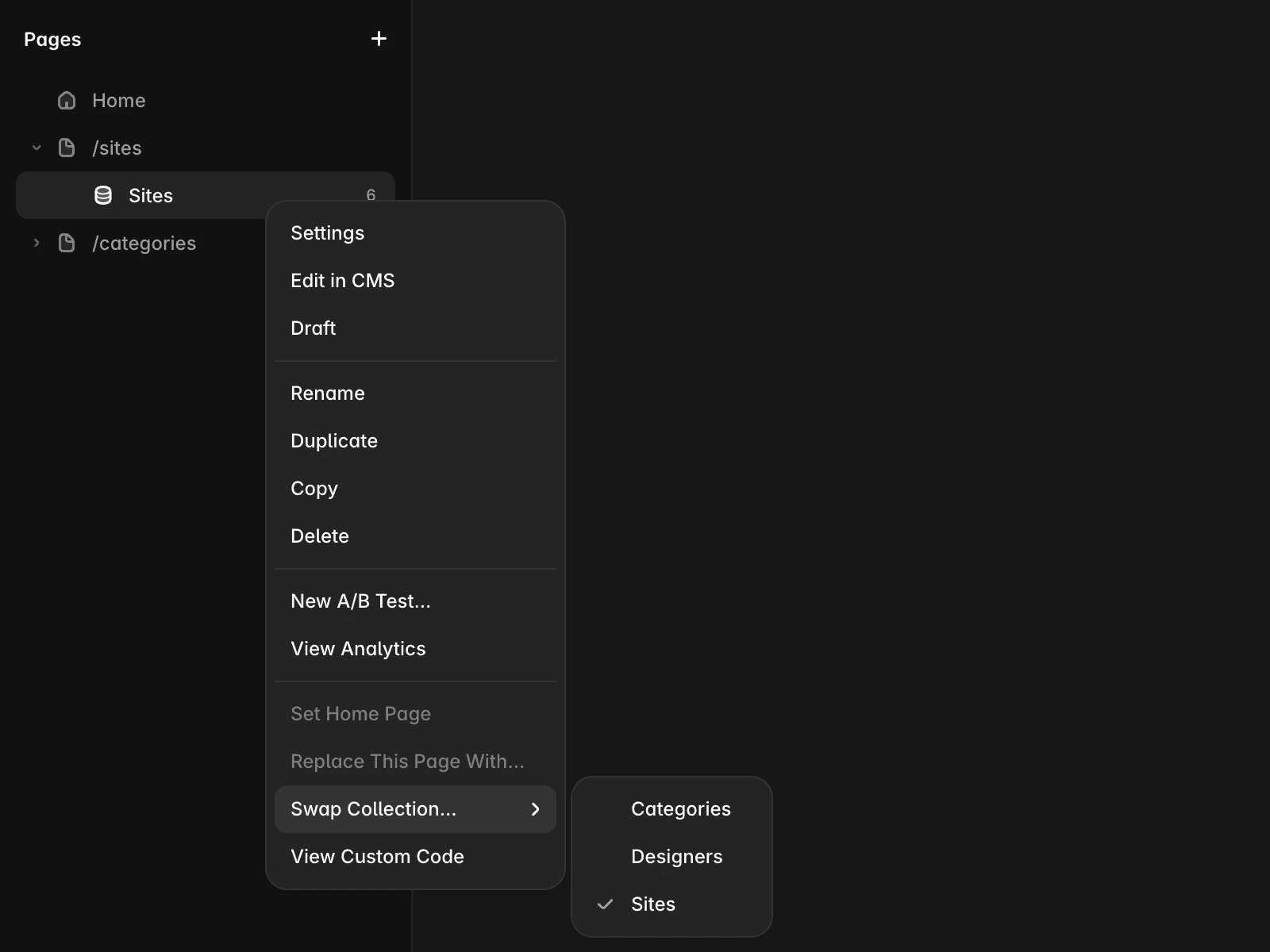
/sites/:slug/copyto/categories/:slug.In the Pages panel, right-click the duplicated page and select Swap Collection.
Choose the CMS collection you want to connect to the page.
Review all connected elements on the page. Reconnect any fields that exist in the new collection, and remove or replace elements that reference fields that aren't available.
After you’ve finished updating the page, it will use the same layout as the original CMS detail page while displaying content from the new CMS collection.
FAQ
Can I keep the original CMS page after duplicating it?
Yes. Duplicating a CMS page creates a separate page, so the original remains connected to its existing CMS collection.
Why are some elements disconnected after swapping collections?
The new CMS collection may not contain the same fields as the original. You’ll need to reconnect supported fields or remove elements that reference unavailable fields.
Will duplicating a CMS page copy its design?
Yes. The duplicated page keeps the original layout and styling. Only the CMS data source changes after you swap the collection and update any field connections.
