Text styles let you define reusable typography settings such as font, size, weight, line height, and color. Using text styles helps maintain consistency across your site and makes global typography updates easier.
Create a text style
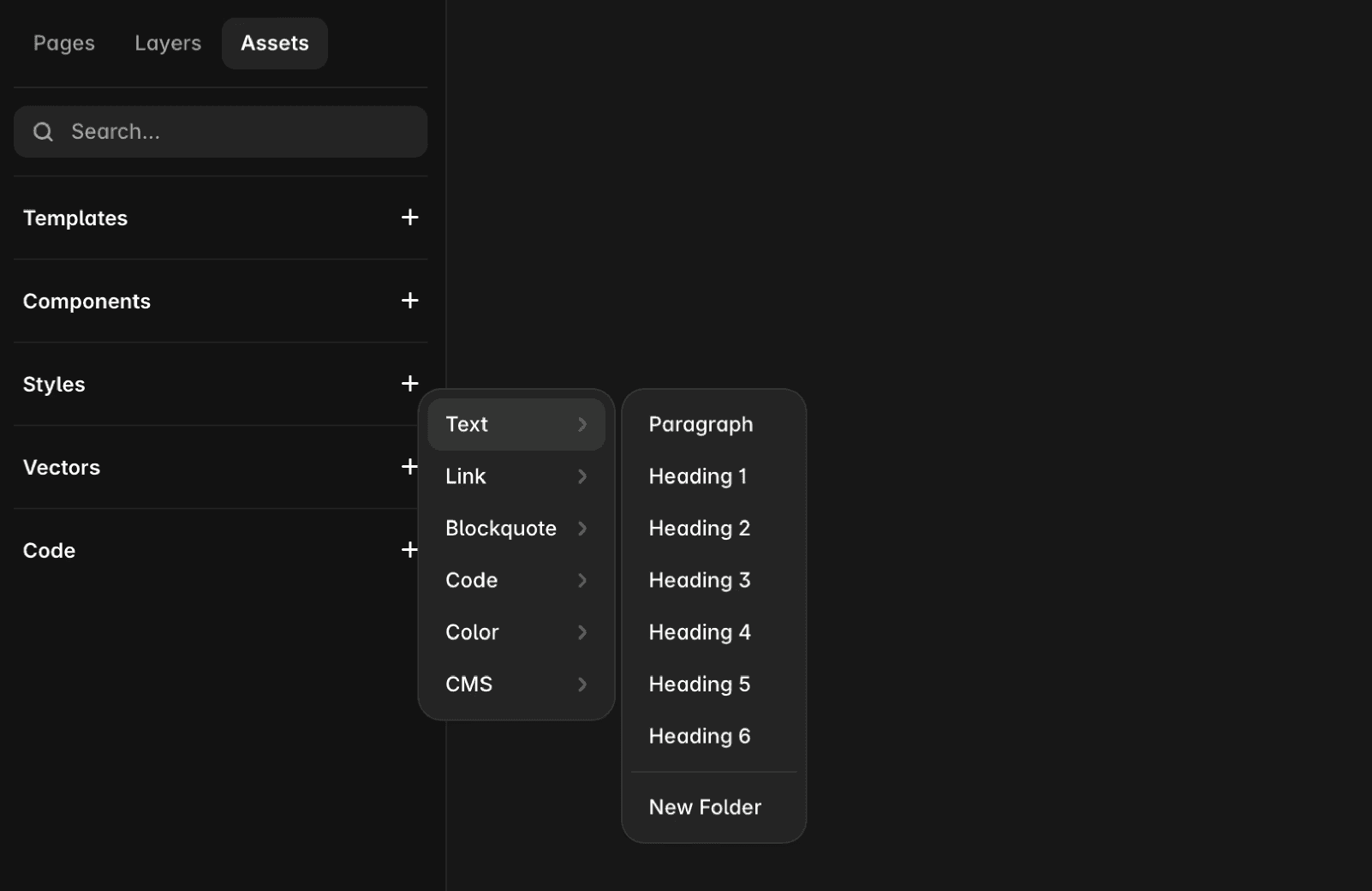
You can create text styles from the Assets panel.
To create a text style:
Open Assets in the left sidebar.
In the Styles section, click the + icon.
Select Text.
Choose the appropriate heading level or paragraph type.
The new text style becomes available throughout your project.
Apply a text style
By default, text layers do not use a text style.
To apply a text style:
Select a text layer or highlight specific text.
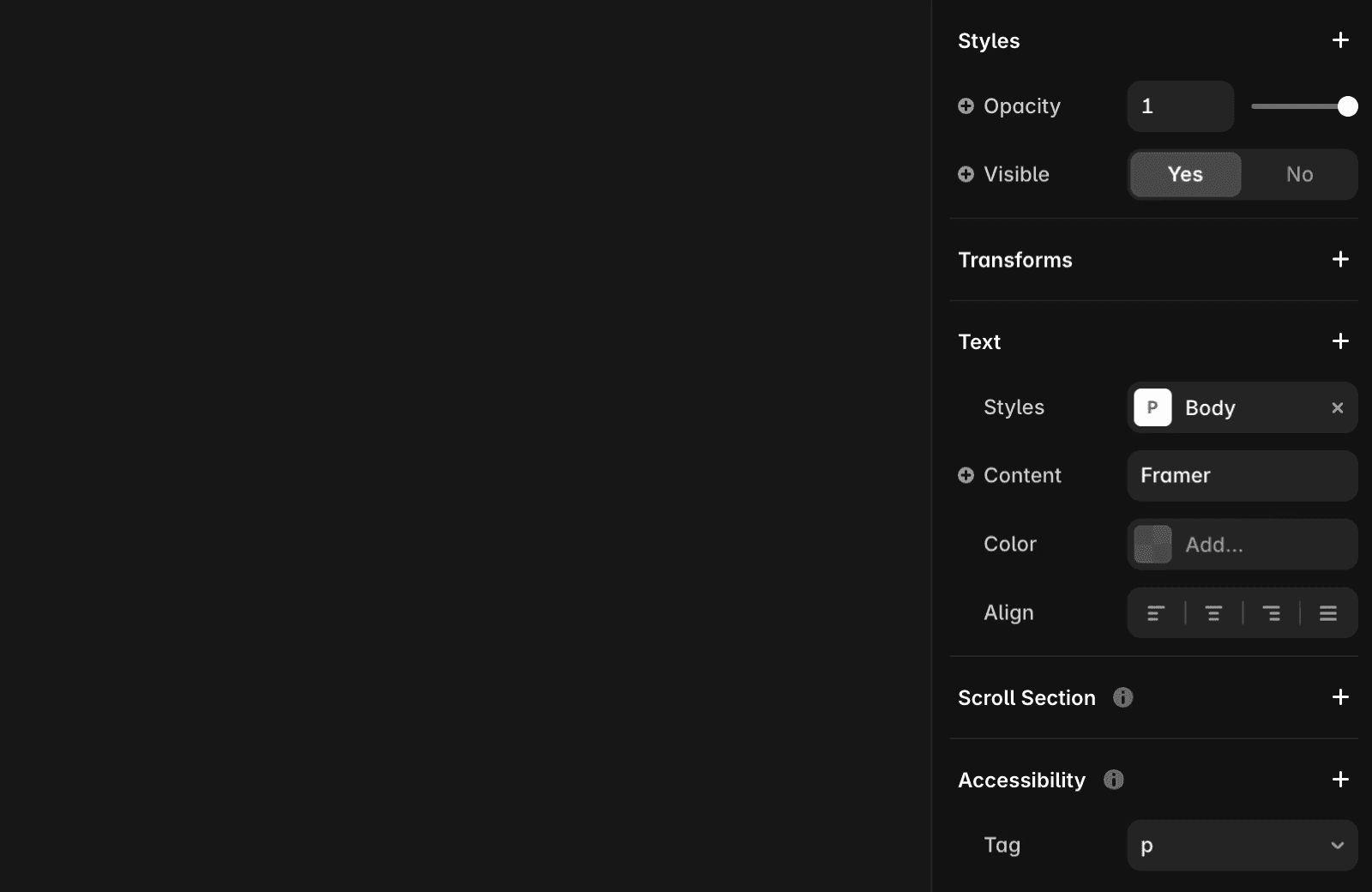
In the right panel, open Text → Styles.
Select the text style you want to apply.
To remove a text style, click the × next to the applied style.
Add breakpoint-specific styles
Text styles can adapt to different screen sizes using breakpoints.
To add breakpoint settings:
Open a text style to launch the Edit Style dialog.
In the Breakpoints section, click Add Breakpoint.
Configure styles for Desktop (L), Tablet (M), and Mobile (S).
Adjust properties such as:
Font size
Line height
Letter spacing
Paragraph spacing
Each breakpoint can have its own typography settings while remaining part of the same text style.
Manage text styles
To manage existing text styles:
Open Assets.
Navigate to Styles.
Create, edit, rename, or delete styles as needed.
Changes made to a text style are automatically reflected wherever that style is used.
Style rich text content
You can apply multiple text styles within a single text element.
To style specific text:
Select the text element.
Highlight the text you want to customize.
Apply a different text style from the properties panel.
This is useful for creating headings, emphasis, or mixed typography within the same content block.
Use text styles with CMS content
Text styles work the same way with CMS text elements.
Select the CMS text layer and choose an available text style from the properties panel. Any updates made to the style will also apply to connected CMS content.
Style links
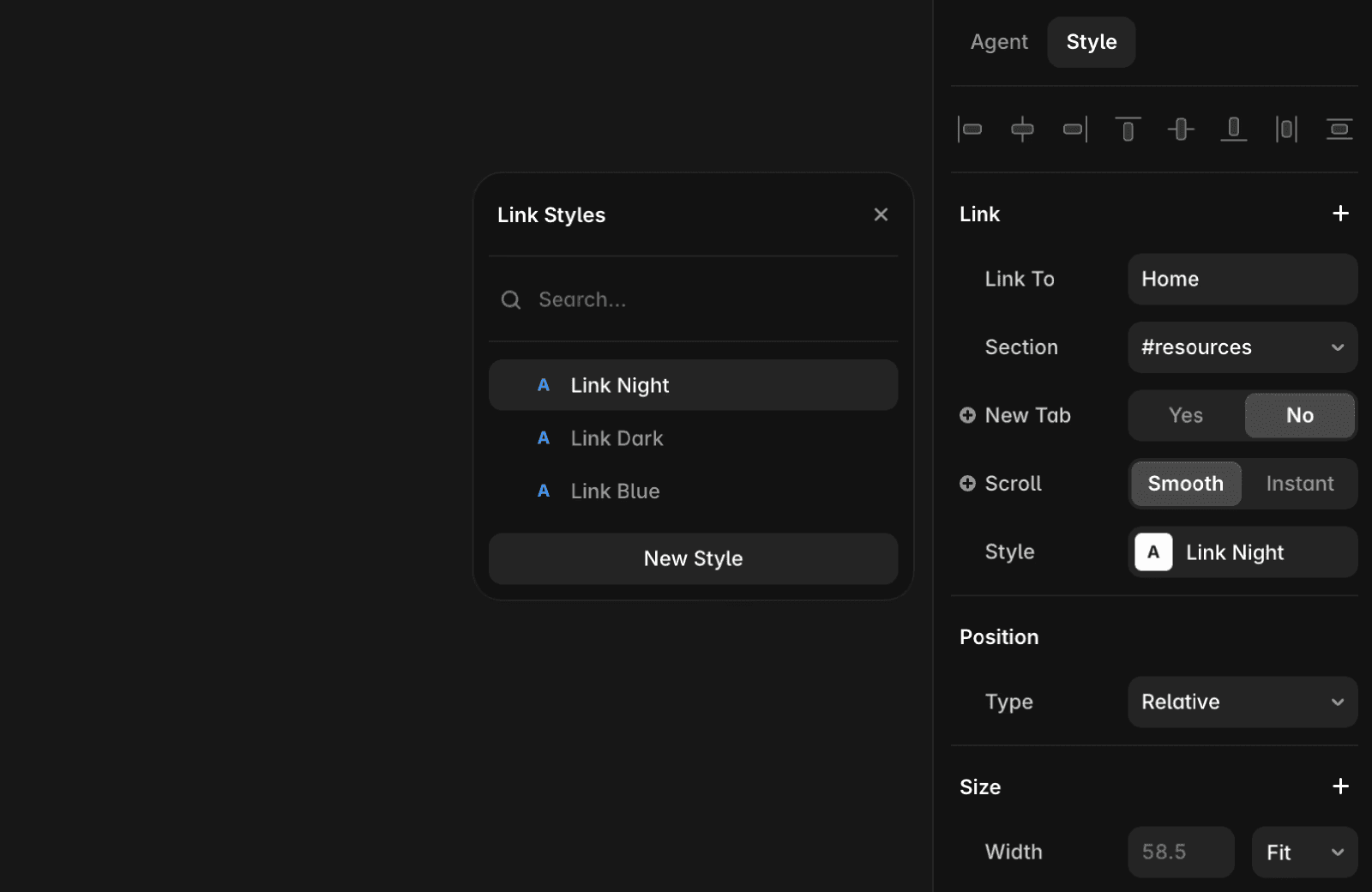
You can create custom styles for links within text.
To style a link:
Select a text layer containing a link.
Locate the Link section in the properties panel.
Adjust the Style setting.
Customize link states such as:
Hover
Active
Current
Override text colors
You can override the color of specific text without creating a new text style.
To override a color:
Apply a text style.
Select the text you want to modify.
Change the color in the properties panel.
This allows you to emphasize specific words or phrases while keeping the rest of the style consistent.
FAQ
How do I apply and remove text styles in Framer?
To apply a style, select a text element or specific text, then click Text → Styles in the properties panel. To remove a style, click the × in the properties panel.
Can I customize text styles for different device sizes?
Yes, text styles can adapt to different device sizes using breakpoints. Click on a text style to open the 'Edit Style' modal, then in the Breakpoints section, click Add Breakpoint to add defaults for Desktop (L), Tablet (M), and Mobile (S). You can customize font size, line height, letter spacing, and paragraph spacing for each breakpoint.
How can I override the color of specific text without creating a new style?
First, apply the desired text style. Then, select the specific text you want to modify and use the properties panel to override the color without creating a new style.
