The canvas includes tools that help you navigate your project efficiently, whether you’re selecting layers, moving around the workspace, or adjusting your zoom level.
Canvas controls
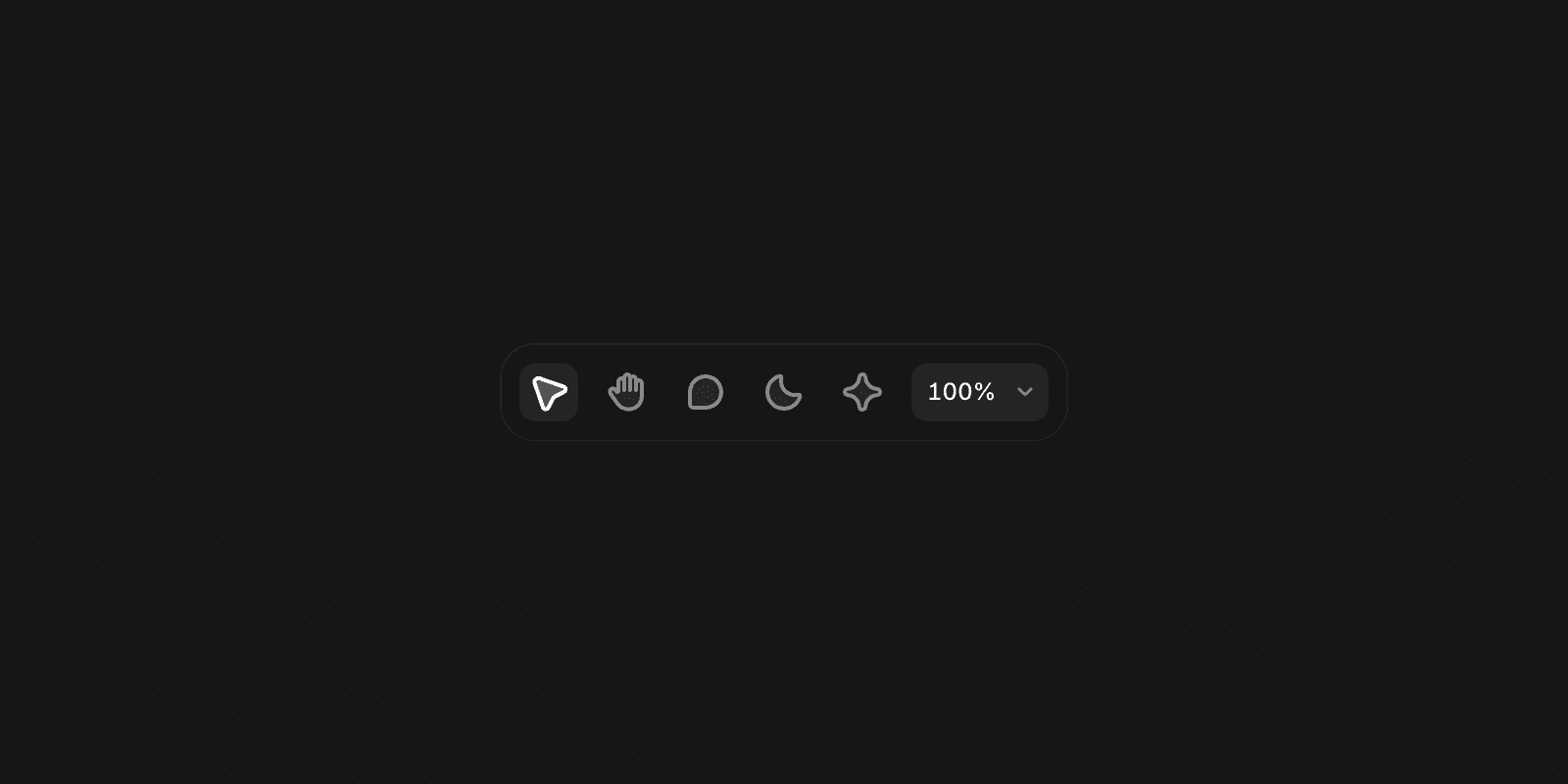
The canvas controls are located in the bottom toolbar. They include tools for:
Selecting layers
Panning around the canvas
Adding comments
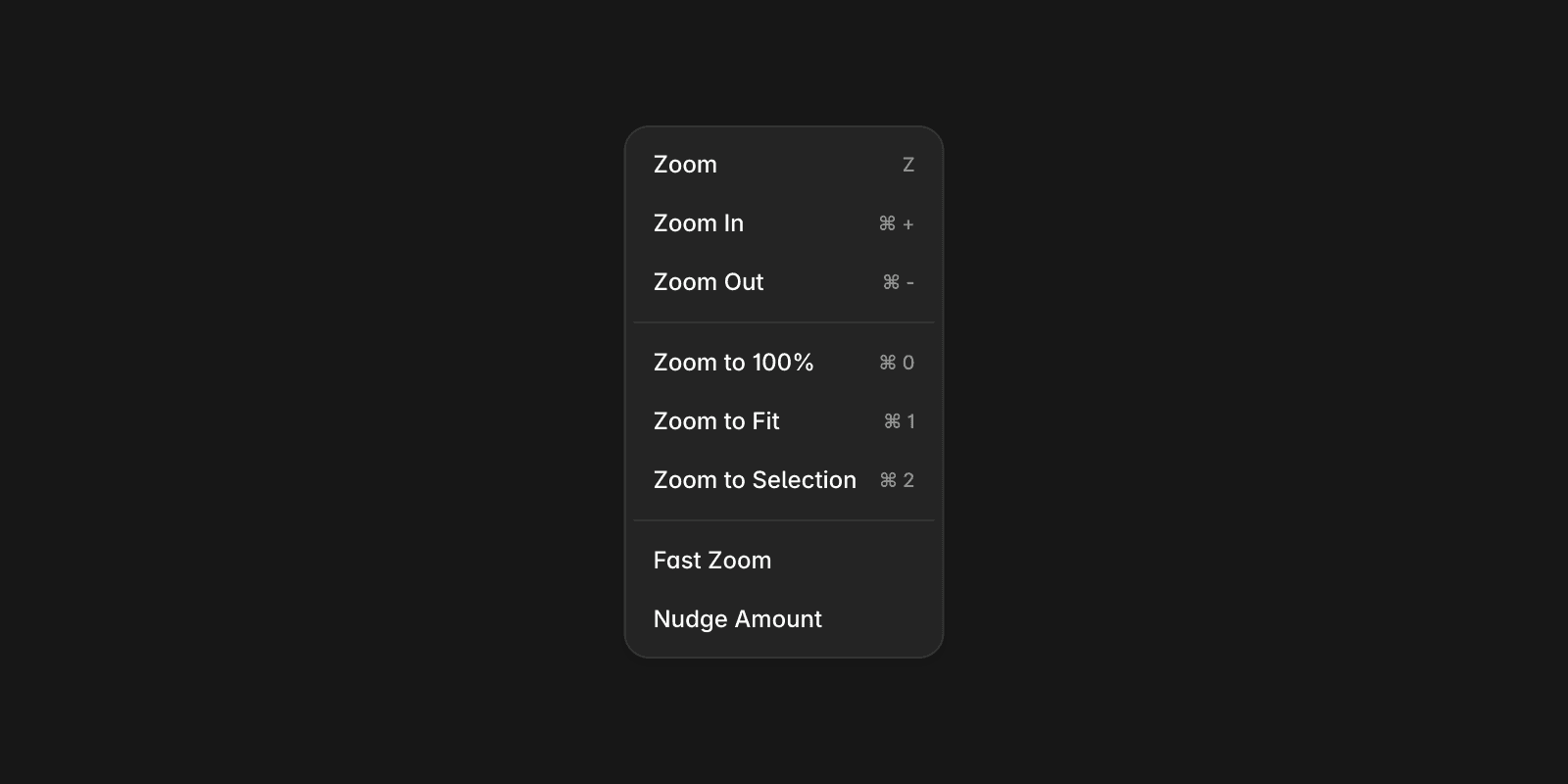
On the right side of the toolbar, you’ll find the zoom menu. Use it to:
Zoom in or out
Fit the canvas to your current selection
Choose a specific zoom percentage
Panning around the canvas
Use the pan tool to move around the canvas and view different areas of your project.
You can also pan using the following shortcuts:
Mouse: Hold the Space key, then click and drag.
Trackpad: Click and drag to pan, or use two fingers to scroll in any direction.
Zooming in and out
The default zoom level in Framer is 100%.
To change the zoom level, use the zoom percentage menu in the canvas toolbar or one of the keyboard shortcuts below:
On Mac:
⌘ +to zoom in⌘ −to zoom out
On Windows:
Ctrl +to zoom inCtrl −to zoom out
Each zoom increment doubles the current zoom level.
You can also zoom using input devices:
Trackpad: Pinch with two fingers to zoom in or out.
Mouse: Hold
⌘(Mac) orCtrl(Windows) while scrolling.
FAQ
How do I pan around the canvas in Framer?
To pan around the canvas, use the pan tool or hold the space key while clicking and dragging with a mouse. On a trackpad, click and drag to pan, or use two fingers to scroll in any direction.
What are the different ways to zoom in and out on the canvas?
The default zoom level in Framer is 100%. To adjust this, use the zoom percentage dropdown in the canvas bar or keyboard shortcuts: On Mac, use ⌘ CMD + to zoom in and ⌘ CMD - to zoom out. On Windows, use CTRL + to zoom in and CTRL - to zoom out. Each increment doubles the zoom level. You can also zoom using a trackpad by pinching or stretching two fingers, or with a mouse by pressing and holding ⌘ Command (Mac) or Ctrl (Windows) while scrolling.
Where can I find the canvas controls and what tools are available?
The canvas controls are located in the bottom bar and include tools for selection, panning, and commenting. On the far right, a zoom menu provides shortcuts to zoom in, zoom out, or adjust the view to your current selection or a specific percentage.
