Markdown support makes it easy to move content between tools, maintain consistent formatting, and streamline your content workflow. You can paste Markdown into CMS rich text fields or copy CMS content as Markdown for use elsewhere.
Paste Markdown into a CMS field
You can paste Markdown directly into a CMS rich text field, and it will automatically convert into formatted content.
To paste Markdown:
Copy the Markdown content from your preferred tool.
Open a CMS item.
Paste the content into a rich text field.
The CMS converts the Markdown into structured content while preserving supported formatting.
Supported elements include headings, paragraphs, ordered and unordered lists, tables, code blocks and blockquotes.
Copy CMS content as Markdown
You can export rich text content from the CMS as Markdown and reuse it in other tools.
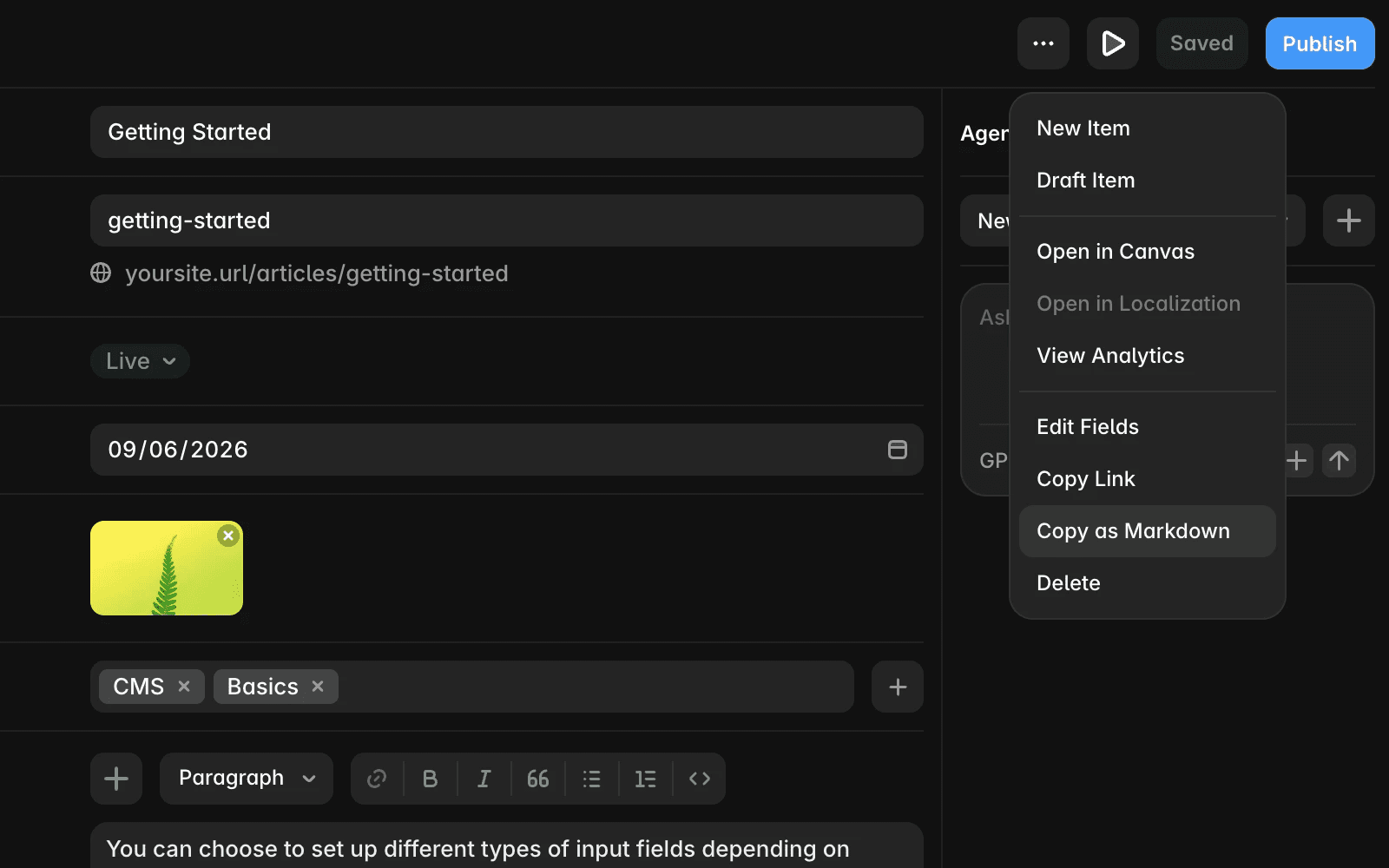
To copy content as Markdown:
Open a CMS item.
Click the three-dot icon in the top-right corner.
Select Copy as Markdown.
Paste the content into your preferred Markdown editor.
Manage links in Markdown
Links pasted into the CMS are automatically optimized to ensure they work correctly across your site.
When processing links, the CMS:
Converts links to relative URLs when possible.
Preserves external links.
Includes the correct
hrefattributes.Resolves variables inside links automatically.
This helps maintain consistent and reliable linking throughout your content.
FAQ
Why isn’t my Markdown formatting applied correctly?
Some advanced or non-standard Markdown syntax may not be supported. Simplifying your formatting and using standard Markdown usually resolves the issue.
Can I edit Markdown directly in the CMS?
The CMS converts Markdown into rich text on paste. You edit the formatted content directly rather than the raw Markdown.
Are all links converted to relative URLs?
Only internal links are converted to relative URLs. External links remain absolute to ensure they work correctly.
