You can downgrade your Site plan at any time from your project settings. If you downgrade during an active billing period, the unused portion of your current plan is converted into account credit and applied to future invoices.
Downgrade your Site plan
To downgrade a Site plan:
Open the Dashboard and select the project you want to update.
Click the menu in the top-left corner and select Settings.
Open the Plans tab.
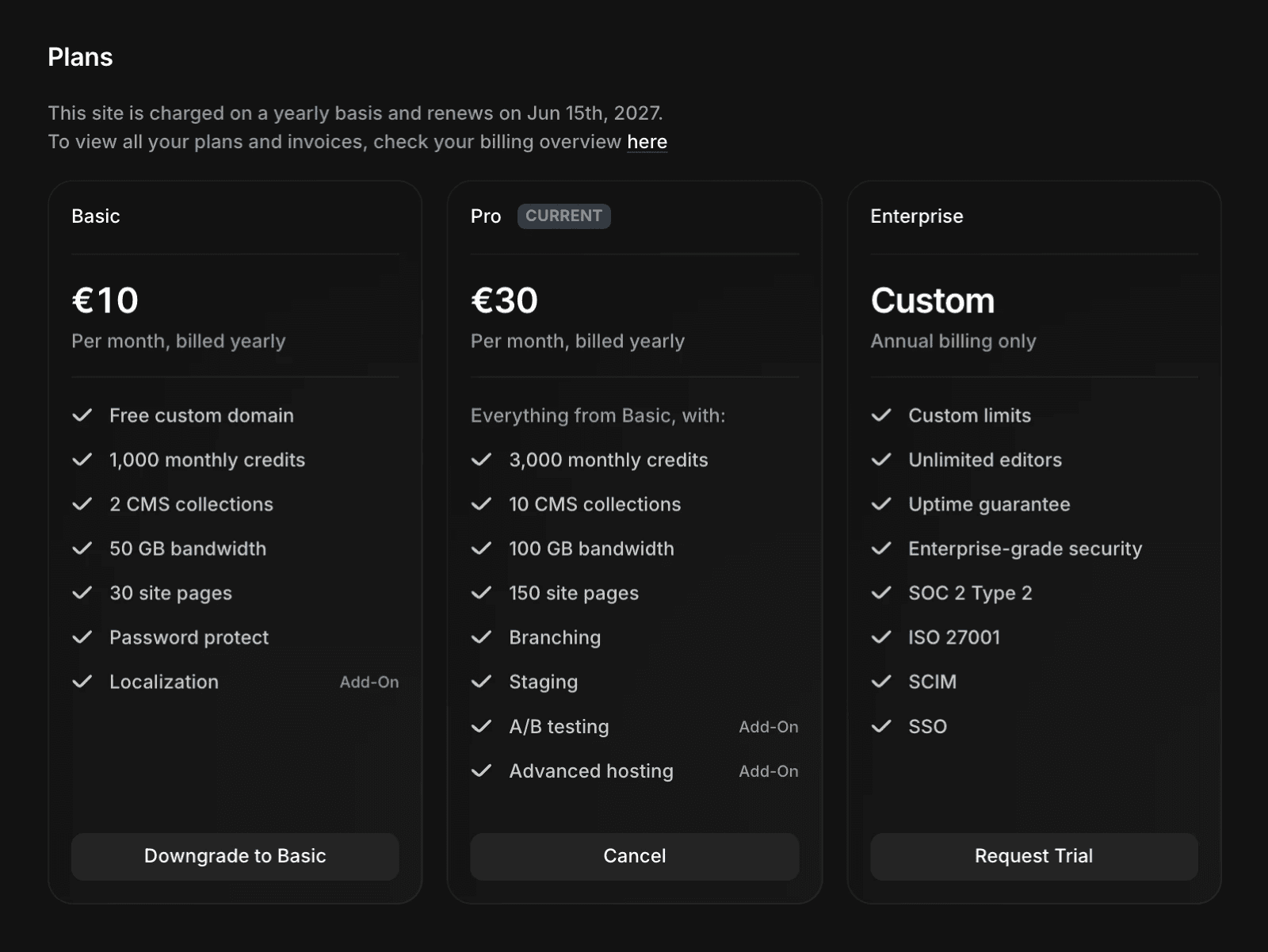
Review the available Site plans and their features.
Select the plan you want to switch to.
Follow the on-screen instructions to confirm the change.
How account credits work
If you downgrade during an active billing period, the unused portion of your current subscription is converted into account credit.
Account credits:
Are calculated based on the remaining value of your current plan.
Are non-refundable.
Are automatically applied to future invoices.
Reduce the amount due on upcoming billing cycles until the credit balance is used.
Enterprise plans
This article applies only to standard Framer Site plans.
If you are currently on an Enterprise plan or would like to explore Enterprise options, visit the Framer Enterprise page for more information.
FAQ
How do I downgrade my Site plan in Framer?
To downgrade your Site plan in Framer, log in to your Framer account. In the Dashboard, click on the project you wish to downgrade. Click on the top left menu, then select 'Site Settings' > 'Open Settings'. In the project settings, click the 'Plans' tab. At the top, you’ll see the available Site plans and their features. Select the plan you want to downgrade to and follow the on-screen instructions to complete the process.
What happens to my billing when I downgrade from a higher-tier plan to a lower-tier plan?
When you downgrade from a higher-tier plan to a lower-tier plan during a billing period, the remaining balance from your previous subscription will be saved as credit in your Framer account. This credit is non-refundable and will automatically apply to future invoices, reducing the amount due for upcoming billing cycles.
