How to disable AI for your workspace or organization

Framer includes AI features that can help teams generate, edit, and iterate on sites faster. If your organization or workspace needs to restrict the use of AI, an admin can disable AI from the workspace settings. This is an Enterprise-only feature.

Who can disable AI?

Only workspace or organization admins on Enterprise plans can change AI permissions. If you do not see these settings, ask an admin on your team to update them for you.

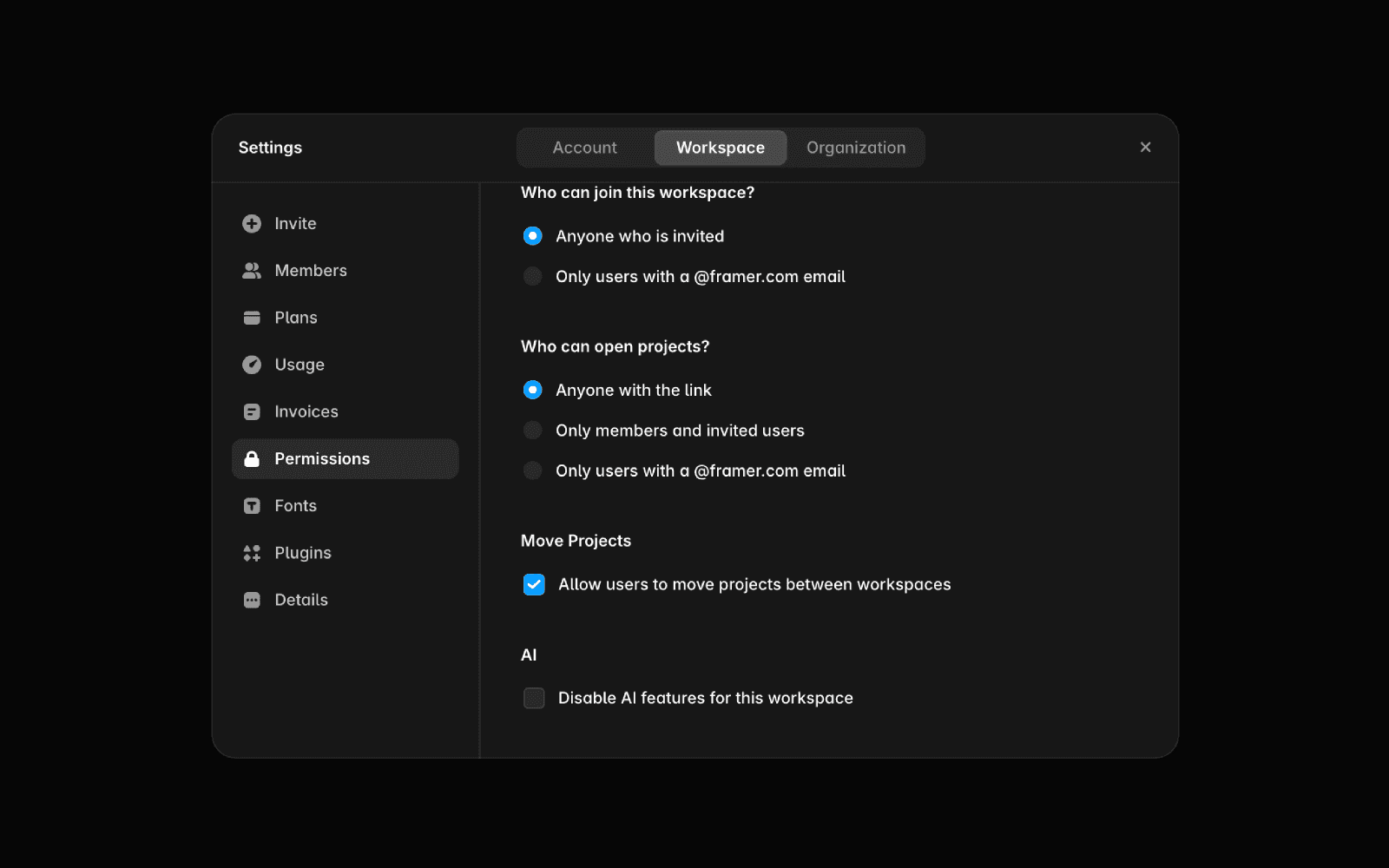
Disable AI for a workspace

  1. Open Workspace Settings.

  2. Go to Permissions.

  3. Turn on “Disable AI features for this workspace”.

Once enabled, members of the workspace will no longer be able to use Framer’s AI features in that workspace.
Disable AI for an organization

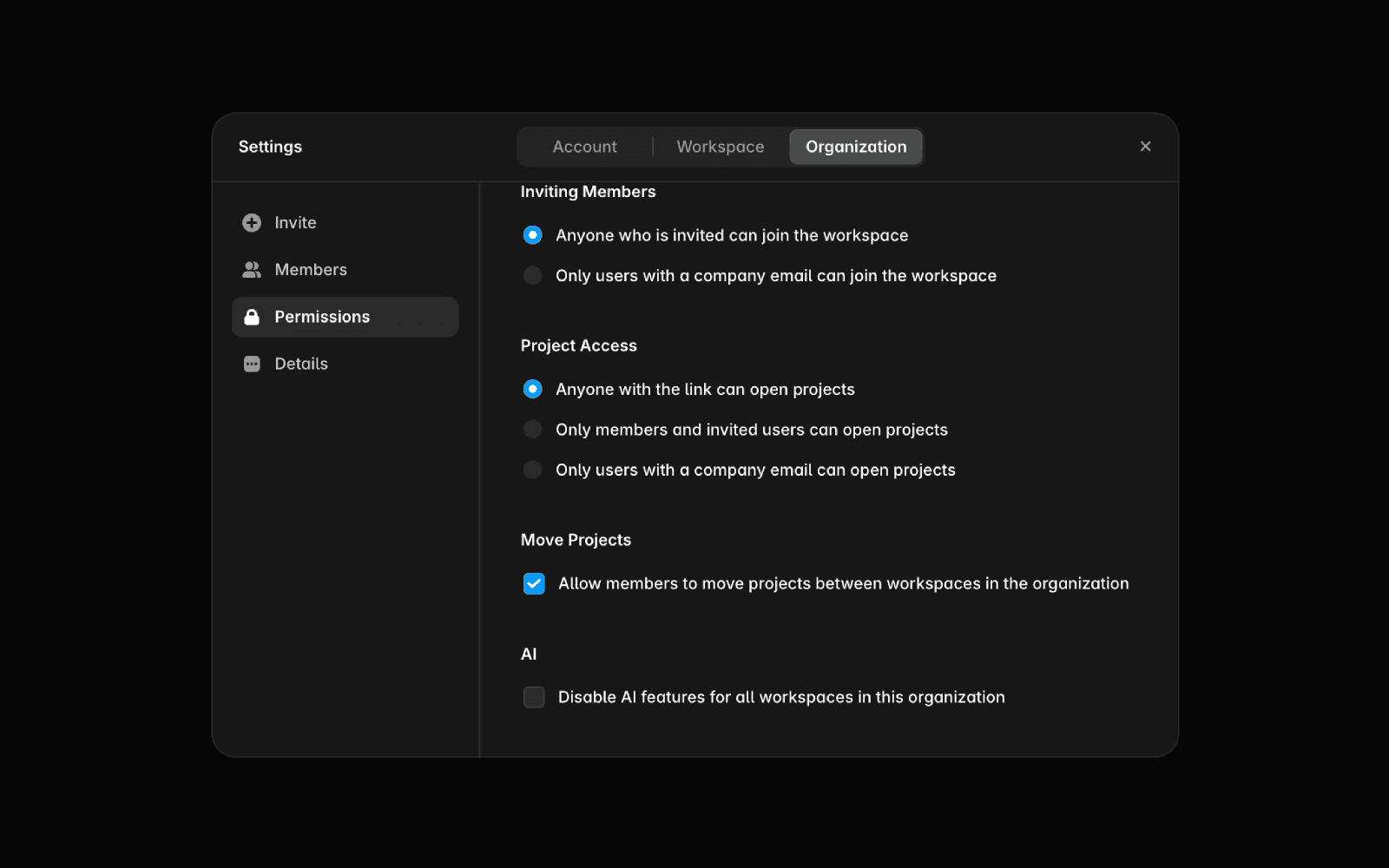
  1. Open Organization Settings.

  2. Go to Permissions.

  3. Turn on “Disable AI features for all workspaces in this organization”.

Once enabled, AI features will be disabled for all workspaces in the organization.
What happens when AI is disabled?

When AI is disabled, workspace members will not be able to access AI-powered features in Framer, such as generating or editing content with AI. Existing projects and manually created content are not removed or changed.

Can AI be re-enabled later?

Yes. An admin can return to the same Permissions settings and turn the setting off at any time.

I don’t see the AI permission setting

If you do not see the AI permission setting, check that:

  • You are an admin of the workspace or organization.

  • You are viewing the correct workspace or organization settings.

  • Your workspace or organization is on an Enterprise plan.

If you still cannot find the setting, contact Framer Support for help.

Who can disable AI?

Only workspace or organization admins on Enterprise plans can change AI permissions. If you do not see these settings, ask an admin on your team to update them for you.

Disable AI for a workspace

  1. Open Workspace Settings.

  2. Go to Permissions.

  3. Turn on “Disable AI features for this workspace”.

Once enabled, members of the workspace will no longer be able to use Framer’s AI features in that workspace.

Disable AI for an organization

  1. Open Organization Settings.

  2. Go to Permissions.

  3. Turn on “Disable AI features for all workspaces in this organization”.

Once enabled, AI features will be disabled for all workspaces in the organization.

What happens when AI is disabled?

When AI is disabled, workspace members will not be able to access AI-powered features in Framer, such as generating or editing content with AI. Existing projects and manually created content are not removed or changed.

Can AI be re-enabled later?

Yes. An admin can return to the same Permissions settings and turn the setting off at any time.

I don’t see the AI permission setting

If you do not see the AI permission setting, check that:

  • You are an admin of the workspace or organization.

  • You are viewing the correct workspace or organization settings.

  • Your workspace or organization is on an Enterprise plan.

If you still cannot find the setting, contact Framer Support for help.

Updated