To embed a Loom video in your Framer project, follow these steps: See Iframe.
How to add Loom video to your website
Add an embed component
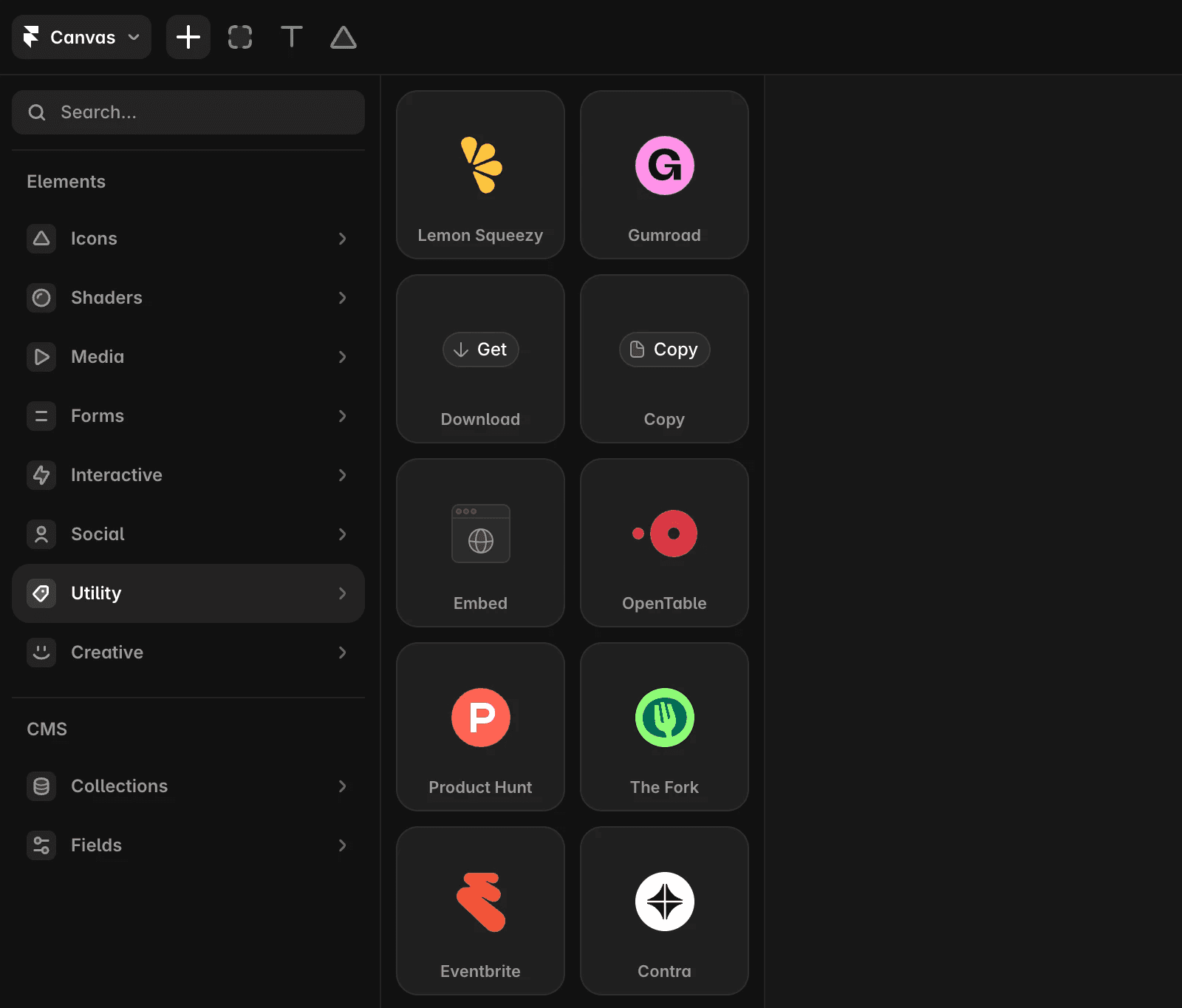
Open the Insert menu, search for “embed,” and drag the component onto your canvas.
Get the embed code from Loom
In your Loom account, navigate to the video's share page and click “Share” above the video.
Select “Embed” and ensure the privacy settings allow “Anyone with the link” to view the video.
Copy the embed code provided by Loom. The default code looks like this:
Modify the embed code
Remove the style attribute from the <div> tag so it looks like this:
Paste the code into the embed component
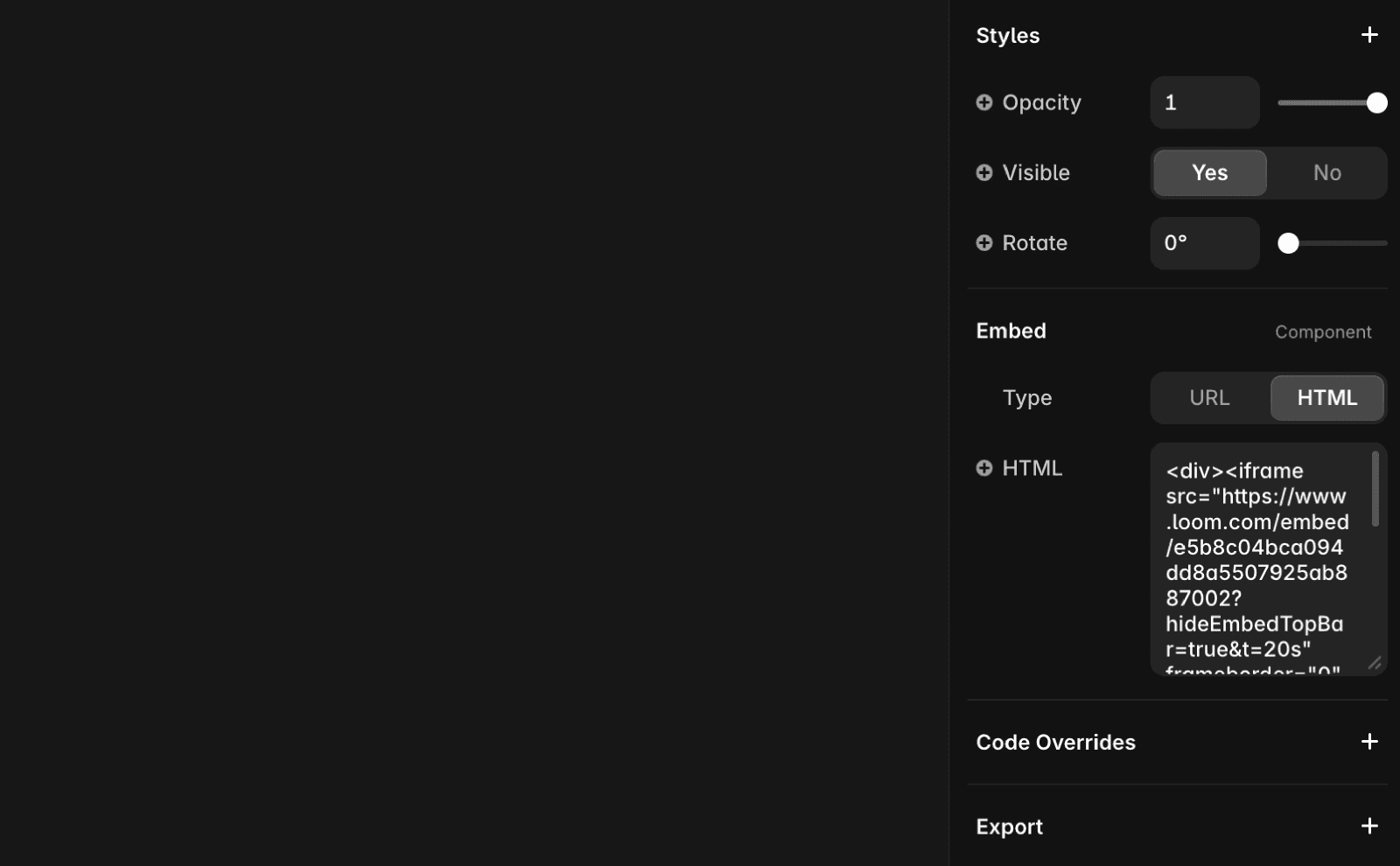
Select the embed component in your Framer project and switch to the HTML tab.
Paste the modified embed code into the tab.
For additional parameter settings, refer to this Loom support article.
If you're still experiencing issues, please reach out to us through our contact page for further help.
FAQ
How do I embed a Loom video into my Framer website?
To embed a Loom video in your Framer project, open the Insert menu, search for 'embed,' and drag the component onto your canvas. In your Loom account, navigate to the video's share page, click 'Share' above the video, select 'Embed,' and ensure the privacy settings allow 'Anyone with the link' to view the video. Copy the embed code provided by Loom, remove the style attribute from the <div> tag, then select the embed component in your Framer project, switch to the HTML tab, and paste the modified embed code into the tab.
Do I need to modify the Loom embed code before adding it to Framer?
Yes, you should remove the style attribute from the <div> tag in the embed code provided by Loom before pasting it into Framer. The modified code should look like this: <div><iframe src="https://www.loom.com/embed/e5b8c04bca094dd8a5507925ab887002?hideEmbedTopBar=true&t=20s" frameborder="0" webkitallowfullscreen mozallowfullscreen allowfullscreen style="position: absolute; top: 0; left: 0; width: 100%; height: 100%;"></iframe></div>.
What should I do if my Loom video is not displaying correctly in Framer?
First, ensure you have set the Loom video's privacy settings to 'Anyone with the link' and that you have removed the style attribute from the <div> tag in the embed code. If you're still experiencing issues, please reach out to us through our contact page for further help.
