Add the Trustpilot script to your site settings
Place the first Trustpilot script in the Custom Code section at the start of the <head> tag in your site's general settings.
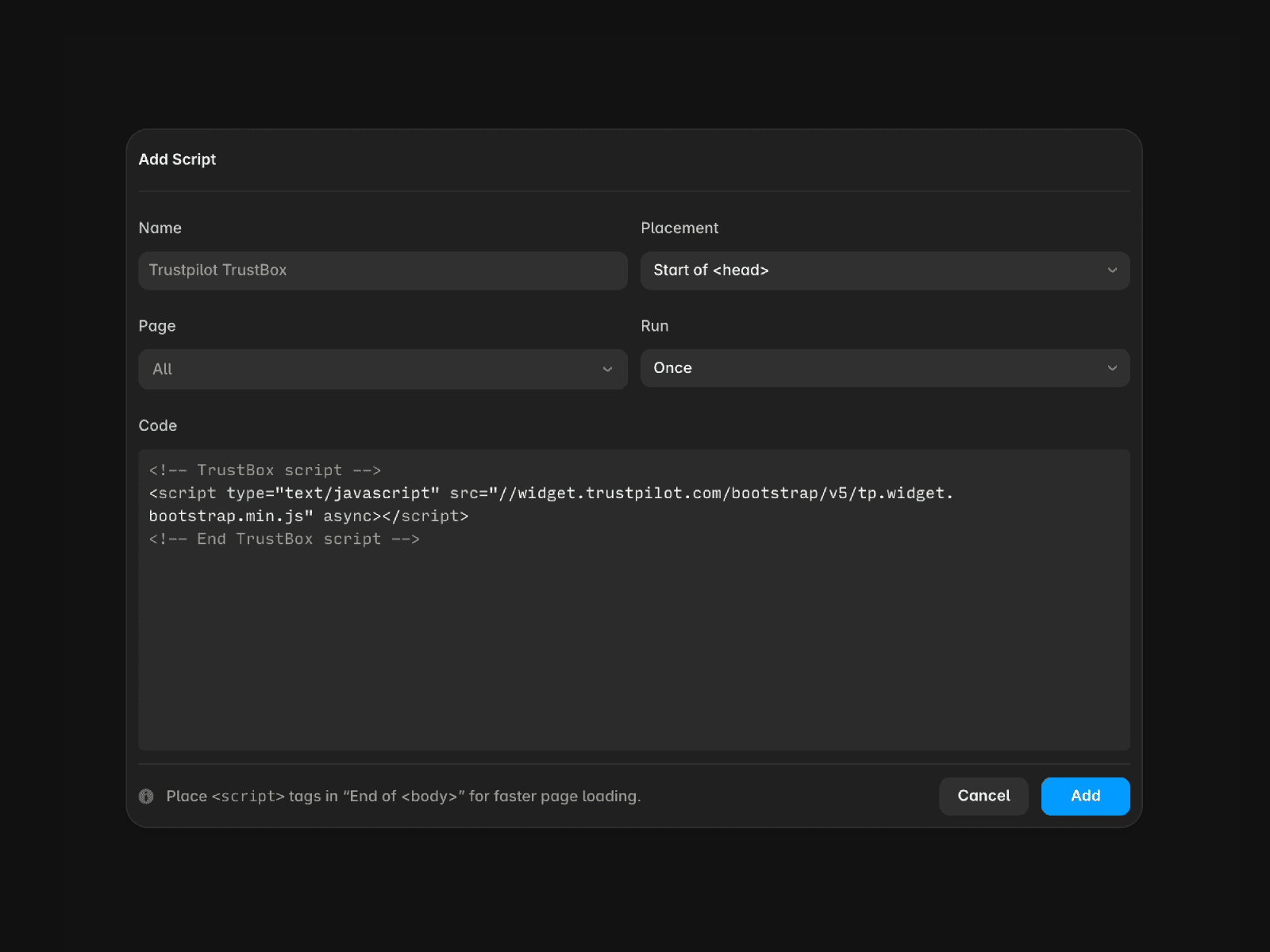
Retrieve and edit the Trustpilot widget script
From your Trustpilot account, copy the second script and paste it into a text editing tool like TextEdit (Mac) or Notepad (Windows). Extract the following elements:
data-template-id(e.g.,5407e68dz0d06a09e041d5km)data-businessunit-id(e.g.,5c09c4742068df0001rrfd35)Your Trustpilot review URL (e.g.,
https://www.trustpilot.com/review/yourdomain)
Replace the placeholders in the script below with your own data:
Add an embed component to your canvas
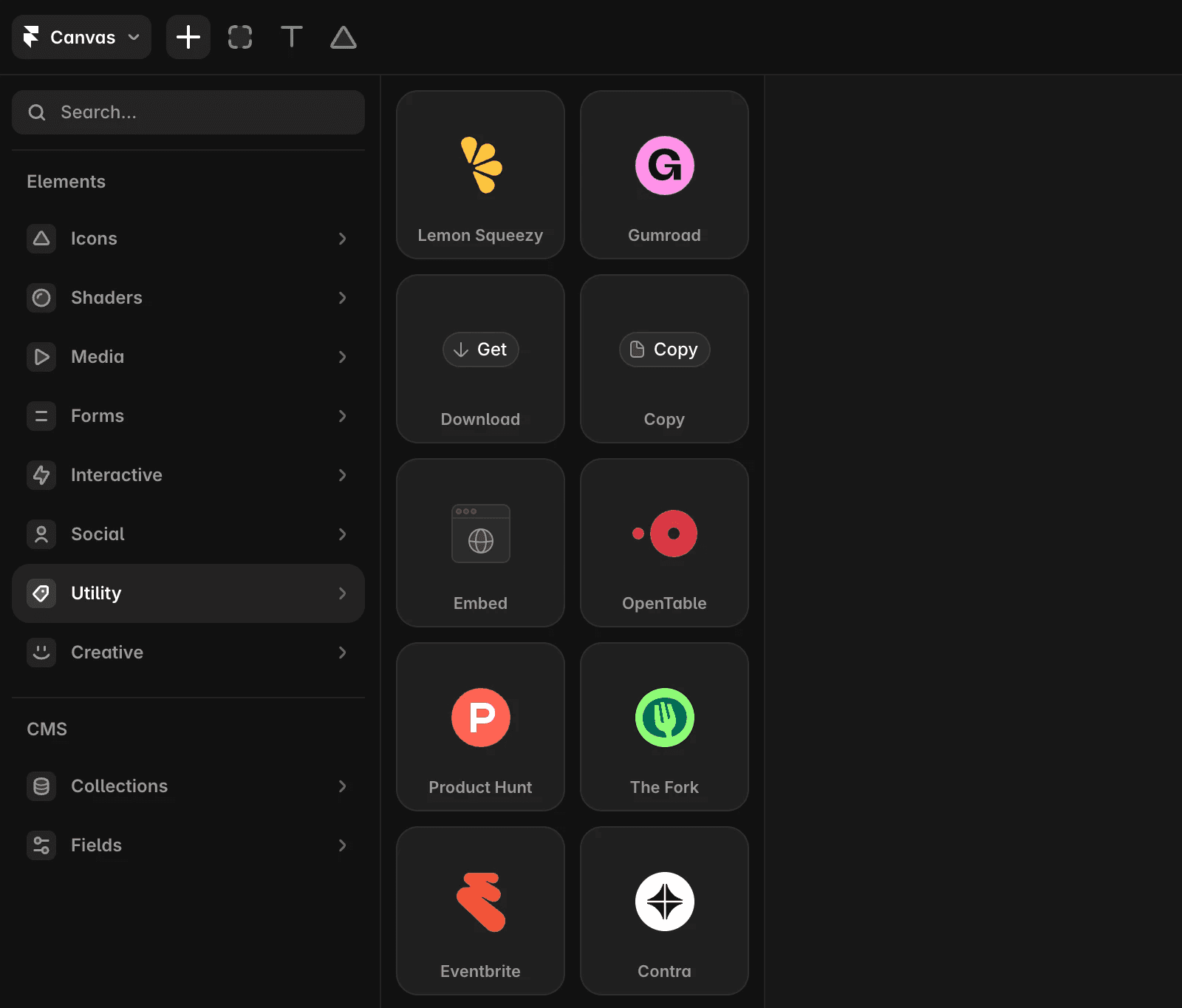
Next, navigate to the Insert menu and search for "embed". Then, drag the component onto the canvas.
Insert the code into the embed component
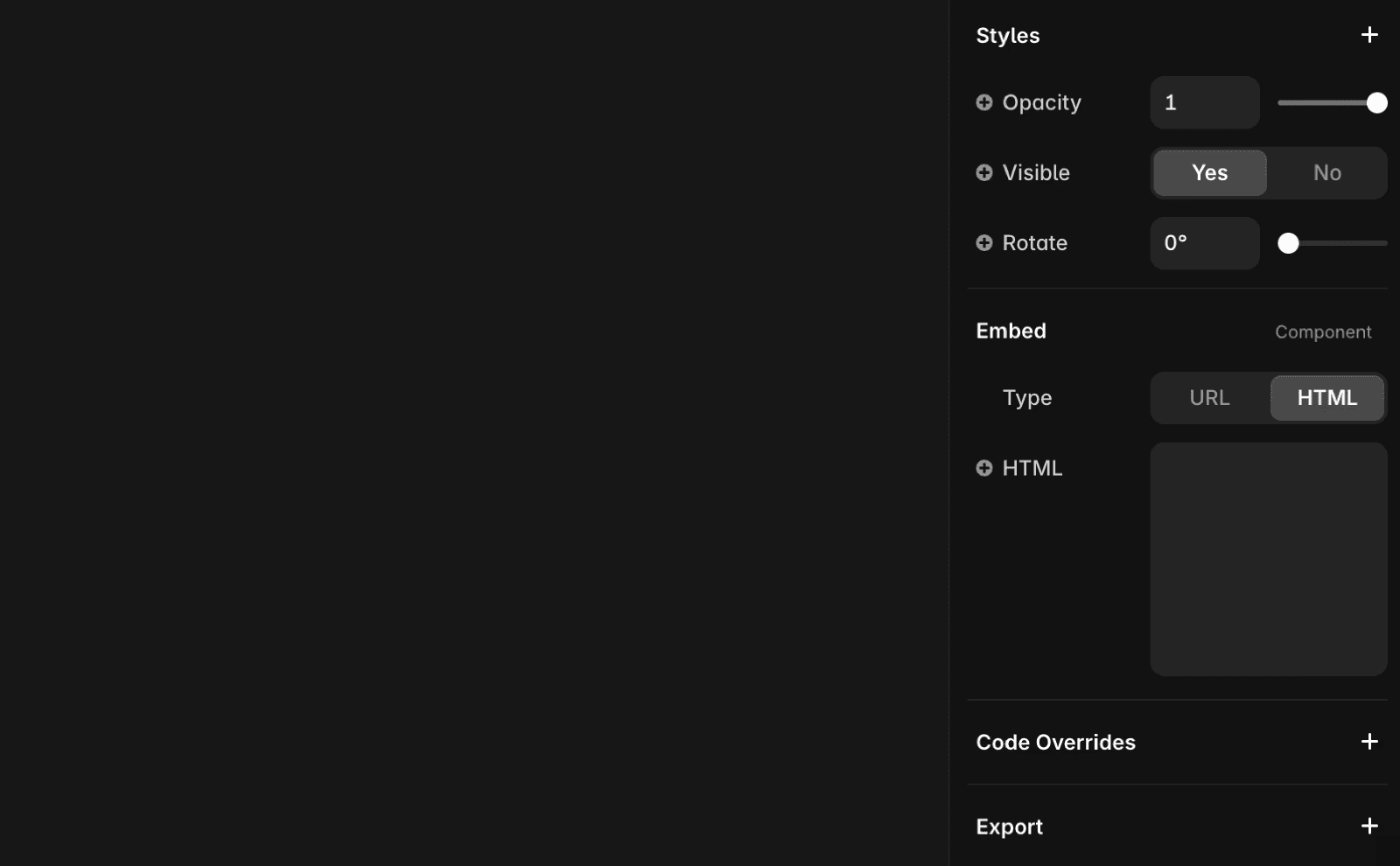
Paste all the Trustpilot code into the HTML tab of the embed component.
Preview the Trustpilot widget
Since Framer executes scripts in the <head> and <body> only in the browser and not in the editor, you’ll need to publish your changes and view your site in the browser to make sure the embed is functioning correctly.
If you're still experiencing issues, please reach out to us through our contact page for further help.
FAQ
How do I embed a Trustpilot widget in my Framer site?
To embed a Trustpilot widget in your Framer site, first add the Trustpilot script to your site settings by placing it in the Custom Code section at the start of the <head> tag in your site's general settings. Then, retrieve your Trustpilot widget script from your Trustpilot account, extract your data-template-id, data-businessunit-id, and review URL, and replace the placeholders in the provided script. Next, add an Embed component to your canvas from the Insert menu, and paste all the Trustpilot code into the HTML tab of the embed component. Finally, publish your site and view it in the browser to ensure the widget is functioning correctly.
Where do I place the Trustpilot scripts in Framer?
Place the first Trustpilot script in the Custom Code section at the start of the <head> tag in your site's general settings. The second script, which contains your widget, should be pasted into the HTML tab of an Embed component that you add to your canvas.
Why can’t I see the Trustpilot widget in the Framer editor?
Framer executes scripts in the <head> and <body> only in the browser and not in the editor. To see the Trustpilot widget working, you need to publish your changes and view your site in the browser.
