Move a project to another workspace

Learn how to move a project between workspaces and what happens to active Site plans.

If you’ve created or duplicated a project in the wrong workspace, you can move it to another workspace in just a few steps.

Move a project

To move a project to a different workspace:

  1. Open the Dashboard.

  2. Locate the project you want to move.

  3. Click the three-dot menu icon next to the project name.

  4. Select Move.

  5. Choose the destination workspace.

  6. Click Move to confirm.

The project will be transferred to the selected workspace.
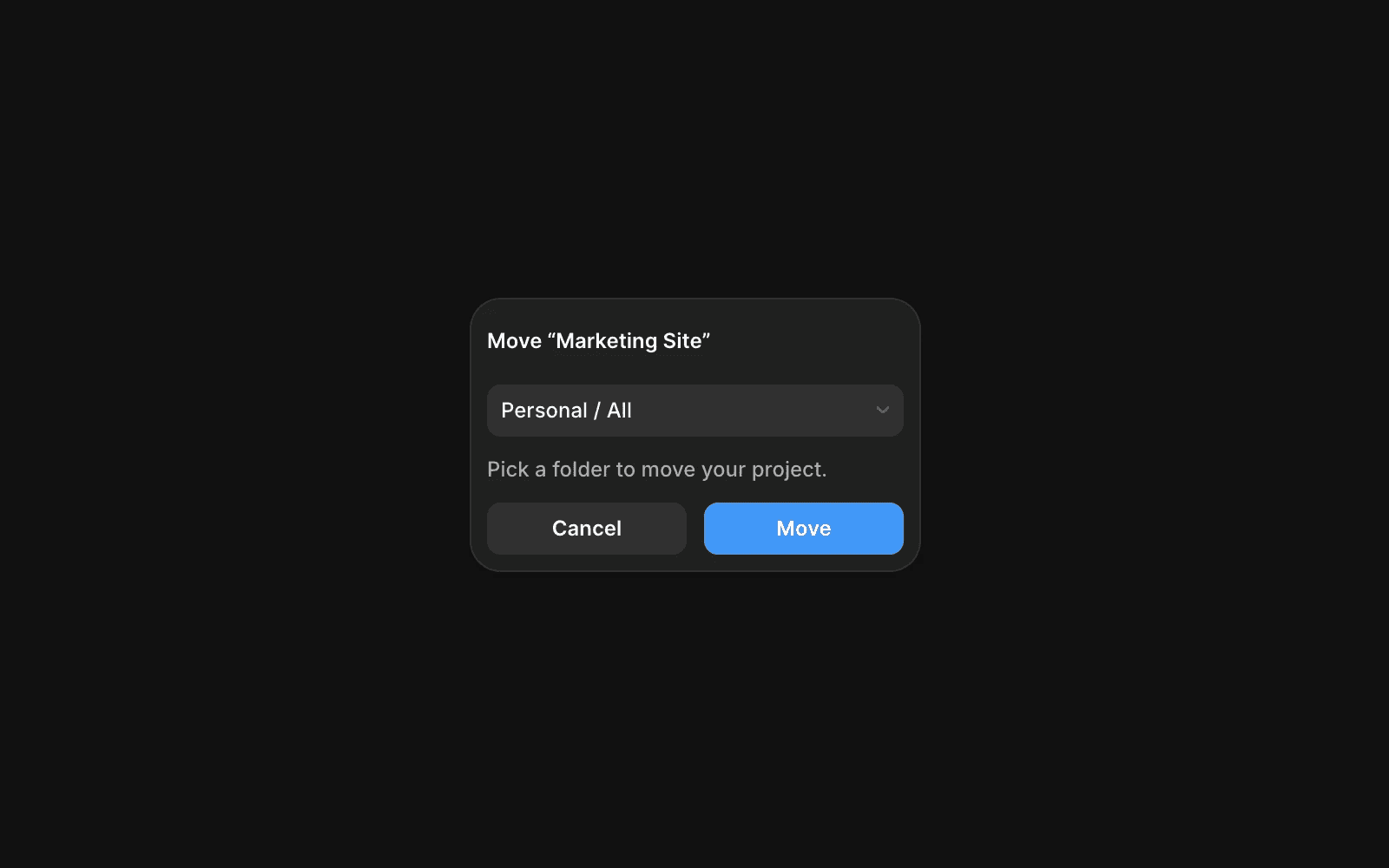
A pop-up dialog box titled "Move 'My Project'" with a dropdown menu displaying "My Workspace / All." Below the dropdown, text reads: "Pick a location to move your project. Your team must enable moving projects between workspaces to move it out of the workspace." Two buttons are at the bottom: "Cancel" (gray) and "Move" (blue). The background is dark.

What happens to active subscriptions?

Projects with active subscriptions can be moved to another workspace.

When a project is moved:

  • The existing subscriptions is canceled.

  • Any unused value from the subscription is converted into account credit.

  • The credit remains in the original workspace and can be applied to future invoices within that workspace.

If the project requires a paid subscriptions after the move, you’ll need to activate a new subscriptions in the destination workspace.

Before you move a project

Consider the following before moving a project:

  • Workspace membership and permissions may differ between workspaces.

  • Subscription credits do not move with the project.

  • Billing is managed separately for each workspace.

If you’ve created or duplicated a project in the wrong workspace, you can move it to another workspace in just a few steps.

Move a project

To move a project to a different workspace:

  1. Open the Dashboard.

  2. Locate the project you want to move.

  3. Click the three-dot menu icon next to the project name.

  4. Select Move.

  5. Choose the destination workspace.

  6. Click Move to confirm.

The project will be transferred to the selected workspace.

A pop-up dialog box titled "Move 'My Project'" with a dropdown menu displaying "My Workspace / All." Below the dropdown, text reads: "Pick a location to move your project. Your team must enable moving projects between workspaces to move it out of the workspace." Two buttons are at the bottom: "Cancel" (gray) and "Move" (blue). The background is dark.

What happens to active subscriptions?

Projects with active subscriptions can be moved to another workspace.

When a project is moved:

  • The existing subscriptions is canceled.

  • Any unused value from the subscription is converted into account credit.

  • The credit remains in the original workspace and can be applied to future invoices within that workspace.

If the project requires a paid subscriptions after the move, you’ll need to activate a new subscriptions in the destination workspace.

Before you move a project

Consider the following before moving a project:

  • Workspace membership and permissions may differ between workspaces.

  • Subscription credits do not move with the project.

  • Billing is managed separately for each workspace.

FAQ

  • Can I move a project with an active subscription?

    Yes. The project can be moved, but the existing subscription will be canceled as part of the transfer.

  • What happens to the unused portion of my subscription?

    The unused value is converted into account credit and remains in the original workspace.

  • Does account credit move with the project?

    No. Credits stay in the workspace where they were originally generated and can only be used for future invoices in that workspace.

Updated