Delete a workspace

Learn how to permanently delete a workspace and what happens to its members and projects.

Deleting a workspace removes access for all members and cannot be undone. Before proceeding, make sure you understand how this action affects projects and workspace collaborators.

Before you delete a workspace

When a workspace is deleted:

  • All members lose access to the workspace.

  • Projects from the workspace are moved to the Archive for each project owner.

  • The workspace and its settings are permanently removed.

  • This action cannot be reversed.

Delete a workspace

To delete a workspace:

  1. Open the Dashboard.

  2. Select the workspace you want to delete from the workspace switcher in the top-left corner.

  3. Click Settings in the left sidebar.

  4. Open the Details tab.

  5. Click Delete Workspace.

  6. Confirm the deletion in the dialog that appears.
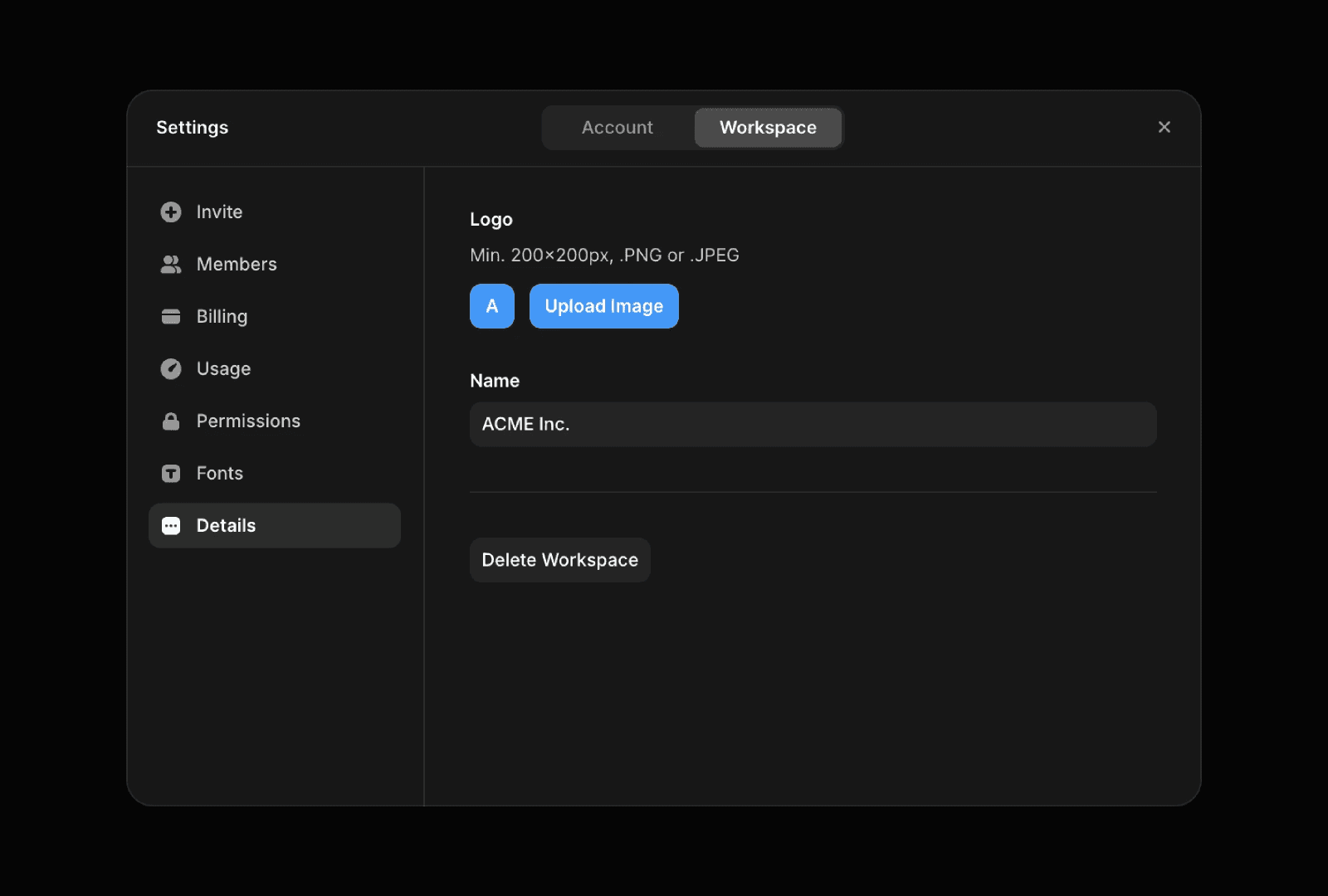
A dark-themed settings interface open to the "Details" tab. The panel allows users to upload a workspace logo with a minimum resolution of 200x200px in PNG or JPEG format. A text field shows the workspace name as "My Workspace," and a button at the bottom allows users to "Delete Workspace."

What happens to projects?

Projects are not permanently deleted when a workspace is removed. Instead, they are moved to the Archive for each project owner, where they can still be accessed and managed by their respective owners.

Deleting a workspace removes access for all members and cannot be undone. Before proceeding, make sure you understand how this action affects projects and workspace collaborators.

Before you delete a workspace

When a workspace is deleted:

  • All members lose access to the workspace.

  • Projects from the workspace are moved to the Archive for each project owner.

  • The workspace and its settings are permanently removed.

  • This action cannot be reversed.

Delete a workspace

To delete a workspace:

  1. Open the Dashboard.

  2. Select the workspace you want to delete from the workspace switcher in the top-left corner.

  3. Click Settings in the left sidebar.

  4. Open the Details tab.

  5. Click Delete Workspace.

  6. Confirm the deletion in the dialog that appears.

A dark-themed settings interface open to the "Details" tab. The panel allows users to upload a workspace logo with a minimum resolution of 200x200px in PNG or JPEG format. A text field shows the workspace name as "My Workspace," and a button at the bottom allows users to "Delete Workspace."

What happens to projects?

Projects are not permanently deleted when a workspace is removed. Instead, they are moved to the Archive for each project owner, where they can still be accessed and managed by their respective owners.

FAQ

  • Can I restore a workspace after deleting it?

    No. Workspace deletion is permanent and cannot be undone.

  • What happens to workspace members?

    All members immediately lose access to the deleted workspace.

  • Are projects deleted when a workspace is removed?

    No. Projects are moved to the Archive for each project owner rather than being permanently deleted.

Updated