Search
Turn Figma designs into responsive websites with Framer
Framer helps teams turn Figma designs into responsive websites instead of stopping at exported code. Use the Figma to HTML with Framer plugin, adapt the design across breakpoints, connect Framer’s CMS, tune SEO, and publish a complete site from the same place.

ANTHEM
anthem.framer.website


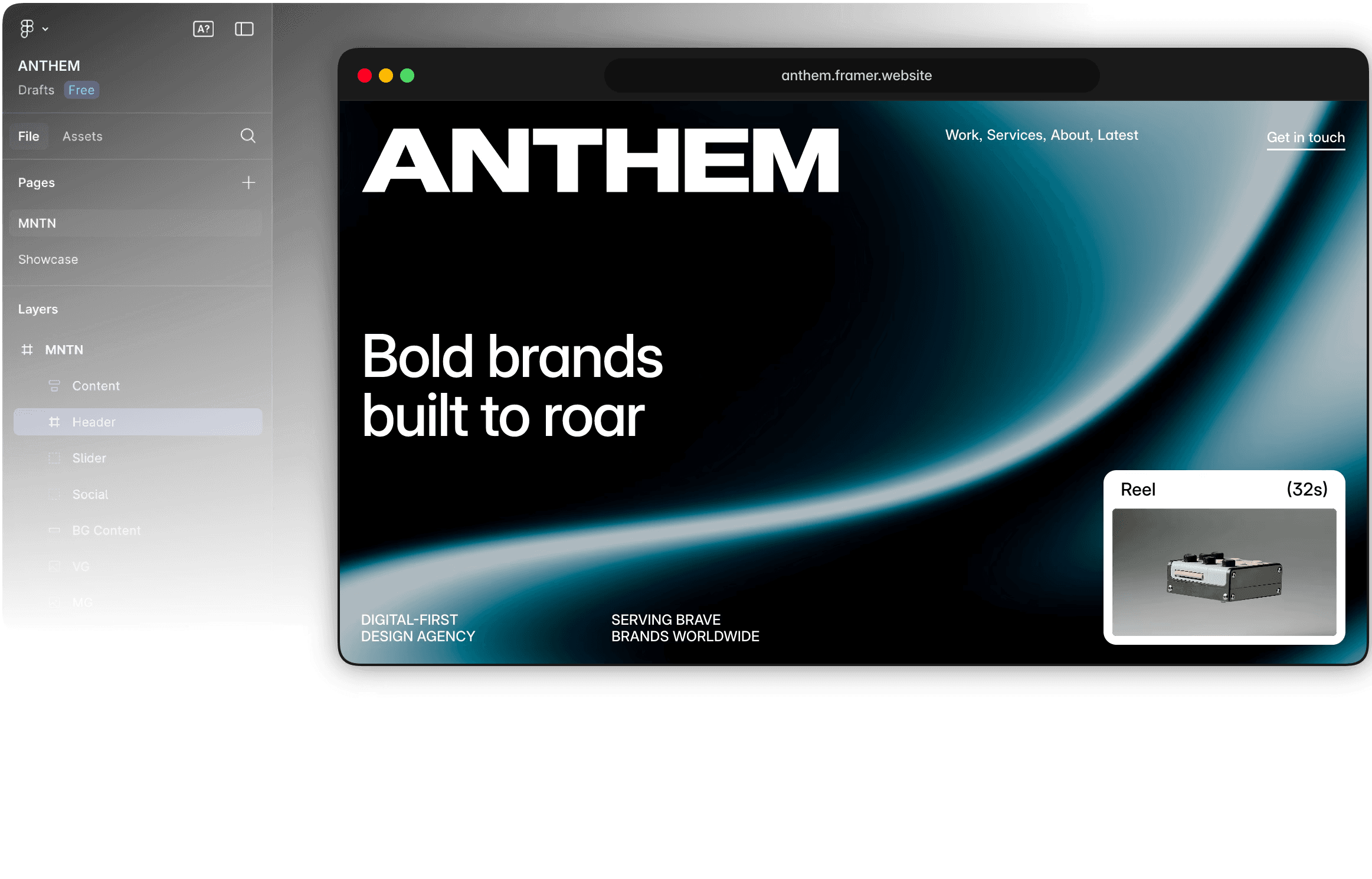

Move from Figma to a real site
Copy from Figma
Copy a design from Figma, paste it into Framer, and refine it into a responsive page on the visual canvas. Connect CMS content, set up SEO, and publish, all in the same tool.
Adapt for every screen
Use Framer to more precisely adapt the pasted design for desktop, tablet, and mobile with responsive layout tools, flexible breakpoints, stacks, grids, and visual sizing controls.
Add real website content
Add the website layer Figma does not manage: connect pages to Framer’s CMS for blogs, resources, case studies, directories, and repeatable content systems at scale.
Why designers bring Figma work into Framer

Bring Figma work into Framer, then use Branches so designers, marketers, and developers can refine the same responsive site together without passing files back and forth.

Refine breakpoints, spacing, typography, and interactions on the canvas so the original Figma composition works on desktop, tablet, and mobile.

Add the web systems the Figma design file does not contain: CMS content, advanced SEO tuning, internal links, forms, and flexible templates for recurring pages.

Publish instantly on Framer’s advanced hosting with custom domains, automatic SSL, fast global CDN, staging environments, and full version history included by default.
How to turn Figma designs into websites
1. Bring your design into Framer
Copy layouts from Figma into Framer and keep the structure editable on a visual web canvas. Instead of stopping at a static design file, you can move the work toward a responsive live website.
2. Make it responsive
Tune breakpoints, spacing, sizing, typography, and visibility so the design works across desktop, tablet, and mobile. Framer gives you control over the web behavior that a Figma mockup cannot fully express.
3. Add web-ready systems
Connect CMS content, interactions, SEO metadata, forms, and images so the page becomes a production website. This is where imported design turns into a page that can be published, updated, and discovered.
4. Publish and keep editing
Launch with Framer’s advanced hosting and continue updating the live site visually after handoff. Designers can keep improving the site without sending every layout or content change back through engineering.
Trusted by teams shipping big sites









Explore Framer’s solutions for designers
Agency websites
Design, review, and publish custom client websites without handoff delays.
CMS websites
Create dynamic pages, directories, and content hubs with visual templates.
Responsive websites
Design adaptive layouts and fine-tune every breakpoint without code.
AI website builder
Generate a website with AI, refine it visually, and publish from one place.
UI/UX design
Design interactive interfaces and turn realistic prototypes into live sites.
Figma to HTML
Import Figma layouts, refine them for the web, and publish responsive sites.
Design tool
Explore ideas on a freeform canvas and move the best direction to the web.
Portfolio websites
Showcase design, photography, and creative work with a custom portfolio.
Frequently asked questions
Can I turn a Figma design into a responsive website with Framer?
Yes. Use Framer’s Figma plugin to bring frames, layers, and visual structure into Framer. You can then refine the imported design on the visual canvas, adjust layouts across breakpoints, add interactions, connect CMS content, configure SEO settings, and publish a responsive website without rebuilding the entire design from scratch.
Yes. Use Framer’s Figma plugin to bring frames, layers, and visual structure into Framer. You can then refine the imported design on the visual canvas, adjust layouts across breakpoints, add interactions, connect CMS content, configure SEO settings, and publish a responsive website without rebuilding the entire design from scratch.
What is the difference between Figma to website and Figma to HTML?
Figma to HTML describes converting a design into markup and front-end code. Figma to website covers the production workflow. In Framer, the imported design becomes an editable website with responsive layouts, components, CMS content, SEO controls, hosting, and publishing. You keep working visually instead of maintaining a code export.
Figma to HTML describes converting a design into markup and front-end code. Figma to website covers the production workflow. In Framer, the imported design becomes an editable website with responsive layouts, components, CMS content, SEO controls, hosting, and publishing. You keep working visually instead of maintaining a code export.
Can I edit the responsive website after importing it from Figma?
After importing the design, everything remains editable on the Framer canvas. You can change text, images, spacing, typography, layouts, components, interactions, and breakpoint behavior.
After importing the design, everything remains editable on the Framer canvas. You can change text, images, spacing, typography, layouts, components, interactions, and breakpoint behavior.
Can an imported Figma design use Framer CMS content?
Imported designs can be connected to Framer’s CMS for blogs, resources, case studies, directories, landing pages, and other repeatable content. Create a designed CMS template, bind its text and media to collection fields, and publish new pages from the collection without rebuilding the layout for every item.
Imported designs can be connected to Framer’s CMS for blogs, resources, case studies, directories, landing pages, and other repeatable content. Create a designed CMS template, bind its text and media to collection fields, and publish new pages from the collection without rebuilding the layout for every item.
Can I publish the finished responsive website from Framer?
You can publish the website directly from Framer, which includes advanced hosting, SSL, custom domains, staging, redirects, versioning, performance tools, and SEO controls. Review the imported design across desktop, tablet, and mobile breakpoints, then keep updating the layout or content after launch.
You can publish the website directly from Framer, which includes advanced hosting, SSL, custom domains, staging, redirects, versioning, performance tools, and SEO controls. Review the imported design across desktop, tablet, and mobile breakpoints, then keep updating the layout or content after launch.
Your next idea starts here
Create personal portfolio
Build startup site
Launch landing page
Start company blog
