Getting started with Framer is quick and flexible. You can create a free account using your Google account or any email address. If you already have an account, Framer will sign you in automatically.
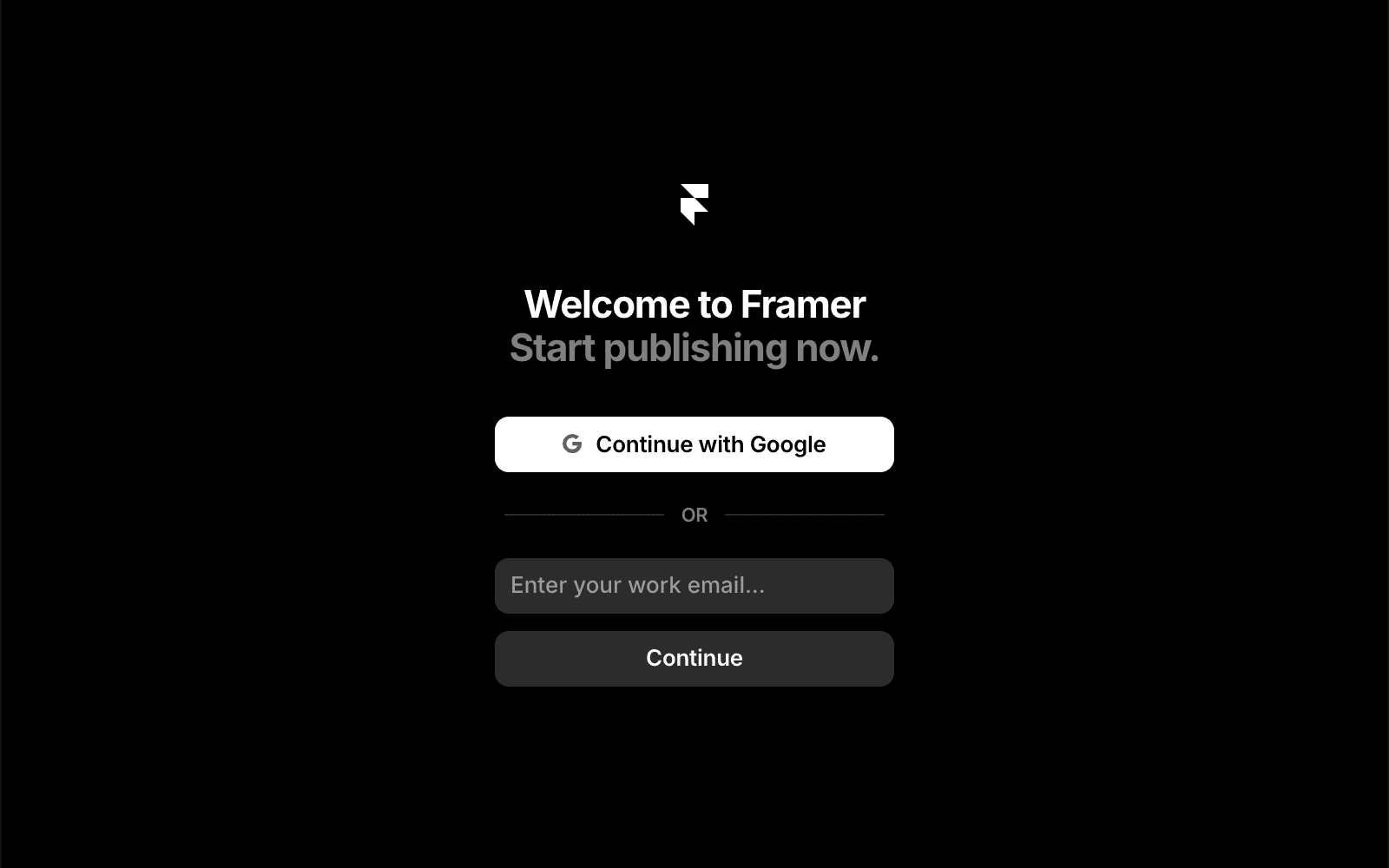
Sign up with your Google account
You can create a Framer account with your Google account in a few simple steps:
Go to Framer and click Sign up.
Select Continue with Google.
Choose an existing Google account or sign in to Google.
Grant the required permissions.
Return to Framer and complete your account setup.
Sign up with your email address
If you prefer not to use Google, you can sign up with any email provider, including Outlook or iCloud.
Go to Framer and click Sign up.
Select Continue with email.
Enter your email address and click Continue.
Open the activation email sent to your inbox.
Click the secure sign-in link in the email.
Return to Framer and complete your account setup.
Enter any additional details, such as your name or workspace name.
Passwordless sign-in
Framer does not use passwords. Instead, you'll receive a secure magic link by email whenever you sign in.
This approach helps keep your account secure while making it easy to access your workspace from any device.
FAQ
Do I need a Google account to use Framer?
No. You can create a Framer account with any valid email address using the email sign-up option.
What is a magic link?
A magic link is a secure sign-in link sent to your email. Clicking the link signs you in without requiring a password.
What should I do if I don’t receive the activation email?
Check your spam or junk folder first. If you still can’t find the email, try requesting a new sign-in link and make sure you entered the correct email address.
